The next step in the upgrade process is to upgrade vCenter. VCF 9.0 supports what is called Reduced Downtime Upgrade (RDU). RDU deploys a new vCenter appliance and copies the data from the old appliance. This drastically reduces the downtime as it is just a personality switchover that needs to happen after all the data is copied over. You need a free IP address in the same subnet as the vCenter. It does not require a DNS entry.

On the Available Updates screen, click Configure Update.
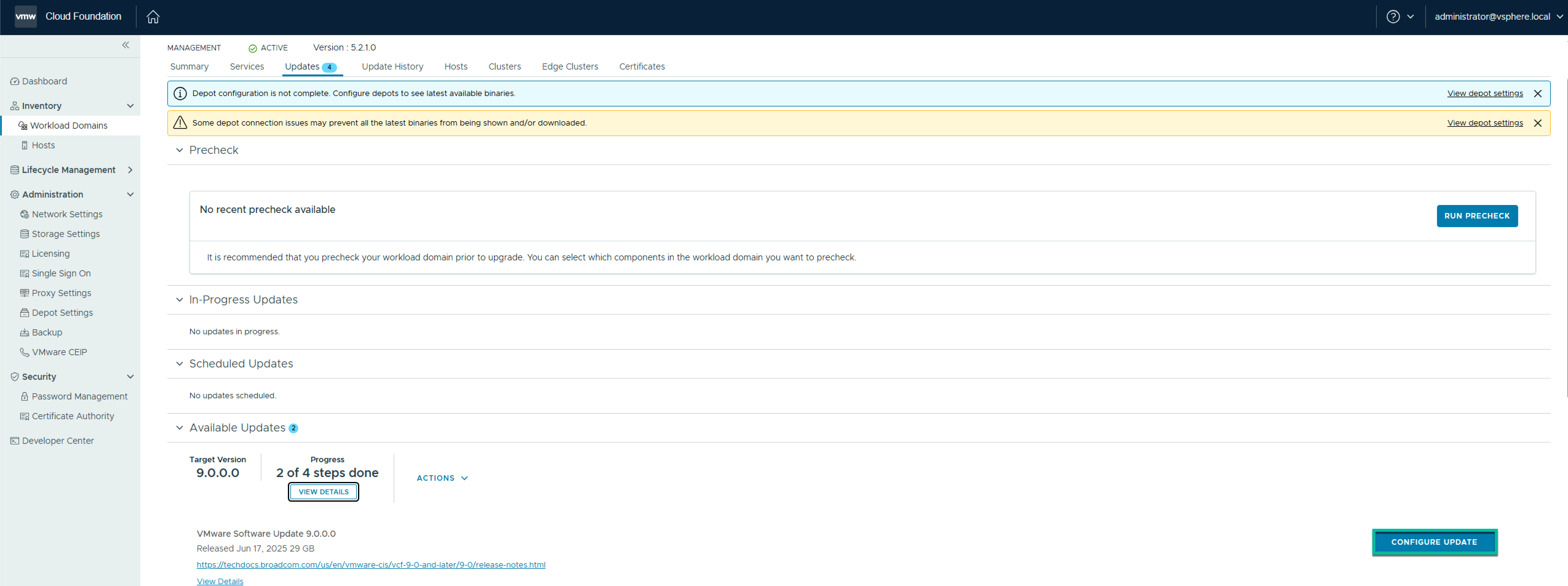
On the Upgrade Mechanism, review the details and click Next.

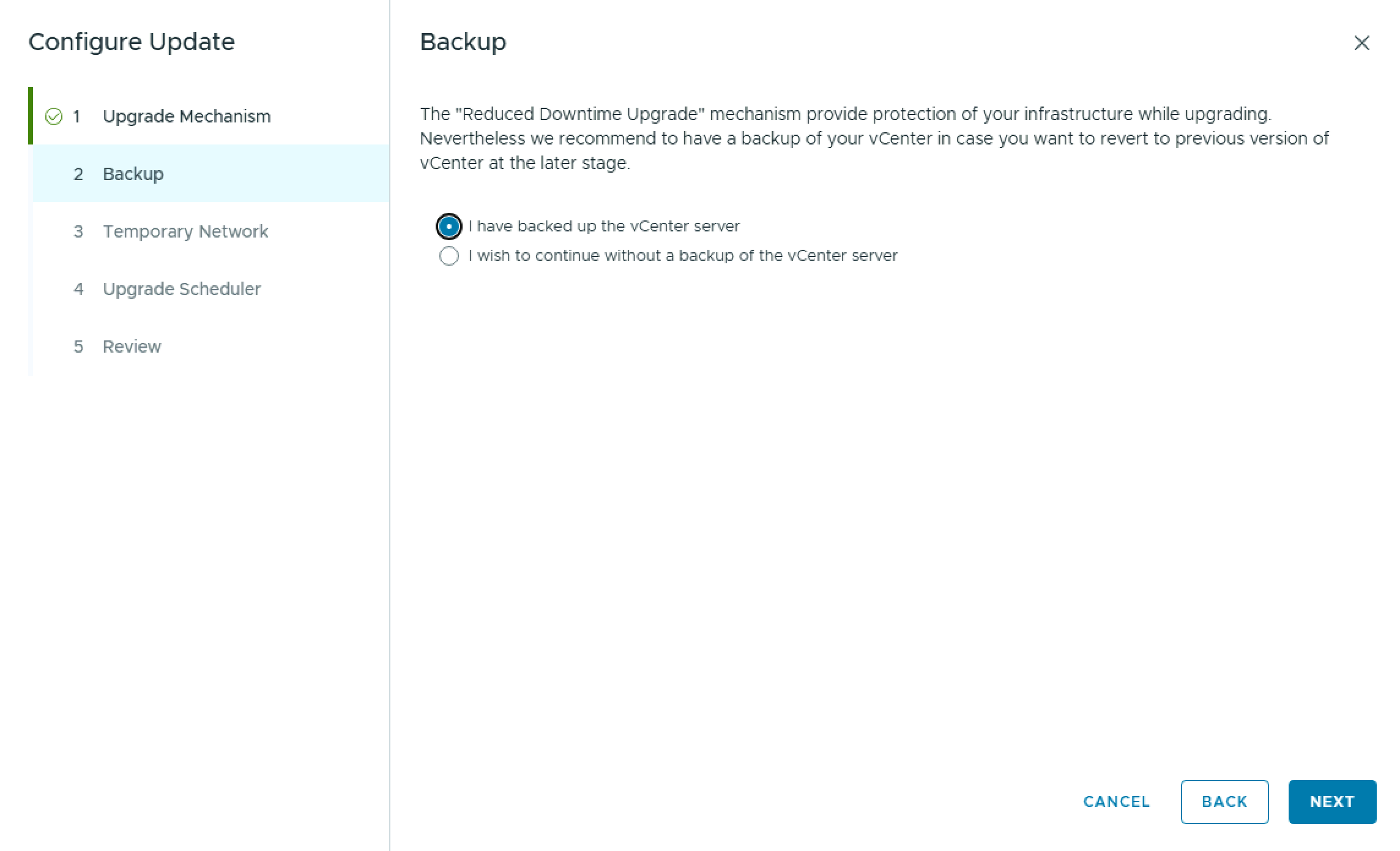
On the Backup pane, click I have backed up the vCenter server, and click Next.
On the Temporary Network pane, enter the temporary IP address that will be used during the Reduced Downtime Upgrade (RDU), and click Next. Reminder: The IP needs be unused and in the same subnet as the existing vCenter.

On the Upgrade Scheduler pane, select whether to perform the operations immediately or at a later time, and click Next.

On the Review pane, review the details and click Finish.

If you chose immediate, the upgrade process will begin.

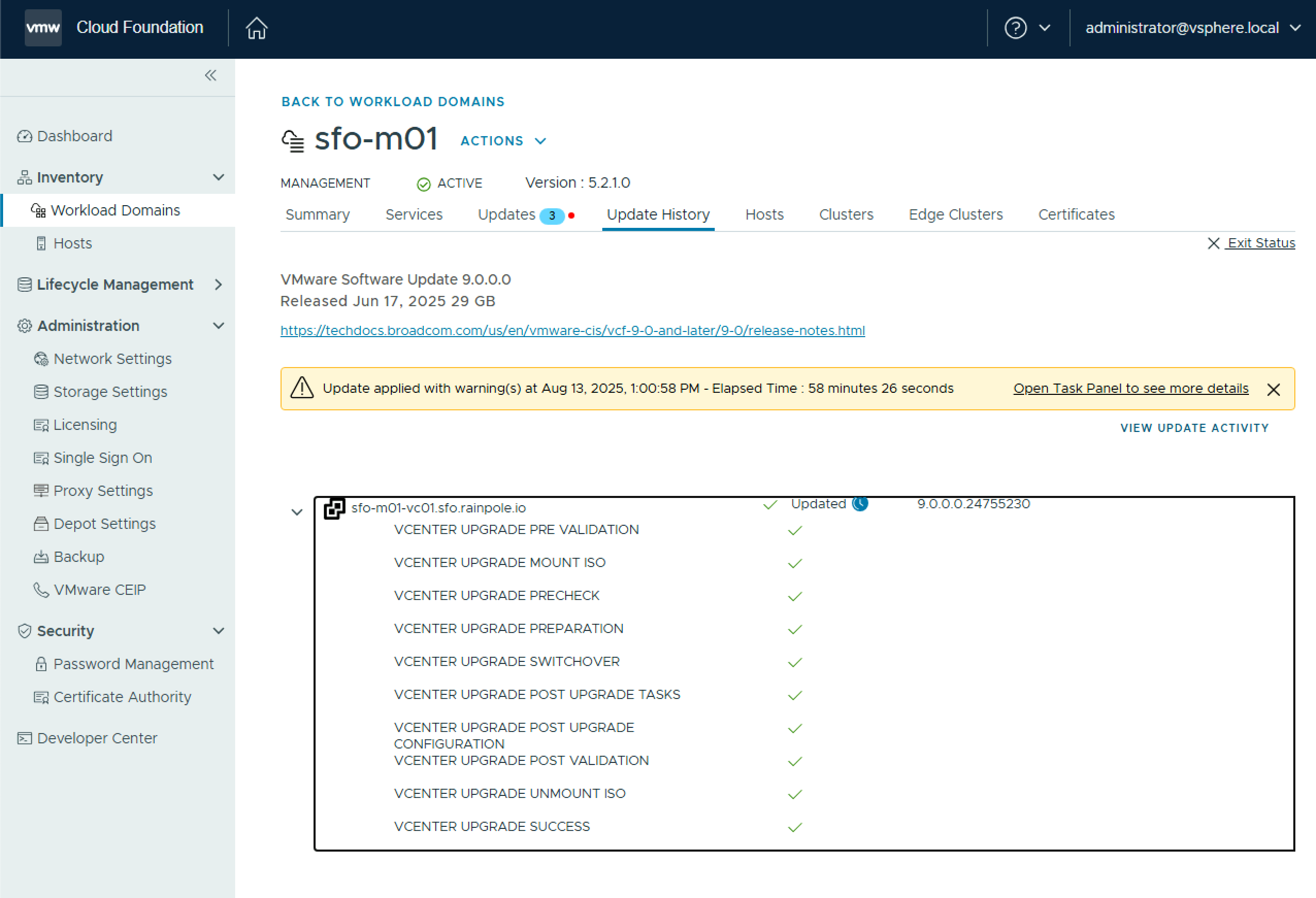
All going well, your vCenter upgrade completes successfully, and you can proceed to the next step.
 LifeOfBrianOC