The next step in the upgrade process is to upgrade vCenter. VCF 9.0 supports what is called Reduced Downtime Upgrade (RDU). RDU deploys a new vCenter appliance and copies the data from the old appliance. This drastically reduces the downtime as it is just a personality switchover that needs to happen after all the data is copied over. You need a free IP address in the same subnet as the vCenter. It does not require a DNS entry.
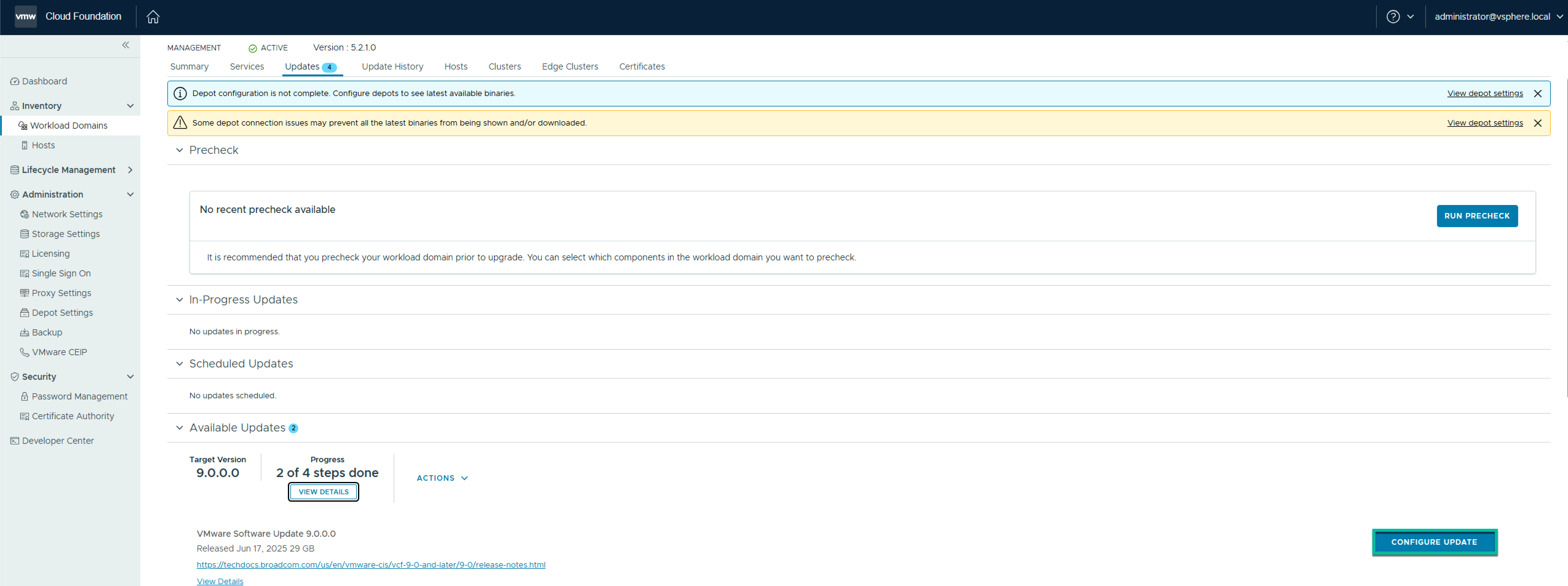
On the Available Updates screen, click Configure Update.
On the Upgrade Mechanism, review the details and click Next.
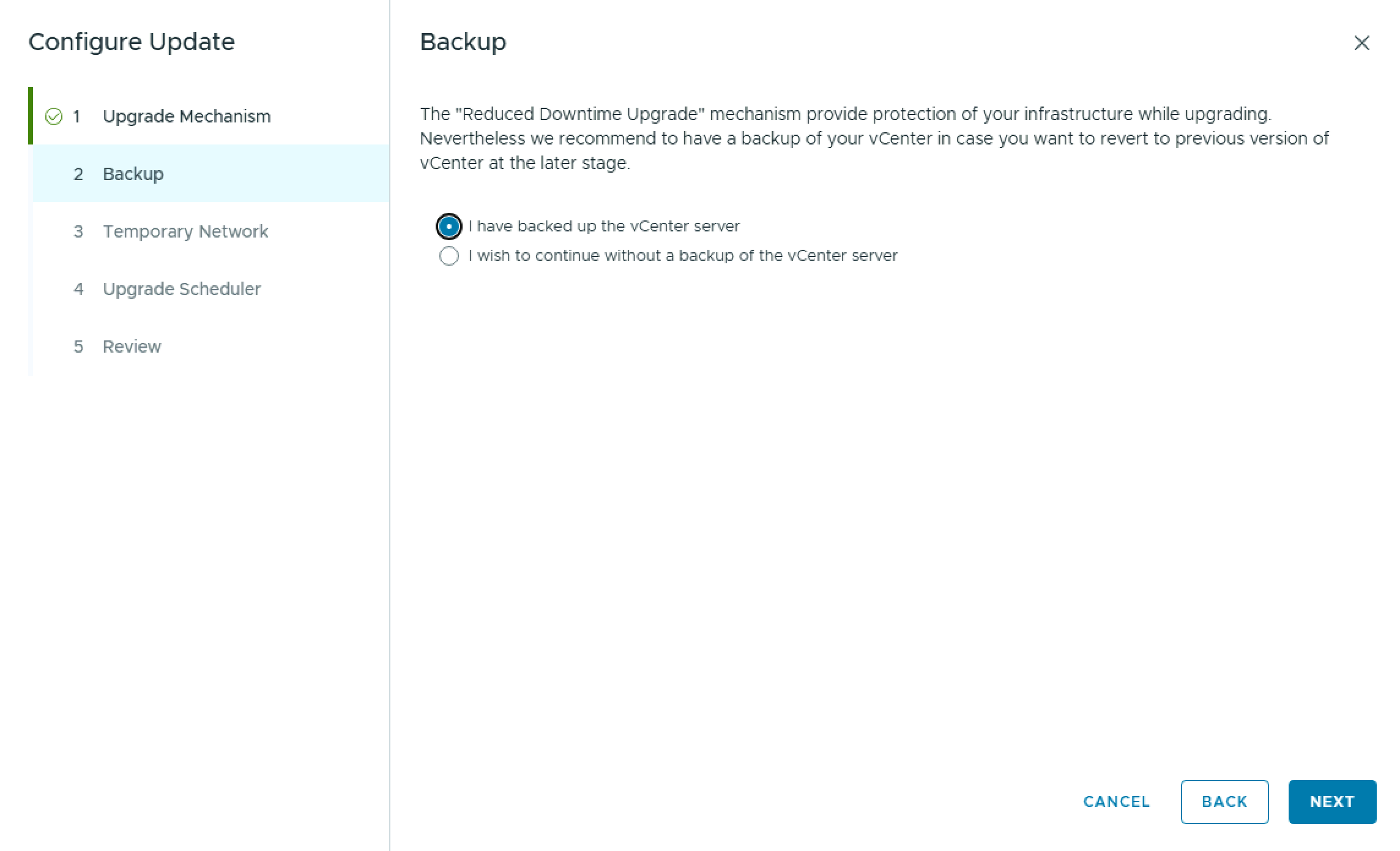
On the Backup pane, click I have backed up the vCenter server, and click Next.
On the Temporary Network pane, enter the temporary IP address that will be used during the Reduced Downtime Upgrade (RDU), and click Next. Reminder: The IP needs be unused and in the same subnet as the existing vCenter.
On the Upgrade Scheduler pane, select whether to perform the operations immediately or at a later time, and click Next.
On the Review pane, review the details and click Finish.
If you chose immediate, the upgrade process will begin.
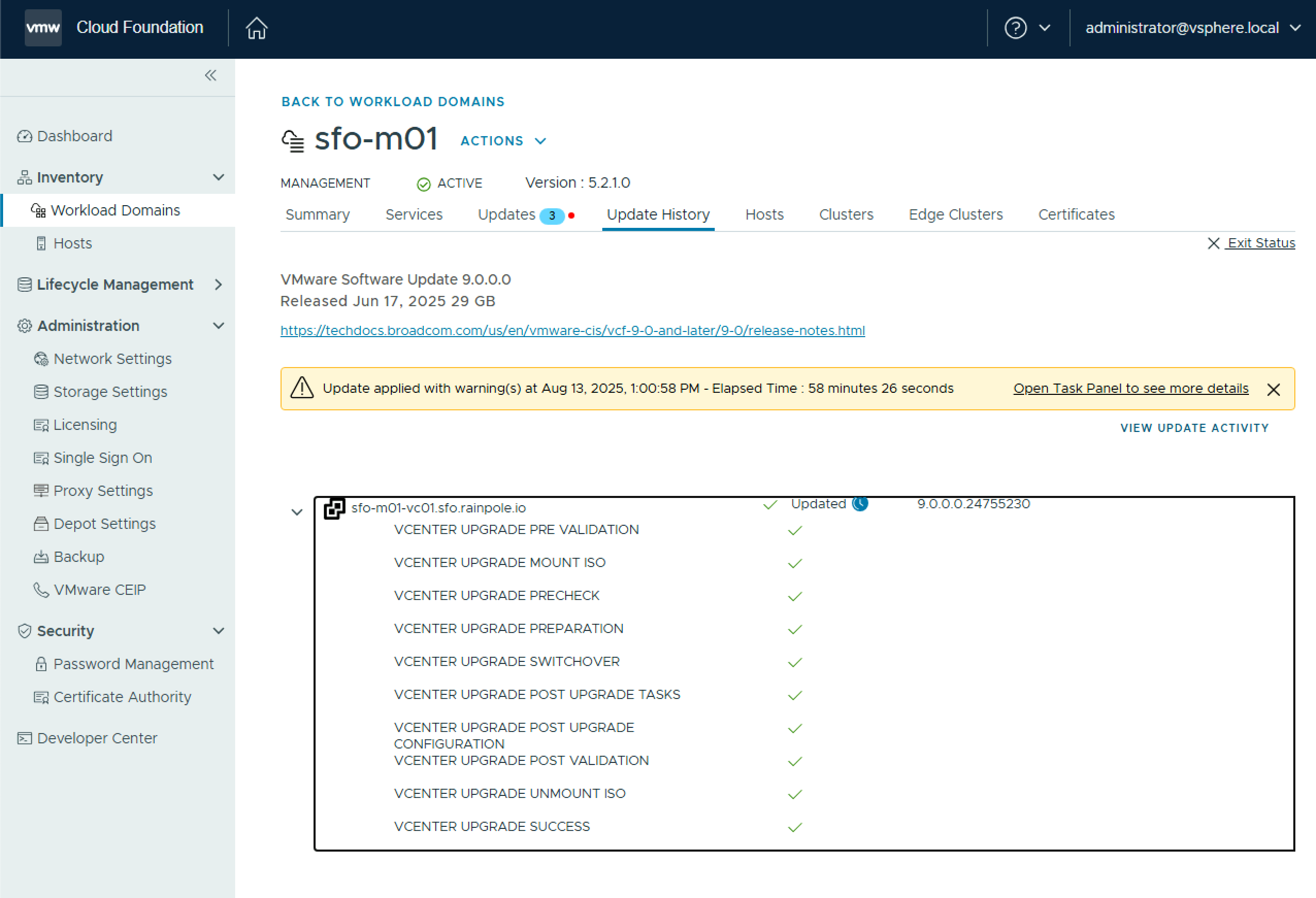
All going well, your vCenter upgrade completes successfully, and you can proceed to the next step.
I got a query from a customer how to add a user from an LDAP directory to an SSO group programmatically. There is no support in native PowerCLI for this that I am aware of but there is an open source module called VMware.vSphere.SsoAdmin which can be used to achieve the goal. I checked with my colleague Gary Blake and he had an example in the Power Validated Solutions Module that I was able to reference.
First off you need to install the VMware.vSphere.SsoAdmin module. This can be done from the PowerShell Gallery.
Install-Module VMware.vSphere.SsoAdmin
Once it is installed you can run the following to add an LDAP user to an SSO group
I needed to do some validation around vRealize Operations Manager & vRealize Orchestrator for an upcoming VVD release and a physical lab environment was made available. The environment is a dual region VVD deployment. Upon verifying that I had access to all the components I needed it became obvious there was an issue with SSO in the primary region (SFO). Browsing to the web client for the SFO management vCenter I was seeing this:
As i mentioned this is a VVD deployment and per VVD guidelines there are 2 Platform Services Controllers (PSCs) behind an NSX load balancer per region. Like so: (Diagram from the VMware Validated Design 5.0 Architecture & Design guide)
Like any good (lazy!) IT person the first thing i did was google the error to find the quick fix! That led me to this communities post which had some suggestions around disk space etc. None of which were relevant to my issue. Running the following on the PSCs and vCenters showed that some services were not starting
service-control –status
Restarting the services didn’t help. Next up i checked the usual suspects:
NTP
DNS
SSL Certificates
All of the above looked ok. Next I turned my attention to the load balancer. Because the vCenter Web Client was inaccessible I was not able to access the load balancer settings through the UI so I turned to the NSX API using Postman
To connect to the NSX manager that is associated with the load balancer you need to configure a Postman session with basic authentication and enter the NSX manager admin user & password.
To retrieve information on the load balancer you need to run the following GET:
I wont post the full response from the above command as it’s lengthy but scanning through it I noticed that the condition of each load balancer pool member was disabled. In the immortal words of Bart Simpson:
The response above is from a more targeted API call to /pools/pool-1.
Now I dont know how it got into this state – maybe someone was doing some jenga style doomsday testing, pulling one brick at a time until the tower crashes! – but this certainly looked to be the cause of the issue. So I figured the quickest fix would be to do a PUT API call to NSX with condition enabled for the pool members and I’d be all set. Not so easy!
Running the following PUT appears to work temporarily (running a GET at the same time confirms this)
But the change does not get fully applied and reverts the conditions to disabled after about 30 seconds with the below error:
So to apply the change to the load balancer NSX requires a handoff with the PSC that is is mapped to…in this case its the load balanced PSC that is not functional. So the command fails.
So it was clear I needed to get at least 1 PSC operational before i could attempt to make a change. Time to play with some DNS redirects to “fool” the PSC services into starting.
As my PSCs are setup in HA mode behind a load balancer the SSO endpoint URL is https://sfo01psc01.sfo01.rainpole.local which both PSCs will respond from. So to get my first PSC up I changed the IP for sfo01psc01.sfo01.rainpole.local in DNS to point to the first PSC’s IP.
So now, pings to the load balancer VIP FQDN sfo01psc01.sfo01.rainpole.local respond from the first PSC IP
Next I set a static entry in /etc/hosts on each of my PSCs, and vCenters to do the same as i’ve seen vCenter especially cache DNS entries in it’s local dnsmasq.
Next step was to stop & start all services on each PSC
service-control –stop –all
service-control –start –all
And hey presto the services started! Ran the same on vCenter and the services also started. This allowed me to go in and modify the load balancer pools to set the members to enabled.
Once the load balancer was back as it should be it was just a case of removing the /etc/hosts entries on each VM and reverting the DNS server change to point the load balancer FQDN back to its correct IP address.
For completeness I restarted all the services on each appliances in the above mentioned order
Moral of the story? Dont disable both nodes in a load balancer pool!
Now onwards with the original testing i needed to do!
I have been doing a lot of lab testing lately and using vCloud Director is a great way to be able to run side by side tests (sometimes destructive!) against multiple environments without requiring multiple physical clusters. I wanted to emulate a Dell EMC VxRail appliance so I created a 4 node nested vSAN cluster with a vCenter appliance & external PSC running on the cluster, to use as a vCD template. When creating vCD templates it is preferable to power down the environment before adding to the vCD catalog. When it comes to powering down this environment, because the vCenter & PSC are running on the cluster, there is a chicken and egg scenario as you need to power down in this order:
vCenter
PSC
Put ESXi hosts in maintenance mode (vSAN aware operation)
Power down ESXi hosts
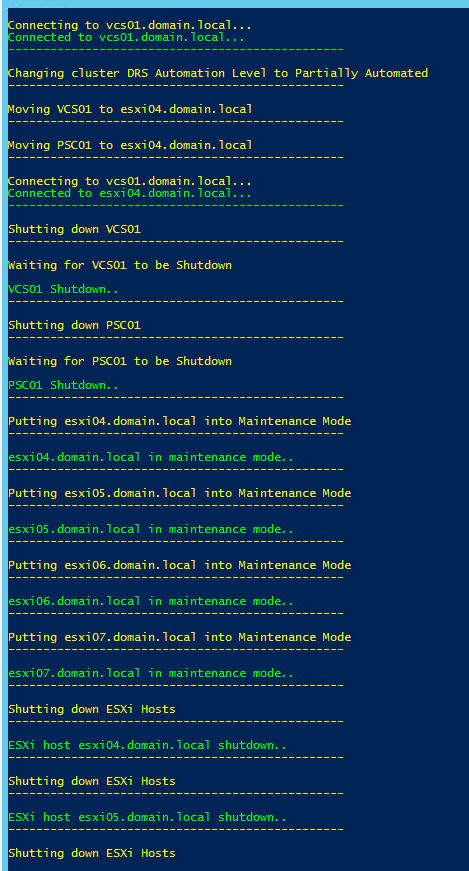
The inverse applies when powering up the environment. So rather than connect to multiple different interfaces to execute the power down or power up operations I put together the following Menu based PowerCli script with the following Options
Generic function to connect to a VIServer (ESXi or vCenter). Just pass the hostname, user & password. This instance connects to vCenter as we need to perform a DRS operation.
ChangeDRSLevel $PartiallyAutomated
The ChangeDRSLevel function takes an argument for the level to set it to. In this case it sets it to partially Automated to stop DRS from moving VMs around.
MoveVMs
This function will move the VMs defined in $VMList to the host defined in $VMHost. This ensures that we know where the VMs are when we come to power the cluster back up
Generic function to connect to a VIServer (ESXi or vCenter). Just pass the hostname, user & password. This instance connects to the host defined in the $VMHost variable
ShutdownVM
This function will gracefully shutdown the VMs in the order defined in $VMList. In this case it will shutdown the vCenter first & then the PSC. This list can be expanded to include other VMs or could be refactored to use a CSV for a large list of VMs
EnterMaintenanceMode
This function will put all hosts defined in $VMHosts into maintenance mode. As this is a vSAN cluster it passes the NoAction flag to prevent any data moment or rebuild
ShutdownESXiHosts
This function will shutdown all hosts in the cluster
Option 2. Startup vSAN Cluster & PSC/vCenter
ExitMaintenanceMode
This function will exit all hosts from maintenance mode
Generic function to connect to a VIServer (ESXi or vCenter). Just pass the hostname, user & password. This instance connects to the host defined in the $VMHost variable
StartVMs
This function will startup the VMs in the reverse order defined in $VMList. In this case it will startup the PSC first & then the vCenter.
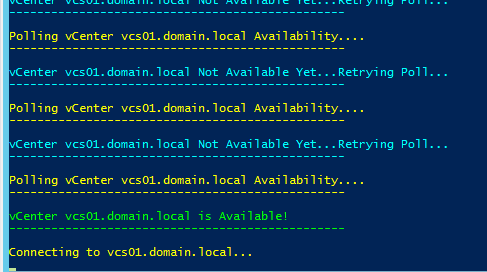
PollvCenter
This function will Poll vCenter until it is up and available
Generic function to connect to a VIServer (ESXi or vCenter). Just pass the hostname, user & password. This instance connects to vCenter as we need to perform a DRS operation
ChangeDRSLevel $FullyAutomated
The ChangeDRSLevel function takes an argument for the level to set it to. In this case it sets it to Fully Automated as we are done with the maintenance.
The script is posted to Github here and is also posted below. This was written and tested against vSphere 6. I will update it in the coming weeks for vSphere 6.5 and hopefully leverage some of the new APIs
# Script to shutdown & startup a vSAN cluster when vCenter/PSC are running on the cluster
# Created by Brian O'Connell | Dell EMC
# Provided with zero warranty! Please test before using in anger!
# @LifeOfBrianOC
# https://lifeofbrianoc.com/

## User Variables ##
$vCenterFQDN = "vcs01.domain.local"
$vCenterUser = "VC_Admin@domain.local"
$vCenterPassword = "Password123!"
$Cluster = "MARVIN-Virtual-SAN-Cluster"
$VMList = @("VCS01", "PSC01")
$VMHosts = @("esxi04.domain.local", "esxi05.domain.local", "esxi06.domain.local", "esxi07.domain.local")
$VMHost = "esxi04.domain.local"
$VMHostUser = "root"
$VMHostPassword = "Password123!"

### DO NOT MODIFY ANYTHING BELOW THIS LINE ###

# Add Required PowerCli Modules
Get-Module -ListAvailable VM* | Import-Module

# Function to Connect to VI Host (vCenter or ESXi). Pass host, username & password to the function
Function ConnectVIServer ($VIHost, $User, $Password) {
    Write-Host " "
    Write-Host "Connecting to $VIHost..." -Foregroundcolor yellow
    Connect-VIServer $VIHost -User $User -Password $Password | Out-Null
	Write-Host "Connected to $VIHost..." -Foregroundcolor Green
    Write-Host "------------------------------------------------" -Foregroundcolor Green
}

# Define DRS Levels to stop Vms from moving away from the defined host
$PartiallyAutomated = "PartiallyAutomated"
$FullyAutomated = "FullyAutomated"

# Function to Change DRS Automation level
Function ChangeDRSLevel ($Level) {

    Write-Host " "
    Write-Host "Changing cluster DRS Automation Level to Partially Automated" -Foregroundcolor yellow
    Get-Cluster $cluster | Set-Cluster -DrsAutomation $Level -confirm:$false | Out-Null
    Write-Host "------------------------------------------------" -Foregroundcolor yellow
}

# Function to Move the Vms to a defined host so they can be easily found when starting back up
Function MoveVMs {

    Foreach ($VM in $VMList) {
        # Power down VM
        Write-Host " "
        Write-Host "Moving $VM to $VMHost" -Foregroundcolor yellow
        Get-VM $VM | Move-VM -Destination $VMHost -Confirm:$false | Out-Null
        Write-Host "------------------------------------------------" -Foregroundcolor yellow
    }
    Disconnect-VIServer $vCenterFQDN -confirm:$false | Out-Null
}

# Function to Shutdown VMs
Function ShutdownVM  {

    Foreach ($VM in $VMList) {
        # Power down VM
        Write-Host " "
        Write-Host "Shutting down $VM" -Foregroundcolor yellow
        Shutdown-VMGuest $VM -Confirm:$false | Out-Null
        Write-Host "------------------------------------------------" -Foregroundcolor yellow
        Write-Host " "
        Write-Host "Waiting for $VM to be Shutdown" -Foregroundcolor yellow
        # Check VM powerstate and wait until it is powered off before proceeding with the next VM
        do {
            sleep 15
            $powerState = (get-vm $VM).PowerState
        }
        while ($powerState -eq "PoweredOn")
        Write-Host " "
        Write-Host "$VM Shutdown.." -Foregroundcolor green
        Write-Host "------------------------------------------------" -Foregroundcolor yellow
    }
}

# Function to put all ESXi hosts into maintenance mode with the No Action flag for vSAN data rebuilds
Function EnterMaintenanceMode {

    Foreach ($VMHost in $VMHosts) {
        Connect-VIServer $VMHost -User root -Password $VMHostPassword | Out-Null
        # Put Host into Maintenance Mode
        Write-Host " "
        Write-Host "Putting $VMHost into Maintenance Mode" -Foregroundcolor yellow
        Get-View -ViewType HostSystem -Filter @{"Name" = $VMHost }|?{!$_.Runtime.InMaintenanceMode}|%{$_.EnterMaintenanceMode(0, $false, (new-object VMware.Vim.HostMaintenanceSpec -Property @{vsanMode=(new-object VMware.Vim.VsanHostDecommissionMode -Property @{objectAction=[VMware.Vim.VsanHostDecommissionModeObjectAction]::NoAction})}))}
        Disconnect-VIServer $VMHost -confirm:$false | Out-Null
        Write-Host "------------------------------------------------" -Foregroundcolor yellow
        Write-Host " "
        Write-Host "$VMHost in maintenance mode.." -Foregroundcolor green
        Write-Host "------------------------------------------------" -Foregroundcolor yellow
    }
}

# Function to Exit hosts from maintenance mode
Function ExitMaintenanceMode {

    Foreach ($VMHost in $VMHosts) {
        Connect-VIServer $VMHost -User root -Password $VMHostPassword | Out-Null
        # Exit Maintenance Mode
        Write-Host " "
        Write-Host "Exiting Maintenance Mode for $VMHost" -Foregroundcolor yellow
        Set-VMHost $VMHost -State "Connected" | Out-Null
        Disconnect-VIServer $VMHost -confirm:$false | Out-Null
        Write-Host "------------------------------------------------" -Foregroundcolor yellow
        Write-Host " "
        Write-Host "$VMHost out of maintenance mode.." -Foregroundcolor green
        Write-Host "------------------------------------------------" -Foregroundcolor yellow
    }
    Write-Host "Waiting for vSAN Cluster to be Online" -Foregroundcolor yellow
	Sleep 60
}

# Function to shutdown hosts
Function ShutdownESXiHosts {

    Foreach ($VMHost in $VMHosts) {
        # Exit Maintenance Mode
        Write-Host " "
        Write-Host "Shutting down ESXi Hosts" -Foregroundcolor yellow
        Connect-VIServer -Server $VMHost -User root -Password $VMHostPassword | %{
            Get-VMHost -Server $_ | %{
                $_.ExtensionData.ShutdownHost_Task($TRUE) | Out-Null
            }
        }
        Write-Host "------------------------------------------------" -Foregroundcolor yellow
        Write-Host " "
        Write-Host "ESXi host $VMHost shutdown.." -Foregroundcolor green
        Write-Host "------------------------------------------------" -Foregroundcolor yellow
    }
		Write-Host "------------------------------------------------" -Foregroundcolor yellow
        Write-Host " "
        Write-Host "All ESXi Hosts shutdown.." -Foregroundcolor green
        Write-Host "------------------------------------------------" -Foregroundcolor yellow
}

# Function to Start VMs in the reverse order they were powered down
Function StartVMs {
    # Reverse the VM list to start in reverse order
    [array]::Reverse($VMList)

    Foreach ($VM in $VMList) {
        # Power on VM
        Write-Host " "
        Write-Host "Powering on $VM" -Foregroundcolor yellow
        Start-VM $VM -Confirm:$false | Out-Null
        Write-Host "------------------------------------------------" -Foregroundcolor yellow
        Write-Host " "
        Write-Host "Waiting for $VM to be Powered On" -Foregroundcolor yellow
        # Check VM powerstate and wait until it is powered on before proceeding with the next VM
        do {
            sleep 15
            $powerState = (get-vm $VM).PowerState
        }
        while ($VM -eq "PoweredOff")
        Write-Host " "
        Write-Host "$VM Powered On..proceeding with next VM" -Foregroundcolor green
        Write-Host "------------------------------------------------" -Foregroundcolor yellow
    }

}

# Function to Poll the status of vCenter after starting up the VM
Function PollvCenter {

    do
    {
        try
        {
            Write-Host " "
            Write-Host "Polling vCenter $vCenterFQDN Availability...." -ForegroundColor Yellow
            Write-Host "------------------------------------------------" -Foregroundcolor yellow
            # Create Web Request
            [System.Net.ServicePointManager]::ServerCertificateValidationCallback = {$true}
            $HTTP_Request = [System.Net.WebRequest]::Create("https://$($vCenterFQDN):9443")

            # Get a response
            $HTTP_Response = $HTTP_Request.GetResponse()

            # Get the HTTP code
            $HTTP_Status = [int]$HTTP_Response.StatusCode

            If ($HTTP_Status -eq 200) {
                Write-Host " "
                Write-Host "vCenter $vCenterFQDN is Available!"  -ForegroundColor Green
                Write-Host "------------------------------------------------" -Foregroundcolor Green
                # Close HTTP request
                $HTTP_Response.Close()
            }
        }
        catch {
            Write-Host " "
            Write-Host "vCenter $vCenterFQDN Not Available Yet...Retrying Poll..."  -ForegroundColor Cyan
            Write-Host "------------------------------------------------" -Foregroundcolor Cyan
    } }
    While ($HTTP_Status -ne 200)
}

# Function to display the main menu
Function Menu
{
    Clear-Host
    Do
    {
        Clear-Host
        Write-Host -Object 'Please choose an option'
        Write-Host     -Object '**********************'
        Write-Host -Object 'vCenter & vSAN Maintenance Options' -Foregroundcolor Yellow
        Write-Host     -Object '**********************'
        Write-Host -Object '1.  Shutdown vSAN Cluster & PSC/vCenter '
        Write-Host -Object ''
        Write-Host -Object '2.  Startup vSAN Cluster & PSC/vCenter '
        Write-Host -Object ''
        Write-Host -Object 'Q.  Exit'
        Write-Host -Object $errout
        $Menu = Read-Host -Prompt '(Enter 1 - 2 or Q to quit)'

        switch ($Menu)
        {
            1
            {
				ConnectVIServer $vCenterFQDN $vCenterUser $vCenterPassword
                ChangeDRSLevel $PartiallyAutomated
                MoveVMs
                ConnectVIServer $VMHost $VMHostUser $VMHostPassword
                ShutdownVM
                EnterMaintenanceMode
                ShutdownESXiHosts
            }
            2
            {
				ExitMaintenanceMode
                ConnectVIServer $VMHost $VMHostUser $VMHostPassword
                StartVMs
				PollvCenter
                ConnectVIServer $vCenterFQDN $vCenterUser $vCenterPassword
                ChangeDRSLevel $FullyAutomated
            }
            Q
            {
                Exit
            }
            default
            {
                $errout = 'Invalid option please try again........Try 1-2 or Q only'
            }

        }
    }
    until ($Menu -eq 'q')
}

# Launch The Menu
Menu
I’ve been doing some lab work recently, testing out some new automation for deploying Dell EMC Enterprise Hybrid Cloud (EHC) and as part of the testing we needed to be able to quickly and easily create on the fly rollback points at incremental steps in the build to assist with troubleshooting (outside of the standard rollback points created by the EHC Automated Install Tool (AIT) ).
Note: AIT is currently an internal Dell EMC tool used by our professional services organisation to deploy and configure EHC on a customer site.
Disclaimer: As with all scripts and code that you find on the web you should thoroughly test this in a lab environment before considering to use it in production. This script comes with zero warranty as it was something that was created quickly for lab use only!
Snapshots were enough to give us a rollback point, so to achieve this I put together a menu based PowerCli script that will take snapshots of a defined list of VMs with a defined snapshot name, rollback to the last snap taken, or rollback to a defined snapshot.
For more information on how to add a menu to a PowerShell script go here, and for how to add a “Press any key to continue..” to a script go here.
Here is the script for snapshot management. It is broken up into the following PowerShell Functions:
CreateVMSnapshot
RevertLastVMSnapshot
RevertSpecificVMSnapshot
anyKey
Menu
Before running the script you need to edit the user variables for your environment. The $VMList variable is a comma separated list of VM names as they appear in vCenter. In my example these are the components of a distributed vRA deployment. The $SnapshotName vaiable will be used when creating snapshots or when executing the Revert To Specific Snapshot option
To execute the script just browse to the directory you saved the script in a PowerShell or PowerCli console, run ./SnapshotManagement.ps1 and you will be presented with a menu
Select the desired option from the menu. The operations are running Async so are quite quick to complete.
The raw code is below. I’ve also posted the script to GitHub here
# User Variables
$vCenterFQDN = "vcs01.domain.local"
$vCenterUser = "administrator@vsphere.local"
$vCenterPassword = "Password123!"
$VMList = @("vra01", "vra02", "web01", "web02", "mgr01", "mgr02", "dem01", "dem02", "agt01", "agt02")
$SnapshotName = "Snap01"
###############################
# DO NOT EDIT BELOW THIS LINE #
###############################
# Add Required Snappins
Get-Module -ListAvailable VM* | Import-Module
Function CreateVMSnapshot {
# Connect to vCenter
Connect-VIServer $vCenterFQDN -username $vCenterUser -password $vCenterPassword
Foreach ($VM in $VMList) {
Write-Host "Creating Snapshot for $VM"
New-Snapshot -VM $VM -Memory -quiesce -Name $SnapshotName -RunAsync
}
}
Function RevertLastVMSnapshot {
# Connect to vCenter
Connect-VIServer $vCenterFQDN -username $vCenterUser -password $vCenterPassword
Foreach ($VM in $VMList) {
Write-Host "Reverting Snapshot for $VM"
$snap = Get-Snapshot -VM $VM | Sort-Object -Property Created -Descending | Select -First 1
Set-VM -VM $vm -SnapShot $snap -Confirm:$false -RunAsync | Out-Null
}
}
Function RevertSpecificVMSnapshot {
# Connect to vCenter
Connect-VIServer $vCenterFQDN -username $vCenterUser -password $vCenterPassword
Foreach ($VM in $VMList) {
Write-Host "Reverting Snapshot for $VM"
#$snap = Get-Snapshot -VM $VM | Sort-Object -Property Created -Descending | Select -First 1
Set-VM -VM $vm -SnapShot $SnapshotName -Confirm:$false -RunAsync | Out-Null
}
}
Function anyKey
{
Write-Host -NoNewline -Object 'Press any key to return to the main menu...' -ForegroundColor Yellow
$null = $Host.UI.RawUI.ReadKey('NoEcho,IncludeKeyDown')
Menu
}
Function Menu
{
Clear-Host
Do
{
Clear-Host
Write-Host -Object 'Please choose an option'
Write-Host -Object '**********************'
Write-Host -Object 'Snapshot VM Options' -ForegroundColor Yellow
Write-Host -Object '**********************'
Write-Host -Object '1. Snapshot VMs '
Write-Host -Object ''
Write-Host -Object '2. Revert to Last Snapshot '
Write-Host -Object ''
Write-Host -Object '3. Revert To Specific Snapshot '
Write-Host -Object ''
Write-Host -Object '4. Exit'
Write-Host -Object $errout
$Menu = Read-Host -Prompt '(0-3)'
switch ($Menu)
{
1
{
CreateVMSnapshot
anyKey
}
2
{
RevertLastVMSnapshot
anyKey
}
3
{
RevertSpecificVMSnapshot
anyKey
}
4
{
Exit
}
default
{
$errout = 'Invalid option please try again........Try 0-4 only'
}
}
}
until ($Menu -ne '')
}
# Launch The Menu
Menu
Recently had a datastore in the lab briefly fill up and some VMs go into a suspended state awaiting a Retry/Cancel question to be answered. Rather than manually answer the question on each affected VM i looked to use PowerCli. With a little digging in the PowerCli documentation I found the Get-VMQuestion & Set-VMQuestion cmdlets. In an ideal world all you would need to do is this
As i am using vCD all VMs have a UID appended with a space like this
IaaS01 (c4920308-f901-45be-b99c-0095175099e9)
So when you try to pass the VM name to Get-VMQuestion it does not handle the space in the VM name and the command fails. To get around this i created a simple script to first create an array of VM names thereby avoiding the issue with the space. Running the script below against my vCenter answered about 65 VM questions while i made a coffee!












 LifeOfBrianOC