Quick Tip: No products found in Aria Lifecycle Manager with VCF 5.2.1

VCF 5.2.1 ships with Aria Lifecycle Manager 8.18. When you attempt to deploy an environment you will be met with the following error:

No content found corresponding to SDDC Manager version 5.2.1 This could be due to version incompatibility between VMware Aria Suite Lifecycle and SDDC Manager.
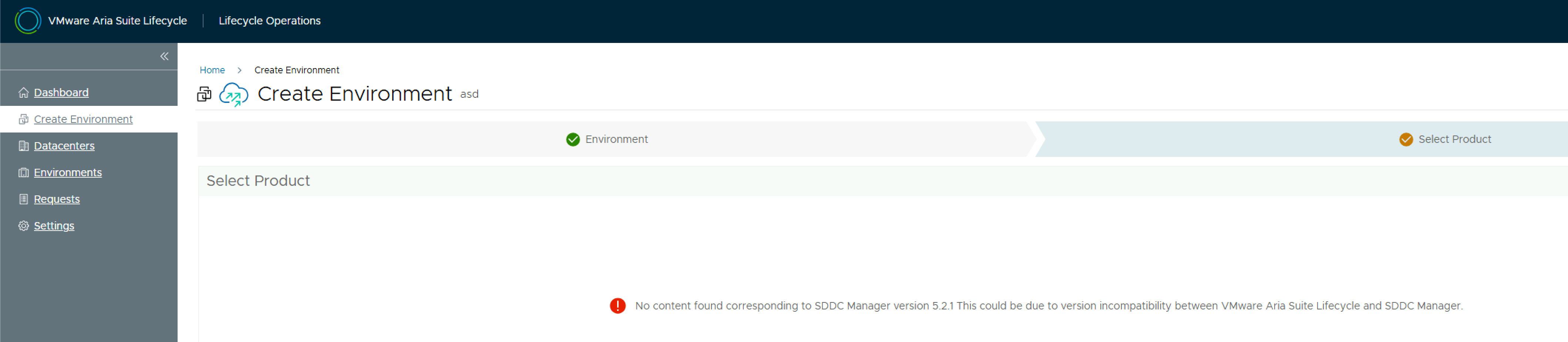
The reason for this is you need a product support pack (pspak) for Aria LCM 8.18 – specifically VMware Aria Suite Lifecycle 8.18.0 Product Support Pack 3. See this KB for more details on which product support pack maps to which release.

Download the pack from the Broadcom support site and log into Aria LCM. Navigate to Lifecycle Operations > Settings > Product Support Pack and click Upload.

Take a snapshot of Aria LCM and then click Select file and select the product support pack, and click Import.

Monitor the upload process in the Requests pane. Once the upload completes, navigate back to the Product Support Pack screen. The support pack will be shown. Click Apply Version & Submit. Aria LCM will restart services during the install.

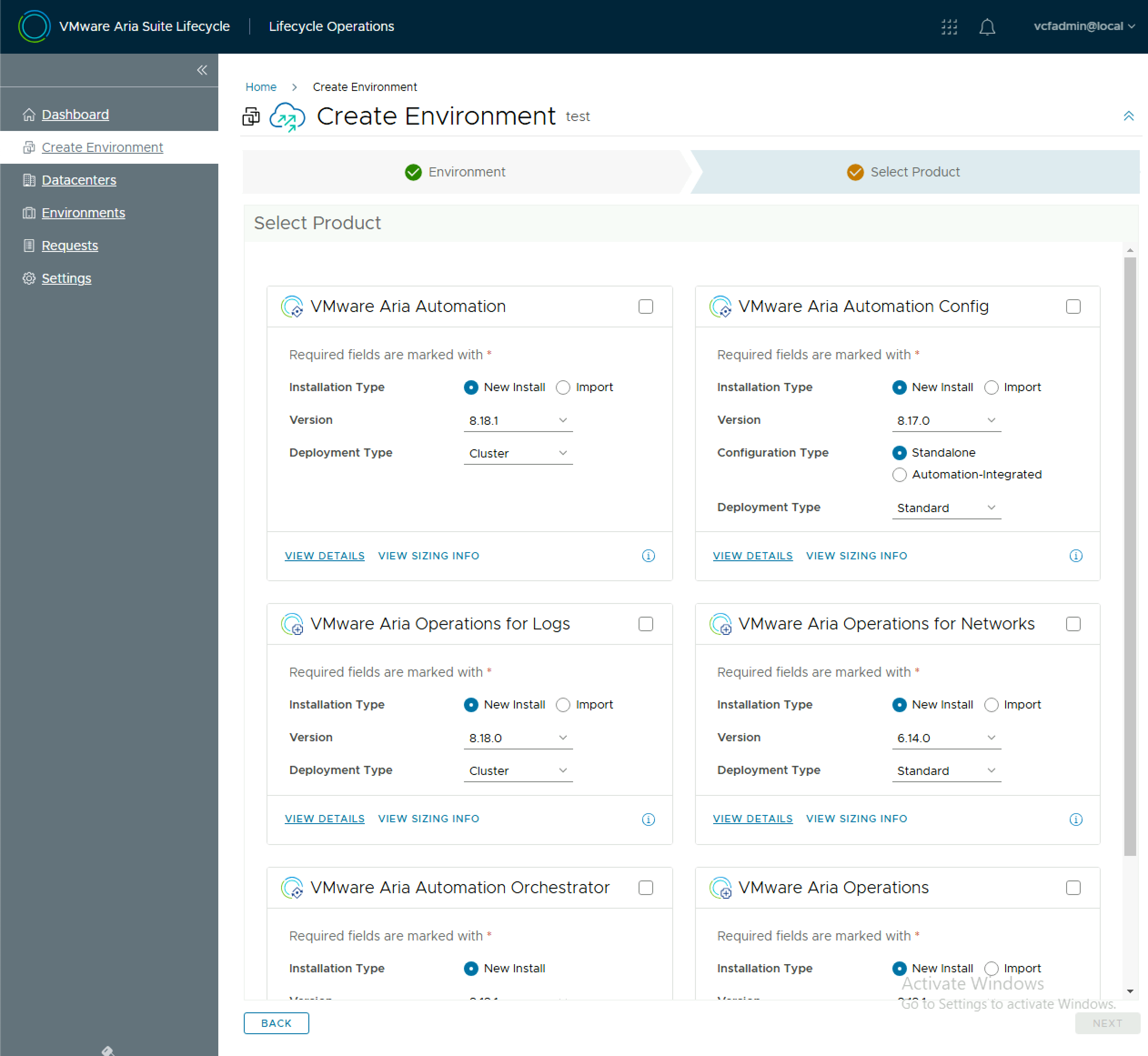
Once the install completes, you should not have a list of available products when creating an environment.
Retrieve VCF Operations Appliance Root Password from the VMware Aria Suite Lifecycle Locker

When you deploy a component using VMware Aria Suite Lifecycle, it stores the credentials in it’s locker. If you need to SSH to a VCF Operations appliance and you dont know the root password, you need to retrieve the root password from the VMware Aria Suite Lifecycle locker. To do this you need to query the Aria Suite Lifecycle API for a list of locker entries using basic auth.

GET https://flt-fm01.rainpole.io/lcm/locker/api/v2/passwords?from=0&size=10

From the response, locate the corresponding vmid for the VCF OPs appliance

{            
"vmid": "a789765f-6cfc-497a-8273-9d8bff2684a5",            "tenant": "default",            
"alias": "VCF-flt-ops01a.rainpole.io-rootUserPassword",          "password": "PASSWORD****",            
"createdOn": 1737740091124,            
"lastUpdatedOn": 1737740091124,            
"referenced": true        
}

Query the Aria Suite Lifecycle locker for the decrypted password, again with basic auth, passing the Aria Suite Lifecycle root password in the payload body.

#BODY (Aria Suite Lifecycle root password)
{
  "rootPassword": "VMw@re1!VMw@re1!"
}

POST https://flt-fm01.rainpole.io/lcm/locker/api/v2/passwords/a789765f-6cfc-497a-8273-9d8bff2684a5/decrypted

If all goes well, it should return the password

{
    "passwordVmid": "a789765f-6cfc-497a-8273-9d8bff2684a5",
    "password": "u!B1U9#Q5L^o2Vqer@6f"
}

Setup HAProxy as a Load Balancer for VMware VCF Operations

HAProxy is a free opensource load balancer that is supported for use with VMware VCF Operations (formerly VMware Aria Operations). Here are the steps you need to install and configure it on a Debian VM. This configuration was for a lab deployment and may not be optimised for production. Use at your own risk!

EDIT: My colleague Ryan Johnson has very kindly written a shell script to perform the steps. Code available here.

Add an interface to the Debian VM for the VCF Operations VIP


vi /etc/network/interfaces

# Insert the following and save the changes substituting the VLANs/Subnets with your own

# VCF OPs VIP
auto eth1.1110
iface eth1.1110 inet static
address 10.11.10.30
netmask 255.255.255.0
mtu 9000

# Restart network service
systemctl restart networking.service

Install HAProxy

apt-get install haproxy 

# Backup default haproxy.cfg cp /etc/haproxy/haproxy.cfg /etc/haproxy/haproxy.cfg.bak

Create a new haproxy.cfg file with the following contents

# Configuration file to load balance VCF Operations
#global parameters 
global
		log 127.0.0.1 local2
		chroot /var/lib/haproxy
		pidfile /var/run/haproxy.pid
		maxconn 2000
		user haproxy
		group haproxy
		daemon
		stats socket /var/lib/haproxy/stats
		ssl-server-verify none
#default parameters unless otherwise specified 
defaults
		log global
		mode http
		option httplog
		option tcplog
		option dontlognull
		timeout connect 5000ms
		timeout client 50000ms
		timeout server 50000ms
#listener settings for stats webpage can be optional but highly recommended listen stats :9090
		balance
		mode http
		stats enable
		stats auth admin:admin
		stats uri /
		stats realm Haproxy\ Statistics
#front settings in this case we bind to all addresses on system or specify an interface
		frontend vrops_frontend_secure
		bind 10.11.10.30:443
		mode tcp
		option tcplog
		default_backend vrops_backend_secure
#backend configuration of receiving servers containing tcp-checks health checks and hashing
		backend vrops_backend_secure
		mode tcp
		option tcplog
		balance source
		hash-type consistent
		option tcp-check
		tcp-check connect port 443 ssl
		tcp-check send GET\ /suite-api/api/deployment/node/status?services=api&services=adminui&services=ui\ HTTP/1.0\r\n\r\n
		tcp-check expect rstring ONLINE
		server node1 10.11.10.31:443 check inter 15s check-ssl maxconn 140 fall 3 rise 3
		server node2 10.11.10.32:443 check inter 15s check-ssl maxconn 140 fall 3 rise 3
		server node3 10.11.10.33:443 check inter 15s check-ssl maxconn 140 fall 3 rise 3

Restart haproxy service

systemctl restart haproxy

You should now be able to browse to https://<aria-operations-vip-fqdn