PowerCLI Module For VMware Cloud Foundation: Introduction

As you are no doubt aware I am a fan of PowerShell and PowerCLI. Since my early days working with VMware products, whether it was vCenter, vCloud Director or VMware Cloud Foundation (VCF), I have always leveraged PowerCLI to get the job done. Up until recently, there was no native PowerCLI support for the VMware Cloud Foundation API. Hence why I started the open-source PowerVCF project almost 5 years ago! PowerVCF has grown and matured as new maintainers came onboard. Open-source projects are a great way to deliver functionality to our customers that is not yet available in officially supported channels. Since the release of PowerCLI 13.1 I am delighted to say that we now have officially supported, native PowerCLI modules for VMware Cloud Foundation.

2 distinct modules are now part of PowerCLI. One for the Cloud Builder API and one for the SDDC Manager API.

Install-Module -Name VMware.Sdk.Vcf.CloudBuilder
Install-Module -Name VMware.Sdk.Vcf.SddcManager

The cmdlets for each module are too many to list here but to see what’s available once you have them installed do the following

get-command -module VMware.Sdk.Vcf.CloudBuilder
get-command -module VMware.Sdk.Vcf.SDDCManager

You will see from the output that the cmdlets are broken into primarily 2 types:

  • Initialize-Vcf<xyz>
    • Used to gather information and generate input specs
  • Invoke-Vcf<xyz>
    • Used to execute the API request with an input spec

Each module also has a connect/disconnect cmdlet which can be used in the following way

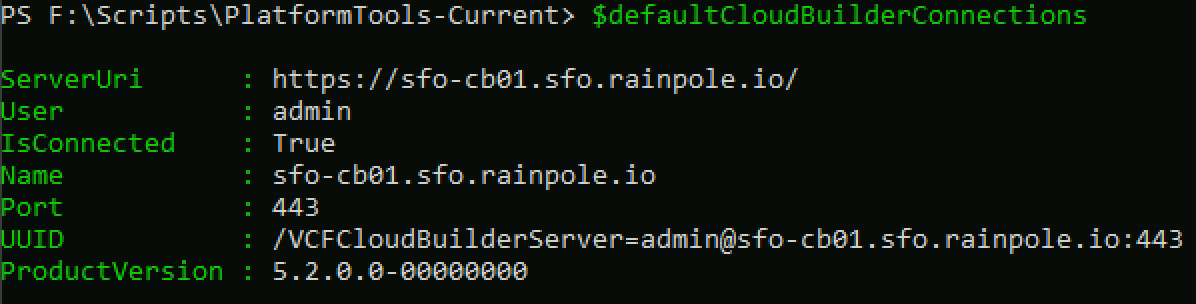
Connect-VcfCloudBuilderServer -Server sfo-cb01.sfo.rainpole.io -User admin -Password VMw@re1!VMw@re1!

This connection object is then stored in $defaultCloudBuilderConnections
Connect-VcfSddcManagerServer -Server sfo-vcf01.sfo.rainpole.io -User administrator@vsphere.local -Password VMw@re1!VMw@re1!

This connection object is then stored in $defaultsddcManagerConnections

Note: If you are working in a lab environment with untrusted certs you can pass -IgnoreInvalidCertificate to each of the above commands.

Once you have an active connection, you can begin to query the API. The example below returns a list of all hosts from SDDC Manager. One thing you will notice, if you are a PowerVCF user, is that you will need to parse the response a little more than you needed to with the PowerVCF cmdlet Get-VCFHost.

Running Invoke-VcfGetHosts will return a list of host elements

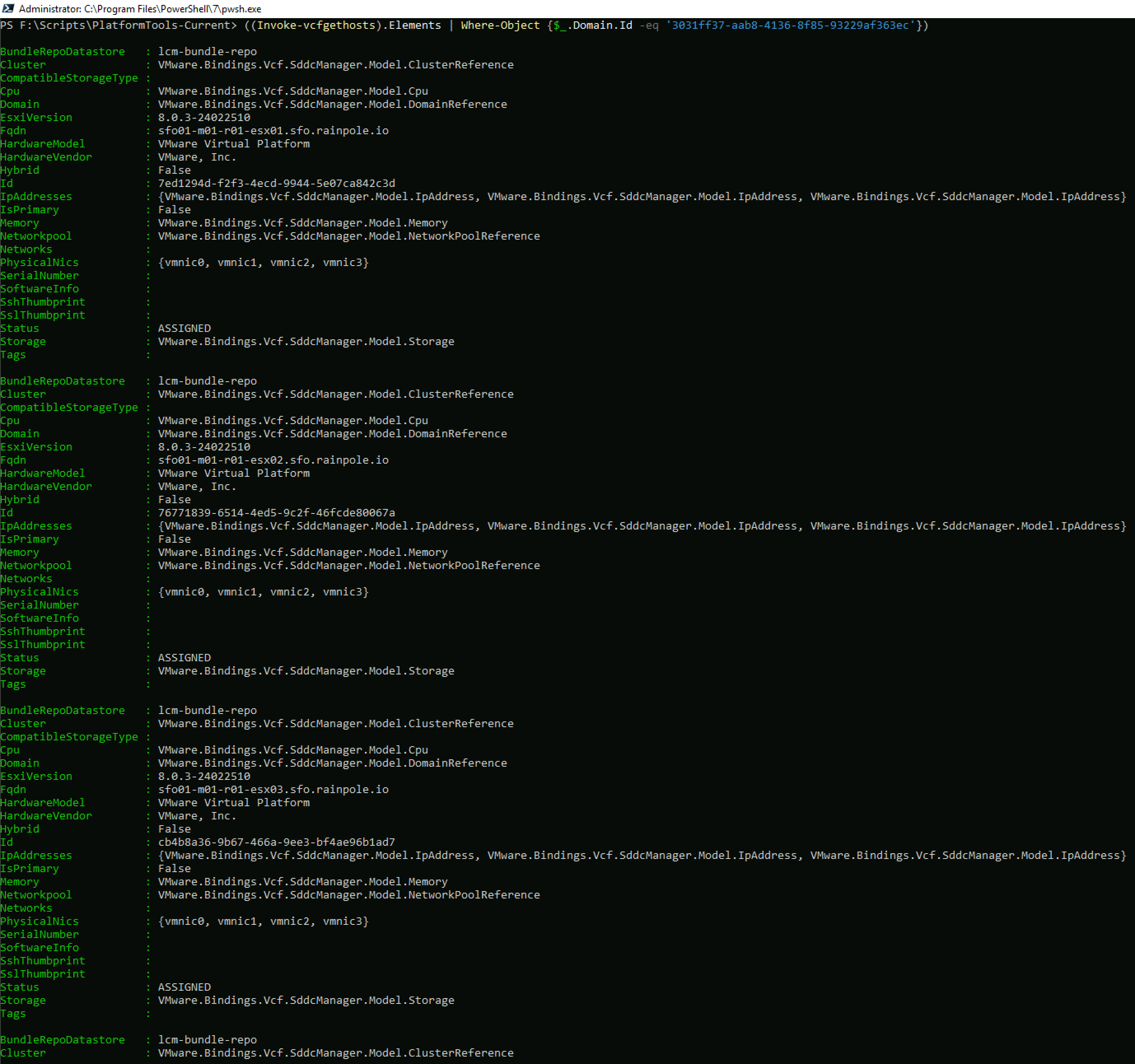
So to parse the response, you can do something like this, which will return the details of all hosts

But lets say you would like to filter the response to just the hosts from a specific workload domain. You first need the Id of the workload domain, in this case sfo-m01.

And you can then get a filtered list of hosts for that domain
Hopefully, this introduction was helpful, I will put together a series of blogs over the next few weeks covering some of the main VCF operations, such as bringup, commissioning hosts, deploying workload domains etc. As always, comments & feedback are welcome. Please let me know what your experience is with the new modules and I can feed it back to the engineering team.

Install HashiCorp Terraform on a PhotonOS Appliance

HashiCorp Terraform is not currently available on the Photon OS repository. If you would like to install Terraform on a PhotonOS appliance you can use the script below. Note: The versions for Go and Terraform that I have included are current at the time of writing. Thanks to my colleague Ryan Johnson who shared this method with me some time ago for another project.

#!/usr/bin/env bash

# Versions
GO_VERSION="1.21.4"
TERRAFORM_VERSION="1.6.3"

# Arch
if [[ $(uname -m) == "x86_64" ]]; then
  LINUX_ARCH="amd64"
elif [[ $(uname -m) == "aarch64" ]]; then
  LINUX_ARCH="arm64"
fi

# Directory
if ! [[ -d ~/code ]]; then
  mkdir ~/code
fi

# Go
wget -q -O go${GO_VERSION}.linux-${LINUX_ARCH}.tar.gz https://golang.org/dl/go${GO_VERSION}.linux-${LINUX_ARCH}.tar.gz
tar -C /usr/local -xzf go${GO_VERSION}.linux-${LINUX_ARCH}.tar.gz
PATH=$PATH:/usr/local/go/bin
go version
rm go${GO_VERSION}.linux-${LINUX_ARCH}.tar.gz
export GOPATH=${HOME}/code/go

# HashiCorp
wget -q https://releases.hashicorp.com/terraform/${TERRAFORM_VERSION}/terraform_${TERRAFORM_VERSION}_linux_${LINUX_ARCH}.zip
unzip -o -d /usr/local/bin/ terraform_${TERRAFORM_VERSION}_linux_${LINUX_ARCH}.zip
rm ./*.zip

VMware Cloud Foundation Bringup With Signed Certs on ESXi Hosts

Traditionally VMware Cloud Foundation (VCF) has followed the hybrid approach when it comes to SSL certificate management. Hybrid mode essentially means using CA signed certs for the vCenter Server machineSSL cert, and VMCA signed certs for the solution user certs. In this mode, ESXi host certs are VMCA managed also. You then have the option to integrate with an external Microsoft CA or continue to use VMCA for all certs. If you decide to integrate with a Microsoft CA, ESXi host certs remain VMCA managed. This is not always ideal as some customers require all components on the network to be signed by a known & trusted CA. Up until the recent 4.1 VMware Cloud Foundation (VCF) release it was not possible to use custom CA signed certs on your ESXi hosts, as hybrid mode would overwrite your CA signed ESXi certs with VMCA signed certs. There is a great blog post here on how to manually enable CA signed certs here but with VCF 4.1 it is now supported to do this via the API during bringup. The procedure is as follows:


  1. Install the ESXi hosts that will be used for bringup with the ESXi version on the Bill Of Materials for 4.1
  2. Install your custom CA signed certs on each host that will be used for the management domain
    1. Log in to the ESXi Shell, either directly from the DCUI or from an SSH client, as a user with administrator privileges.
    2. In the directory /etc/vmware/ssl, rename the existing certificates using the following commands.
      mv rui.crt orig.rui.crt 
      mv rui.key orig.rui.key
      
    3. Copy the certificates that you want to use to /etc/vmware/ssl.
    4. Rename the new certificate and key to rui.crt and rui.key.
    5. Restart the host management agents by running the following commands
 /etc/init.d/hostd restart /etc/init.d/vpxa restart 

Repeat the above steps for all management domain hosts

To ensure that SDDC Manager is aware that you are using custom certs you need to add a flag in the bringup json along with the PEM encoded signing chain certificate, so that it is added to the SDDC Manager keystore. This will ensure the certificates are trusted. The API guide for 4.1 provides an example json spec here. Pay particular attention to this section

"securitySpec" : {
"esxiCertsMode" : "One among:Custom, VMCA",
"rootCaCerts" : [ {
"alias" : "string",
"certChain" : [ "string" ]
} ]
}

So to enable support for signed certs you would set this section as follows (Substituting your signing CA chain)

 "securitySpec" : { 
"esxiCertsMode" : "Custom", 
"rootCaCerts" : [ { 
"alias" : "Rainpole-CA", 
"certChain" : [ "-----BEGIN CERTIFICATE-----
MIIDczCCAlugAwIBAgIQI9xwbTkI9J5GhMffcP5CHDANBgkqhkiG9w0BAQsFADBM
MRIwEAYKCZImiZPyLGQBGRYCaW8xGDAWBgoJkiaJk/IsZAEZFghyYWlucG9sZTEc
MBoGA1UEAxMTcmFpbnBvbGUtZGMwMXJwbC1DQTAeFw0yMDAzMzAxNDQ2MTNaFw0y
NTAzMzAxNDU2MTNaMEwxEjAQBgoJkiaJk/IsZAEZFgJpbzEYMBYGCgmSJomT8ixk
ARkWCHJhaW5wb2xlMRwwGgYDVQQDExNyYWlucG9sZS1kYzAxcnBsLUNBMIIBIjAN
BgkqhkiG9w0BAQEFAAOCAQ8AMIIBCgKCAQEAzpwkz7aPlQcfevcCelHc9DPswHkd
kjY96Vh3GvYlesaVEcy/q/BOvvh3KgLMLy8r7cy2cNPO3FANKOfqVdVx3ghfEUyL
g61W9BskAlwryzJRmjhOJJVqvB8CWjy+eCp7MejHGdEud6WdEvK8CaBcPngEg0KM
eLRNLGe8OCw8yY4GTrjU+H7PYQZtyD0kxxy5f48ueaDXat4ENRGcAuHEfCoMGfaR
bDue1OO4diHd900bCym5ggBNX0jhRudNULXPTayZl2ksImV0+QkaVeptQImXfCgb
kgnHQJ5CxK26up7fB5eAsmGLAsJLBnHuM7P9xvV09EvWjFCgLX/oBBDYTQIDAQAB
o1EwTzALBgNVHQ8EBAMCAYYwDwYDVR0TAQH/BAUwAwEB/zAdBgNVHQ4EFgQU7oOq
QBK8yg8mHnAfb+u6/GO0ZUcwEAYJKwYBBAGCNxUBBAMCAQAwDQYJKoZIhvcNAQEL
BQADggEBALYxZGj4vWjFDN1atOUsBx2jrmxbExgMAyRpNlSc2aj+7vzxHxUW5VbX
x9nc/BfkTiCK6c7Y9VYb+mgjb8z0kNv58sT4ar1yIl1n63VOCoyyLcaFB8HyEJpD
wUhz4RNPoSijZMpm+M5EuSLfWlhEJo7N8sLqHgvvk1dFpbK8fIHbPS5KJwJibbPe
w9UuNRdcxN9hFWKBC0SvfgX+1CJxVdvgfi65rSHPuWinJzrXXdH999DfpDESRzwH
0pqE3GtMCt1Nqalp2QJFdahbT+kxj7QWHTjUylSENDHjdln7a8WH8RGxvEy/97YZ
+crXmxvQ/bAgHk9vcRERbRjfyIs7v88=
-----END CERTIFICATE-----" ] } ] } 


You can then follow the steps outlined in the API guide to deploy the management domain using the Cloud Builder API. Note that once custom mode is enabled, all future workload domains that you create must also use signed certs.

Announcing PowerVCF 2.0

I’m happy to announce the availability of PowerVCF 2.0. This version of PowerVCF is compatible with VMware Cloud Foundation 4.0 and above. Due to some API security enhancements in VCF 4.0 around the use of API tokens for authentication the module has been refactored to leverage access & refresh tokens (more on that here). For that reason if you would like to use PowerVCF for VCF 3.9.x you should continue to use PowerVCF 1.2 .

PowerVCF 2.0 is published to the PowerShell Gallery here https://www.powershellgallery.com/packages/PowerVCF/2.0.0

Whats new in PowerVCF 2.0

Along with a number of new or modified cmdlets the following enhancements have been made:

  • Grouped cmdlets based on order of API documentation
  • Code hygiene

The following table provides a detailed breakdown of all the changes for this release. Thanks to my colleague @GaryJBlake for doing most of the work on this release and for pulling this list together!

Category cmdlet Name Description Comment
Backup and Restore Start-VCFRestore Starts the restore process of SDDC Manager NEW
Backup and Restore Get-VCFRestoreTasks Gets the status of the restore process NEW
Connectivity Connect-VCFManager Create authentication header for SDDC Manager appliance UPDATED – Support the new token / bearer authentication model and basicAuth switch for restore process
Connectivity Connect-CloudBuilder Create authentication header for Cloud Builder appliance NEW
Certificates Get-VCFCertificateAuthority Get Certificate Authority information UPDATED – Added support for getting the details by id
Certificates Remove-VCFCertificateAuthority Deletes Certificate Authority configuration NEW
Certificates Get-VCFCertificate View certificate of all the resources in a domain UPDATED – Added support for get certificate details by resource
Credentials Get-VCFCredential Get the credentials UPDATED- Added support for getting the details by id
Credentials Stop-VCFCredentialTask Cancels a failed update or rotate passwords task RENAMED – From Cancel-VCFCredentialTask
Credentials Restart-VCFCredentialTask Retry a failed rotate/update passwords task RENAMED – From Retry-VCFCredentialTask
Hosts Commission-VCFHost Commissions a list of hosts UPDATED – Added support for validating the input spec for host operations (-validate switch)
NSX-T Edge Clusters Get-VCFEdgeCluster Get an Edge Cluster NEW
NSX-T Edge Clusters New-VCFEdgeCluster creates an NSX-T edge cluster NEW
Personalities Get-VCFPersonality Get the vSphere Lifecycle Manager Personalities NEW
SDDC (Cloud Builder) Get-CloudBuilderSDDC Retrieve all SDDCs NEW
SDDC (Cloud Builder) Start-CloudBuilderSDDC Create SDDC NEW
SDDC (Cloud Builder) Restart-CloudBuilderSDDC Retry failed SDDC creation NEW
SDDC (Cloud Builder) Get-CloudBuilderSDDCValidation Get all SDDC specification validations NEW
SDDC (Cloud Builder) Start-CloudBuilderSDDCValidation Validate SDDC specification before creation NEW
SDDC (Cloud Builder) Stop-CloudBuilderSDDCValidation Cancel SDDC specification validation NEW
SDDC (Cloud Builder) Restart-CloudBuilderSDDCValidation Retry SDDC validation NEW
System Prechecks Start-VCFSystemPrecheck Perform System Precheck RENAMED – From Start-PreCheckVCFSystem
System Prechecks Get-VCFSystemPrecheckTask Get System Precheck Task RENAMED – From Get-PreCheckVCFSystemTask
Tasks Restart-VCFTask Retry a previously failed task RENAMED – From Retry-VCFTask
Users Get-VCFRole Get all roles NEW
Users Get-VCFUser Get all Users NEW
Users New-VCFUser Adds a new user NEW
Users New-VCFServiceUser Adds a new service user NEW
Users Delete-User Deletes a user NEW
vRealize Suite Lifecycle Manager Reset-VCFvRSLCM Redeploy vRealize Suite Lifecycle Manager NEW
vRealize Suite Lifecycle Manager New-VCFvRSLCM Validate the input specification for vRealize Suite Lifecycle Manager deployment UPDATED – Added support for validating the json spec (-validate switch).

VMware Validated Design – Automated Deployment with Cloud Builder – Part 6: Deploy The SDDC

This is part 6 of a series of posts on VMware Cloud Builder. 

In this final post, now that we have passed all validation, we will run the SDDC deployment using VMware Cloud Builder.

Continue reading “VMware Validated Design – Automated Deployment with Cloud Builder – Part 6: Deploy The SDDC”

VMware Validated Design – Automated Deployment with Cloud Builder – Part 5: Cloud Builder Deployment & Environment Validation

This is part 5 of a series of posts on VMware Cloud Builder.

Hopefully you’re still with me!

In this post I will cover the deployment and initial configuration of the VMware Cloud Builder appliance, ingestion of the deployment parameters file, and environment validation.

Continue reading “VMware Validated Design – Automated Deployment with Cloud Builder – Part 5: Cloud Builder Deployment & Environment Validation”

VMware Validated Design – Automated Deployment with Cloud Builder – Part 4: Generating SSL Certificates

This is part 4 of a series of posts on VMware Cloud Builder.

In this post I will cover generating the required SSL certificates for deploying this VMware Validated Design with VMware Cloud Builder.

Friendly warning: This is a long post so maybe get a coffee before reading!

Continue reading “VMware Validated Design – Automated Deployment with Cloud Builder – Part 4: Generating SSL Certificates”

VMware Validated Design – Automated Deployment with Cloud Builder – Part 3: Deployment Parameters File

This is part 3 of a series of posts on VMware Cloud Builder.

In this post I will cover the deployment parameters file.

Continue reading “VMware Validated Design – Automated Deployment with Cloud Builder – Part 3: Deployment Parameters File”

VMware Validated Design – Automated Deployment with Cloud Builder – Part 2: Environment Prerequisites

This is part 2 of a series of posts on VMware Cloud Builder.

In this post I will cover the initial environment prerequisites required before you can deploy your VMware Validated Design SDDC with Cloud Builder. These fall into 5 key areas:

  1. Prerequisites for Virtual Infrastructure Layer Implementation in Region A
  2. Prerequisites for Operations Management Layer Implementation in Region A
  3. Prerequisites for Cloud Management Layer Implementation in Region A
  4. Prerequisites for Business Continuity Layer Implementation in Region A
  5. Generate Certificates for the SDDC Components in Region A

Continue reading “VMware Validated Design – Automated Deployment with Cloud Builder – Part 2: Environment Prerequisites”

VMware Validated Design – Automated Deployment with Cloud Builder – Part 1: Overview

This is the first in a series of posts on VMware Cloud Builder – The automated deployment engine for VMware Validated Design – which delivers consistent and repeatable Software-Defined Datacenter (SDDC) deployments across your regions. Hopefully you will find it useful!

Continue reading “VMware Validated Design – Automated Deployment with Cloud Builder – Part 1: Overview”