Upgrading VCF 5.2 to 9.0 – Part 7 – Upgrade vSphere Cluster

The next step in the upgrade sequence is to upgrade the vSphere cluster to 9.0.
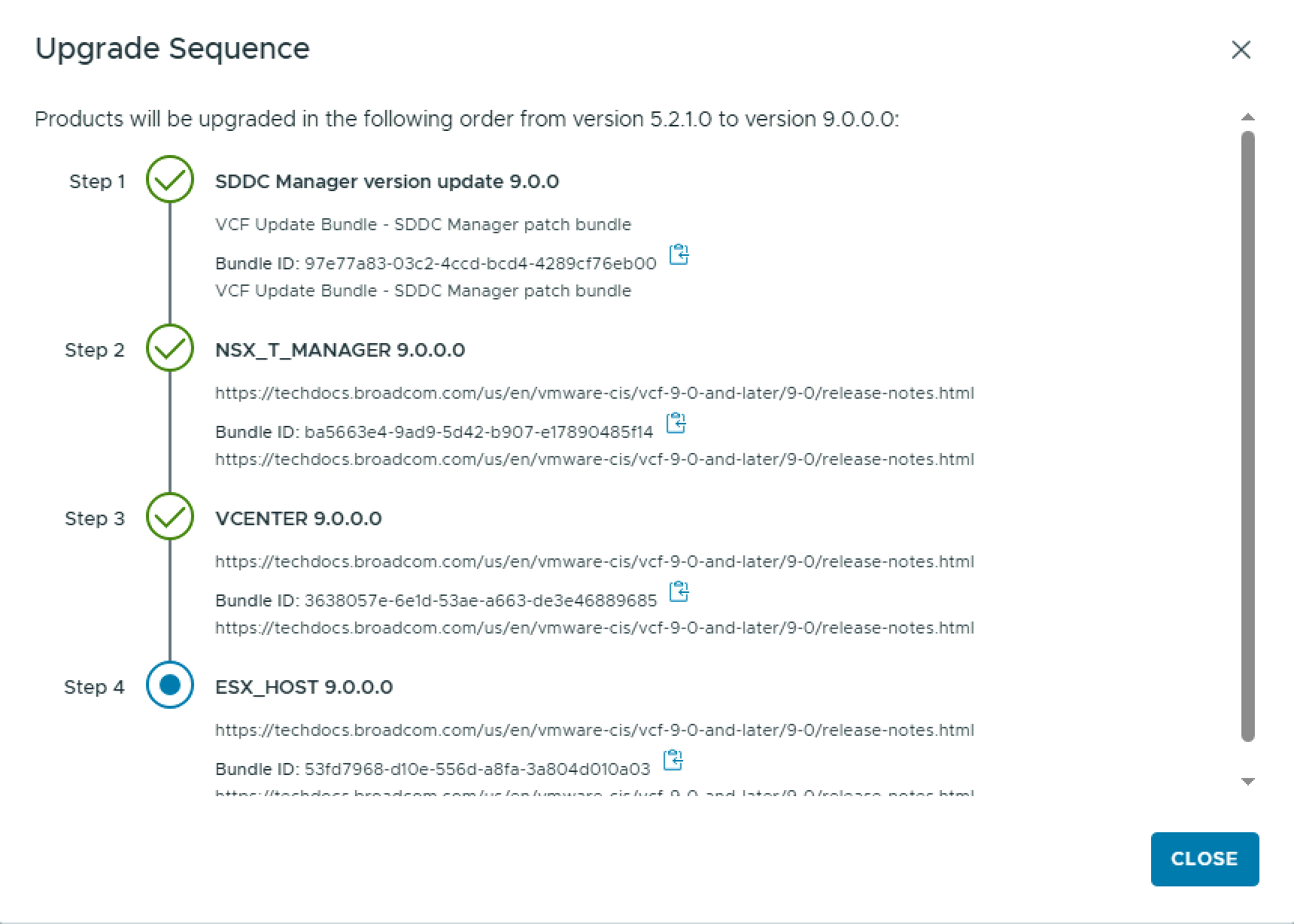
Because the cluster is now managed by vLCM images, you need a vLCM image matching the target version you wish to upgrade to.

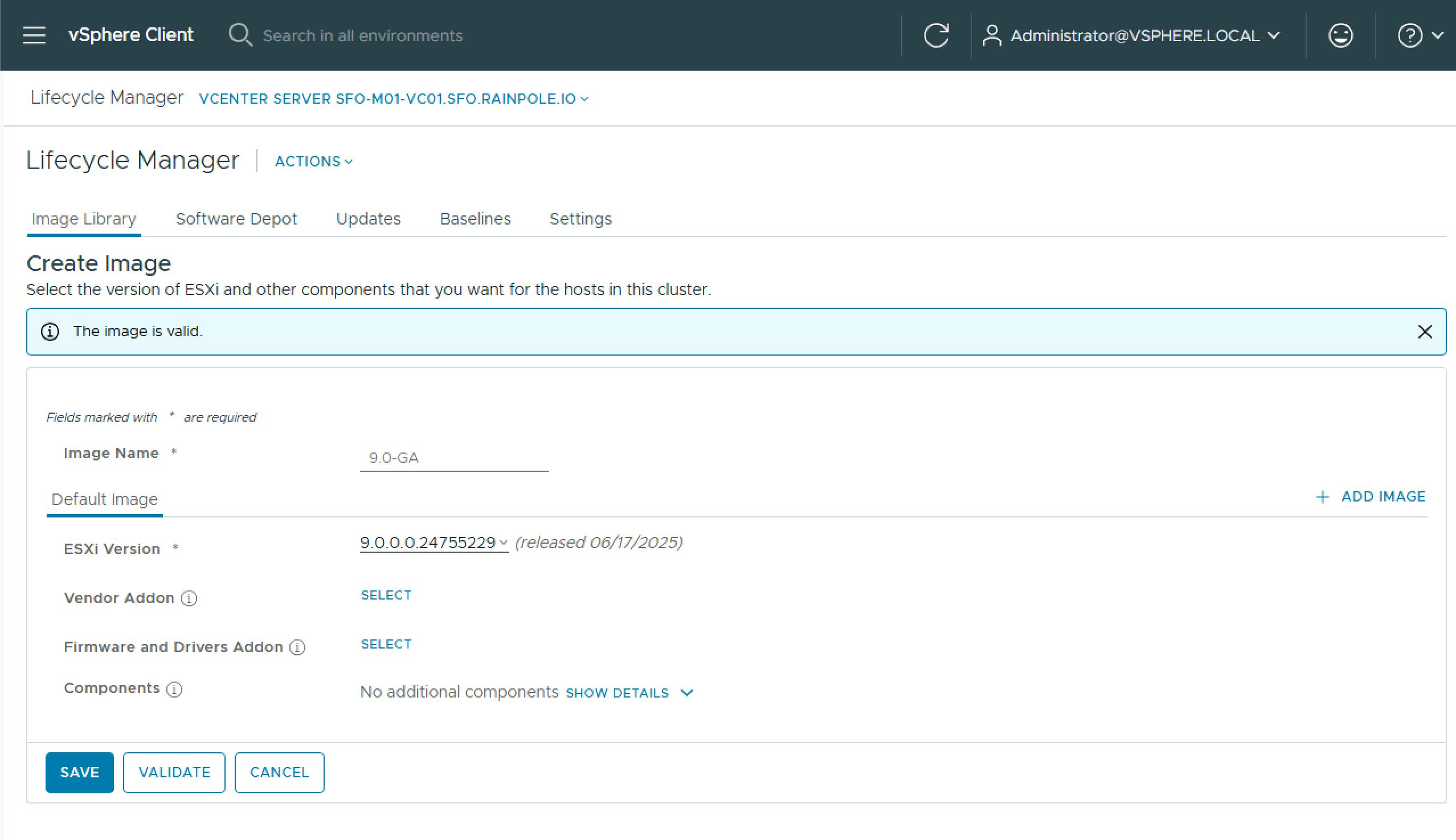
  • Log into the vSphere client and navigate to Menu > Lifecycle Manager, and click Create Image.
  • Give the image a name and select the correct target ESX version. Add any vendor/firmware/drivers you need and click Validate, and then Save.
To import the image to SDDC Manager, navigate to Lifecycle Management > Image Management and click Import Image.

  • Select the vCenter, select the image, and click Import.

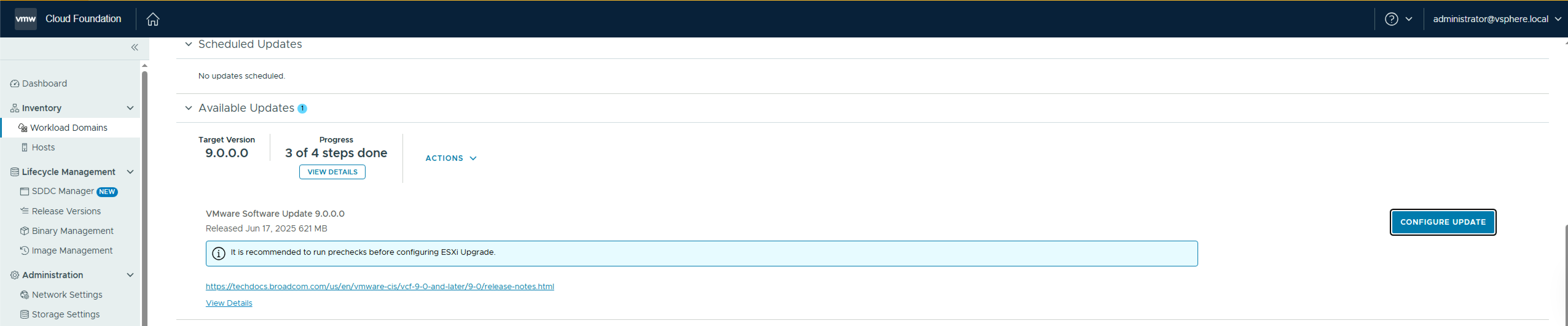
Once the vLCM image is imported, navigate to Workload Domains > Management Workload Domain > Updates, and click Run Precheck and ensure all prechecks pass. 

Once the pre-check passes, click Configure Update.
On the Introduction pane, review the details and click Next.

On the Select Clusters with Images pane, select the clusters to be upgraded, and click Next.

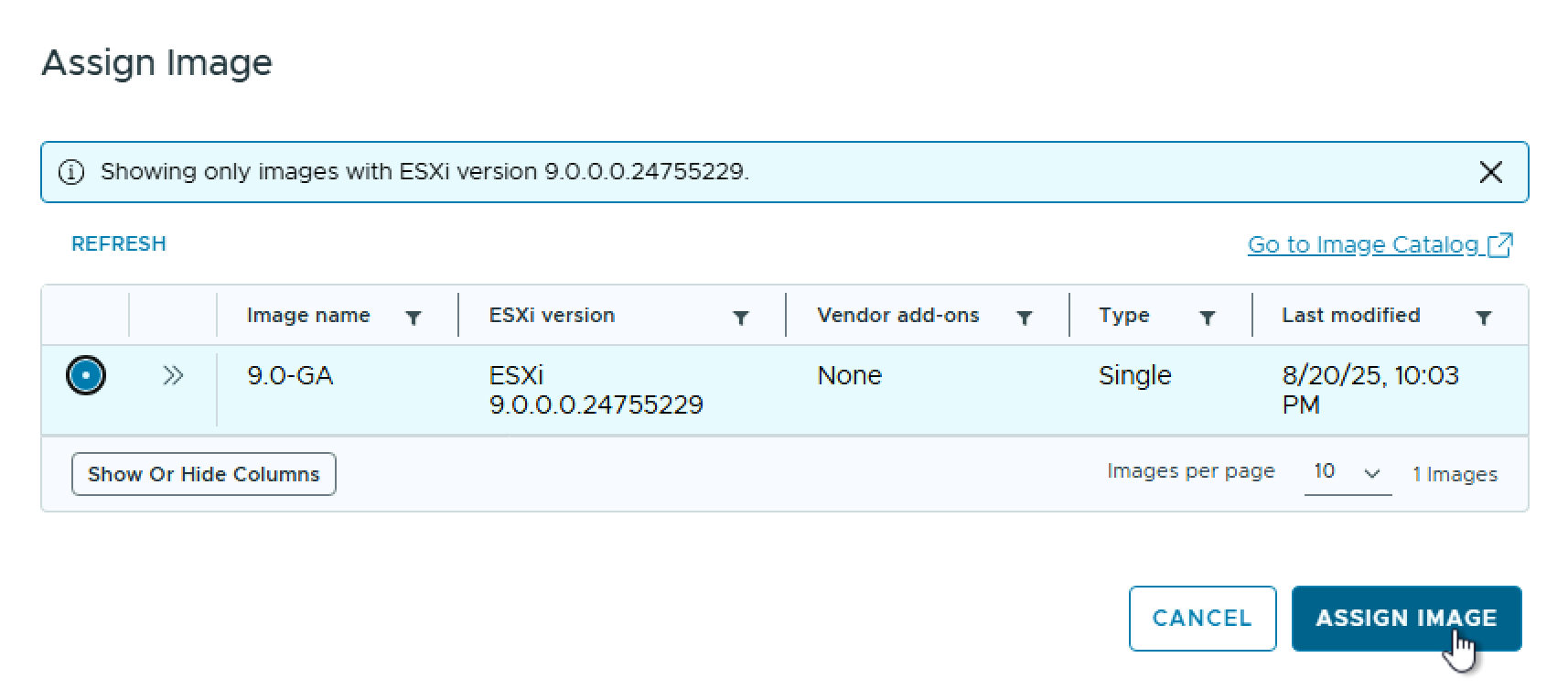
On the Assign Images pane, select the cluster, and click Assign Image.

On the Assign Image pane, select the desired image and click Assign Image, and click Next when returned to the Assign Images pane.
On the Upgrade Options pane, select the options you want and click Next.

On the Review pane, review the chosen options and click Run Precheck.

The vSphere cluster upgrade pre-check begins.

Once the pre-check completes, click Schedule Update.
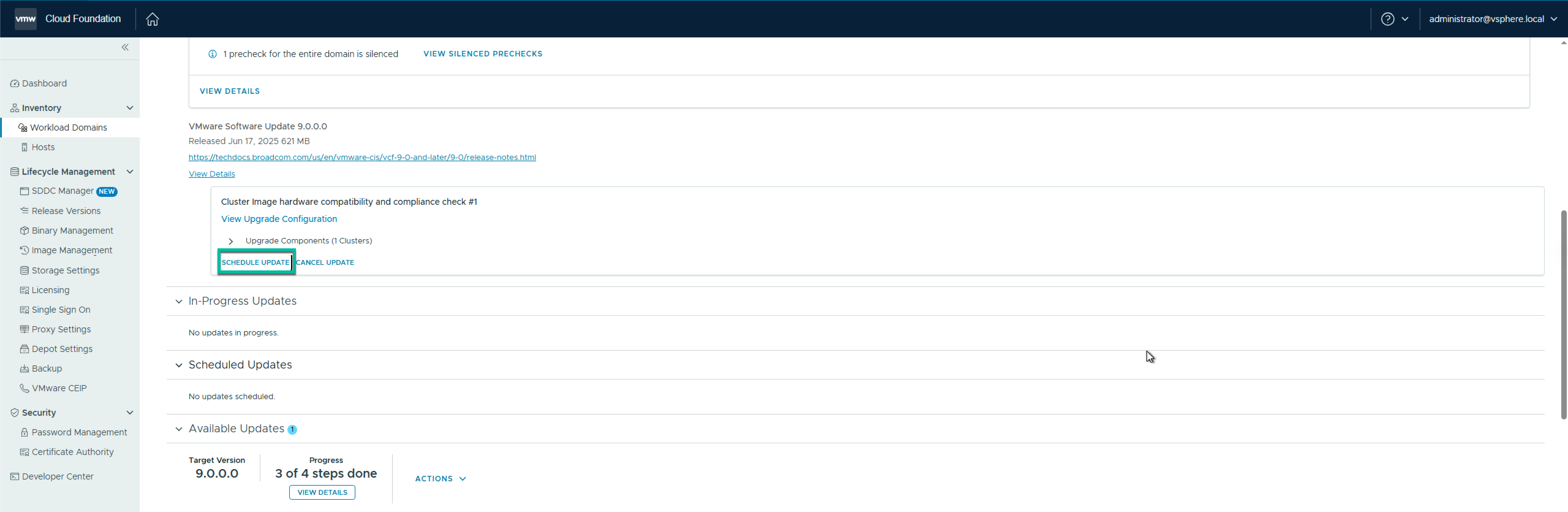
On the review pane, review the settings and click Next.

On the Schedule Update pane, select your Maintenance Window, and click I have reviewed the hardware compatibility and compliance check result and have verified the clusters images are safe to apply, and click Finish.

The vSphere cluster upgrade begins
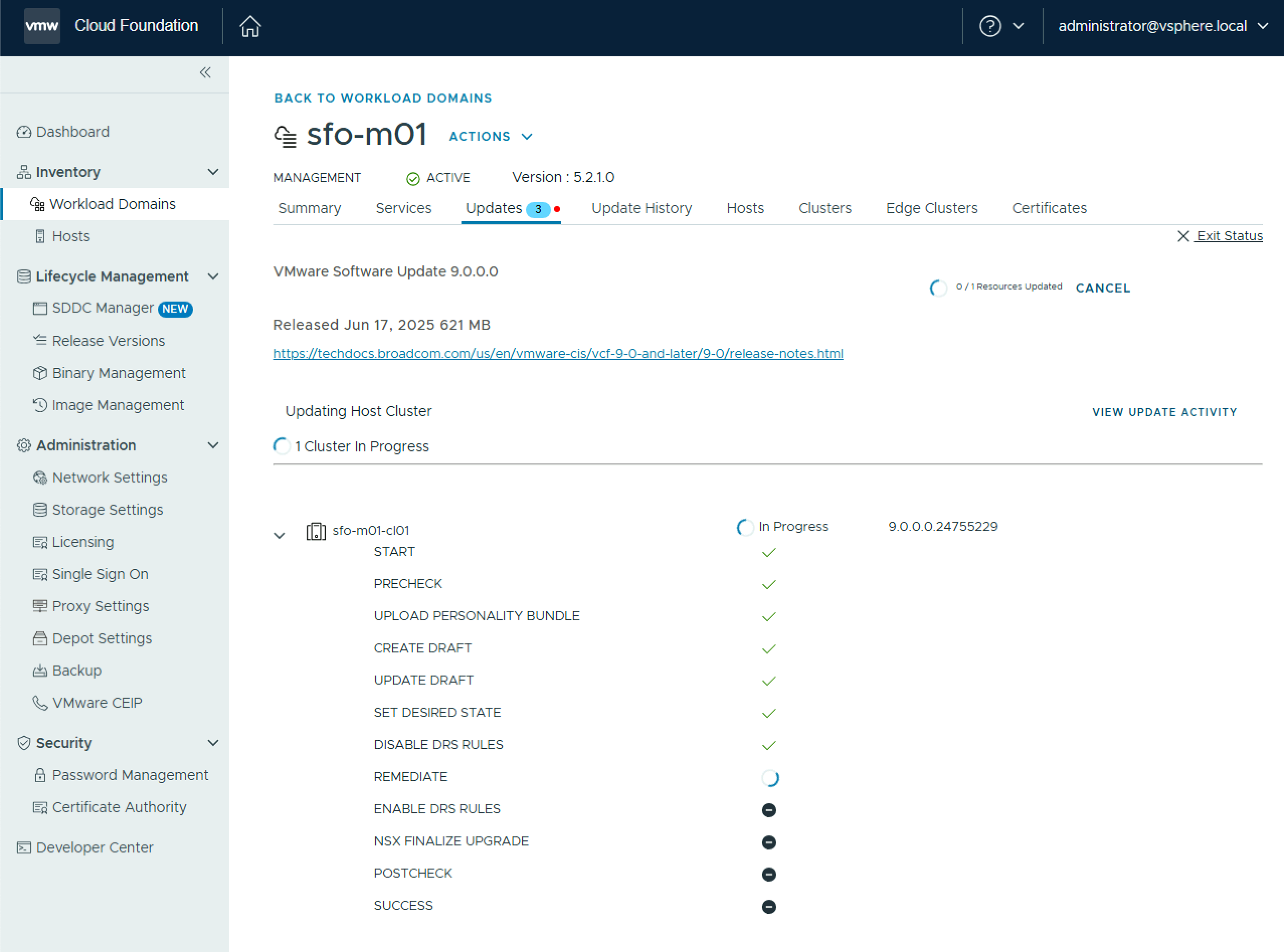
Once the upgrade completes, you can move on to the next steps.

Add VMKernels for vSphere Replication using PowerCLI

When configuring vSphere Replication between 2 vCenter Servers, you need to add a dedicated VMKernel to each host in the source & target vCEnter Server clusters. Depending on the number of hosts per cluster, this can be a time-consuming manual task. Here is a quick script leveraging PowerCLI to retrieve the hosst from a specified cluster and loop through them adding a dedicated vSphere Replication VMKernel.

#Source VC vmks
$vCenterServer = "sfo-m01-vc01.sfo.rainpole.io"
$vCenterServerUser = "administrator@vsphere.local"
$vCenterServerPassword = "VMw@re1!VMw@re1!"
$clusterName = "sfo-m01-cl01"
$PortGroupName = "sfo-m01-cl01-vds01-pg-vlr"
$VLANID = 1116
$VSwitch = "sfo-m01-cl01-vds01"
$VMKIP = "10.11.16."  # last octet will be incremented
$lastOctetStart = 101
$SubnetMask = "255.255.255.0"
$mtu = 9000

# Connect to vCenter
Connect-VIServer -Server $vCenterServer -user $vCenterServerUser -password $vCenterServerPassword

# Get Esxi hosts in cluster
$ESXiHosts = Get-cluster -name $clusterName | Get-VMHost

# Loop through each host and add an adapter with vSphere Replication Services enabled
$index = $lastOctetStart
foreach ($ESXi in $ESXiHosts) {
    Write-Host "Processing host: $ESXi"

# Define VMkernel IP for this host
    $VMKIPAddress = "$VMKIP$index"
    $index++

# Add VMkernel adapter
    Write-Host "Adding VMkernel adapter $VMKIPAddress to $ESXi"
    $vmk = New-VMHostNetworkAdapter -VMHost $ESXi -VirtualSwitch $VSwitch -PortGroup $PortGroupName -IP $VMKIPAddress -SubnetMask $SubnetMask -VMotionEnabled $false -mtu $mtu
    $vnicMgr = Get-View -Id $ESXi.ExtensionData.ConfigManager.VirtualNicManager
    $vnicMgr.SelectVnicForNicType('vSphereReplication',$vmk.Name)
$vnicMgr.SelectVnicForNicType('vSphereReplicationNFC',$vmk.Name)

    Write-Host "VMkernel adapter added successfully on $ESXi"
}

# Disconnect from vCenter
Disconnect-VIServer -Confirm:$false

Adding an NVMe Controller & Device to a VM with PowerCLI

Virtual NVMe isn’t a new concept. It’s been around since the 6.x days. As part of some lab work I needed to automate adding an NVMe controller and some devices to a VM. This can be accomplished using the PowerCLI cmdlets for the vSphere API.

# NVME Using PowerCLI
$vcenterFQDN = "sfo-m01-vc01.sfo.rainpole.io"
$vcenterUsername = "administrator@vsphere.local"
$vcenterPassword = "VMw@re1!"
$vms = @("sfo01-w01-esx01","sfo01-w01-esx02","sfo01-w01-esx03","sfo01-w01-esx04")

# Install the required module
Install-Module VMware.Sdk.vSphere.vCenter.Vm

# Connect to vCenter
connect-viserver -server $vcenterFQDN -user $vcenterUsername -password $vcenterPassword

# Add an NVMe controller to each VM
Foreach ($vmName in $vms)
{
$VmHardwareAdapterNvmeCreateSpec = Initialize-VmHardwareAdapterNvmeCreateSpec -Bus 0 -PciSlotNumber 0
Invoke-CreateVmHardwareAdapterNvme -vm (get-vm $vmName).ExtensionData.MoRef.Value -VmHardwareAdapterNvmeCreateSpec $VmHardwareAdapterNvmeCreateSpec
}

# Add an NVMe device
Foreach ($vmName in $vms)
{
$VmHardwareDiskVmdkCreateSpec = Initialize-VmHardwareDiskVmdkCreateSpec -Capacity 274877906944
$VmHardwareDiskCreateSpec = Initialize-VmHardwareDiskCreateSpec -Type "NVME" -NewVmdk $VmHardwareDiskVmdkCreateSpec
Invoke-CreateVmHardwareDisk -Vm (get-vm $vmName).ExtensionData.MoRef.Value -VmHardwareDiskCreateSpec $VmHardwareDiskCreateSpec
}

Beware VLAN double tagging!

In setting up some additional ESXi hosts in an aforementioned lab we ran into an issue where we could not communicate with the new hosts after setting static IPs and relevant management VLANs on them. The hosts are connected to 2 TOR switches (Cisco 9K Top Of Rack). Investigating on the switch you could see the hosts connected on the expected port on each switch (Ethernet 1/14 on each) by searching the mac address table for the relevant mac

Continue reading “Beware VLAN double tagging!”

Managing VMs via the ESXi command line

From time to time a host may be unmanageable from vCenter / web client or you may only have console access. In my case I was bringing up a Dell EMC VxRail. During initial bringup the ESXi hosts do not get a mgmt IP if you do not have DHCP available so management with the web client is not possible. I do have iDRAC access though so can access the console. I needed to see where the VxRail manager VM was running as it comes up during an election process between the hosts. With console access it is still possible to manage VMs using esxcli.

To discover all VMs on a host run the following

  • vim-cmd vmsvc/getallvms

Once you have the output you can use the Vmid to manipulate the powerstate of a VM

  • vim-cmd vmsvc/power.get 2

In my case the VM i wanted was powered off. You can run the following to power it on

  • vim-cmd vmsvc/power.on 2


And there you have it. Simple VM management using vim-cmd. Explore what else you can leverage it for here

