Upgrading VCF 5.2 to 9.0 – Part 9 – Deactivate Enhanced Link Mode (ELM)

The final part of this series on Upgrading VCF 5.2 to 9.0 is to Deactivate Enhanced Link Mode (ELM) on the VCF instance that we have upgraded. ELM has been around forever, but with VCF 9.0, ELM is now deprecated. You can no longer deploy vCenter instances in an ELM ring. VCF 9.0 introduces a new concept of vCenter linking, which, along with VCF SSO, enabled by VCF Identity Broker (VIDB), replaces the functionality previously provided by ELM. I will cover vCenter linking and VCF SSO in a later post, but before you can take advantage of VCF SSO, you must first deactivate ELM.

Deactivating ELM means each vCenter in the ELM ring now becomes a standalone vCenter with its own isolated SSO domain and its is an all or nothing operation, meaning you cannot selectively remove one vCenter from the ELM ring. Once you perform the operation, all vCenters will be removed from the ELM ring, and all vCenters will use their own instance of vsphere.local.

Important Note: Taking offline snapshots of all vCenter instances in the ELM ring is recommended in case you need to revert.

To deactivate ELM, we will use the SDDC Manager API.

  • Browse to SDDC manager and click on Developer Center
  • Navigate to Domains and under GET /v1/domains click Execute.
  • Expand the response and locate the id for the management domain
  • Expand POST /v1/domains/{id}/validations , enter the management domain id in the id field and the following json in the body, and click Execute.
{
  "breakElmSpec": {
      "isReconcileWorkflow": false
  }
}
  • Expand GET /v1/domains/{id}/validations/{validation_id} and replace {id} with the management domain ID. Replace {validation_id} with the validation ID, from the previous step, and click Execute. Expand the response to ensure it is successful.

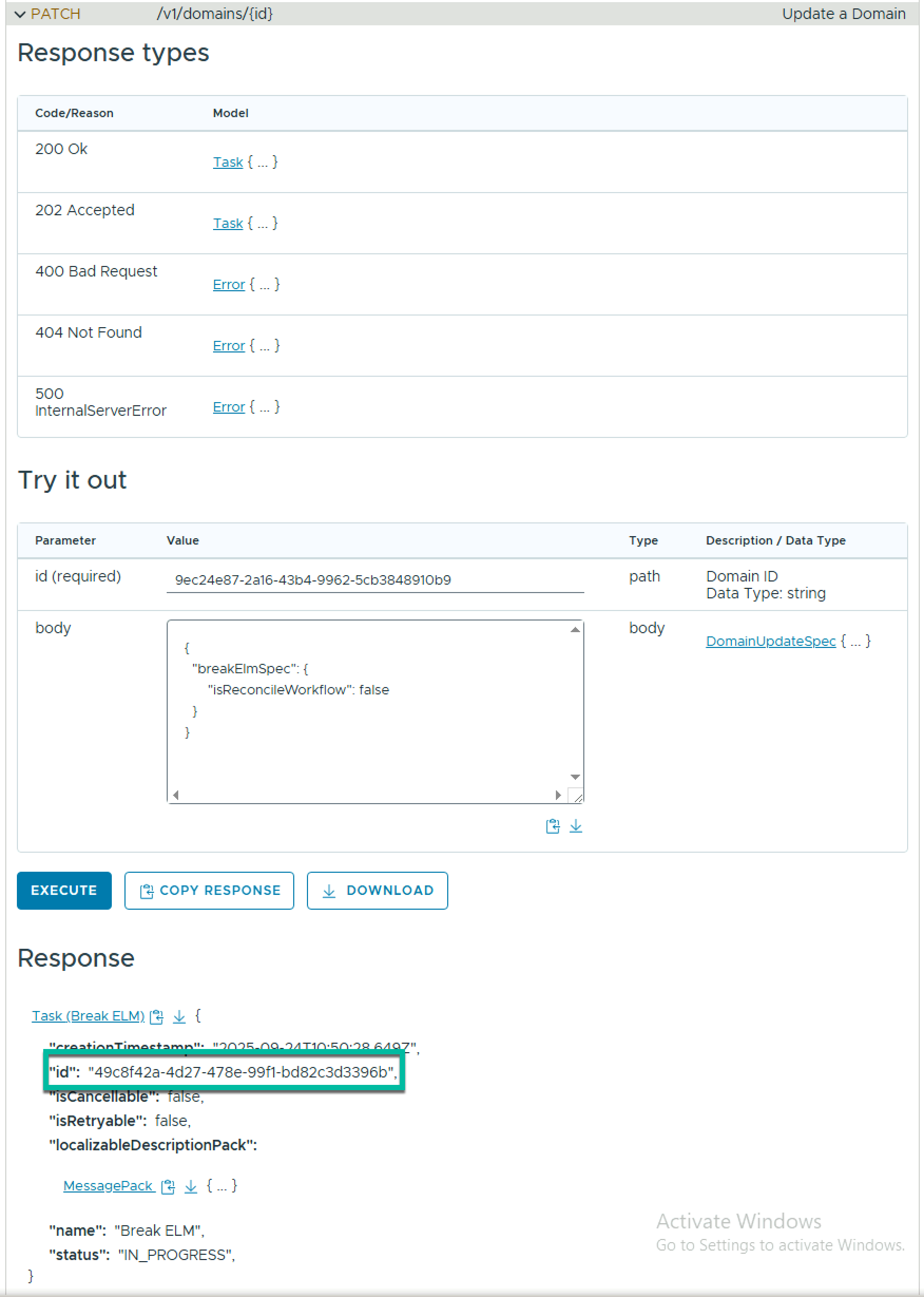
To break ELM across all VCF domains in the VCF instance, expand PATCH /v1/domains/{id} , enter the management domain id in the id field and the following json in the body, and click Execute.

{
  "breakElmSpec": {
      "isReconcileWorkflow": false
  }
}

Locate the task ID in the response.
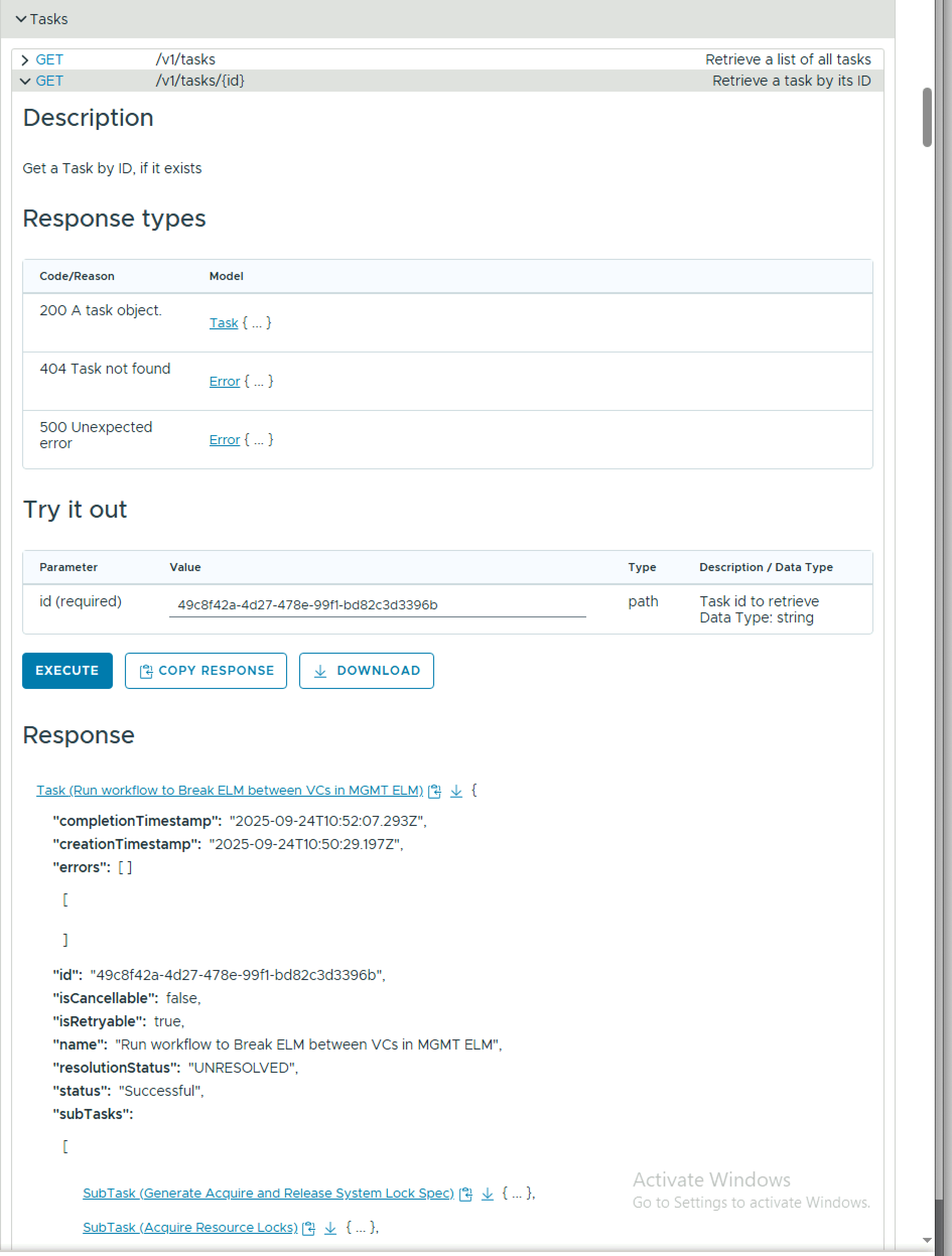
To monitor the task progress, expand GET /v1/tasks/{id} , enter the task id in the id field, and click Execute.
Adding an Existing VCF Instance to a VCF Fleet

This is a scenario that is not covered very well in our current VCF 9.0 docs (I am working to rectify that), where a customer has more than 1 existing VCF 5.x instance and they want to move to VCF 9.0. The upgrade of the first instance and the addition (or upgrade) of VCF Operations & VCF Automation are documented. But how do you go about adding those additional VCF 5.x instances into your new VCF 9.0 fleet? Although it looks like a long post, the process is pretty straightforward.

TL;DR Version

  • Create an integration in VCF Operations for the new VCF instance.
  • Update the integration to use a system-managed service account.
  • Add the new management domain vCenter as a deployment target in fleet management.
  • Deploy a VCF Operations collector to the new instance.
  • Update the integration to use the new collector/collector group.

Step By Step Version

First, you should upgrade the additional instances to 9.0. This is not a mandatory step (and sometimes may not be possible for operational reasons), but it will set you up to be able to consume all of the features of VCF 9.0.

Next, create a new VMware Cloud Foundation integration in VCF Operations for the SDDC Manager of the additional VCF instance.

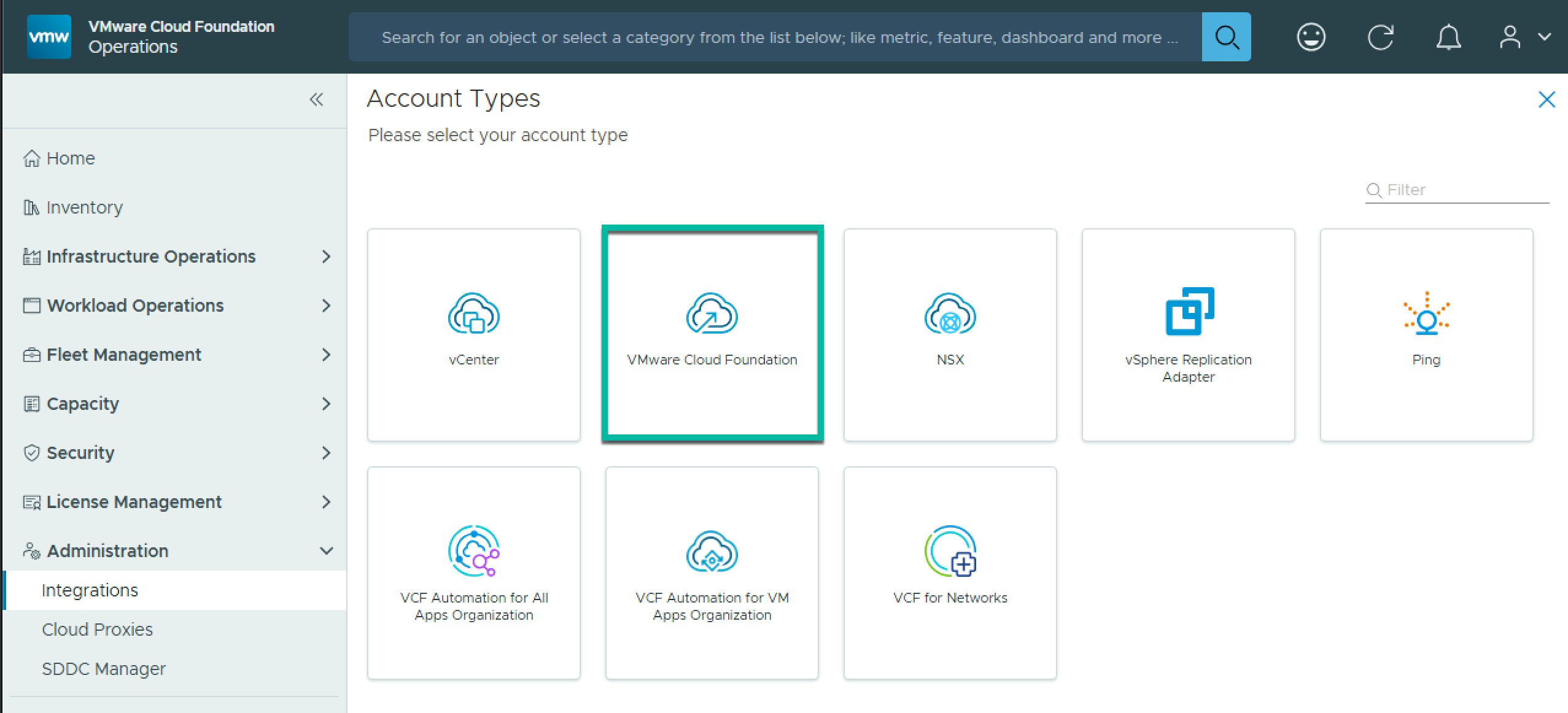
  • In the VCF Operation UI, navigate to Administration > Integrations, and click Add.
  • Click VMware Cloud Foundation on the Account Types screen.
  • Enter a friendly name for the instance and enter the FQDN for SDDC Manager.
  • To add a new credential, click the + next to credential
  • Enter a username and password with the ADMIN role in SDDC Manager, and click OK. For now, I am using administrator@vsphere.local as we will change this to a service account later.
  • Leave the Collector / Group as Default for now. This will also be changed later.
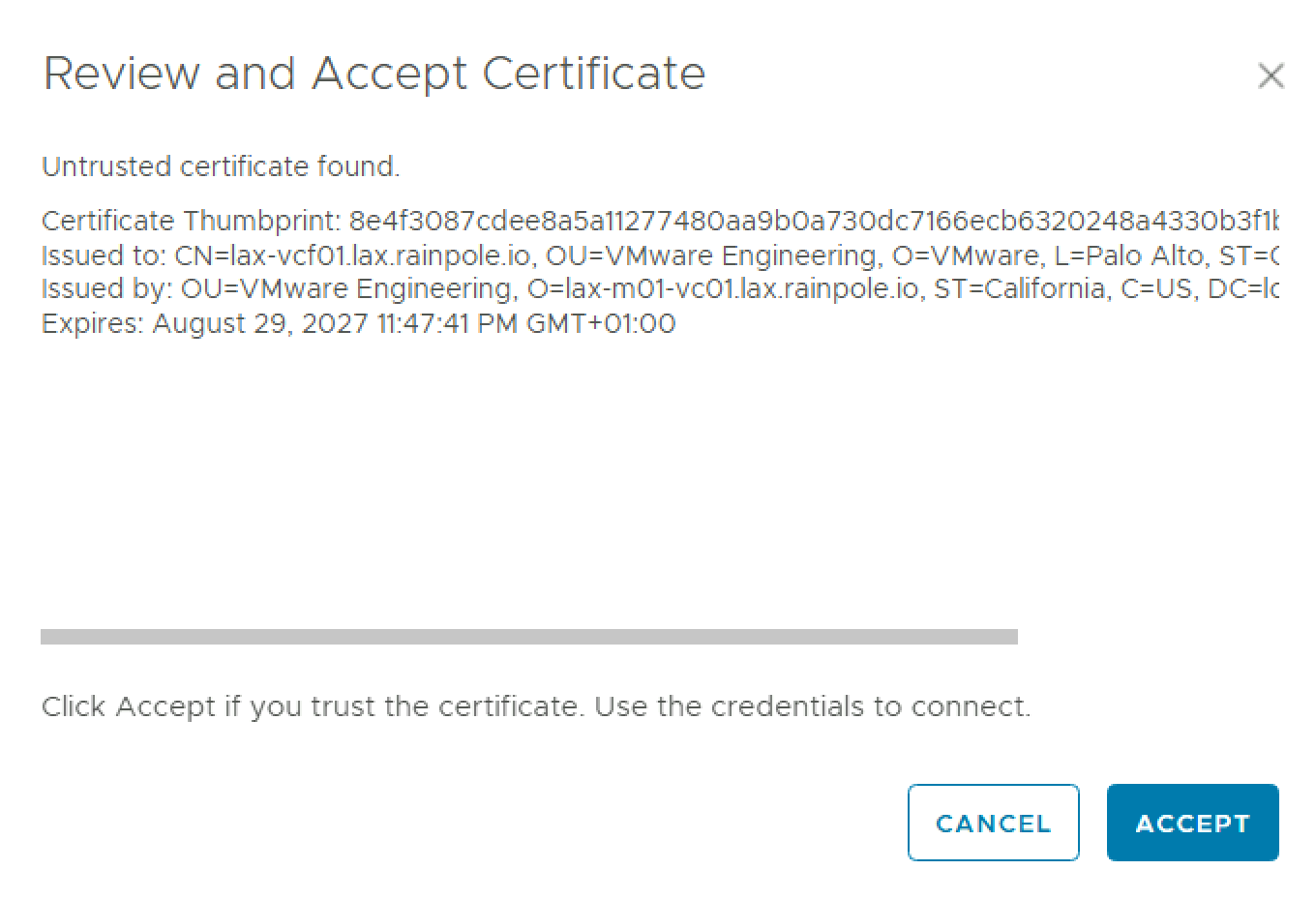
  • Click Validate Connection and accept the certificate.
  • Expand Advanced Settings, change Enable Domain Monitoring on Creation to true, and remove the VCF Configuration limits File Name (if it is populated).
  • To add the connection, click Add.
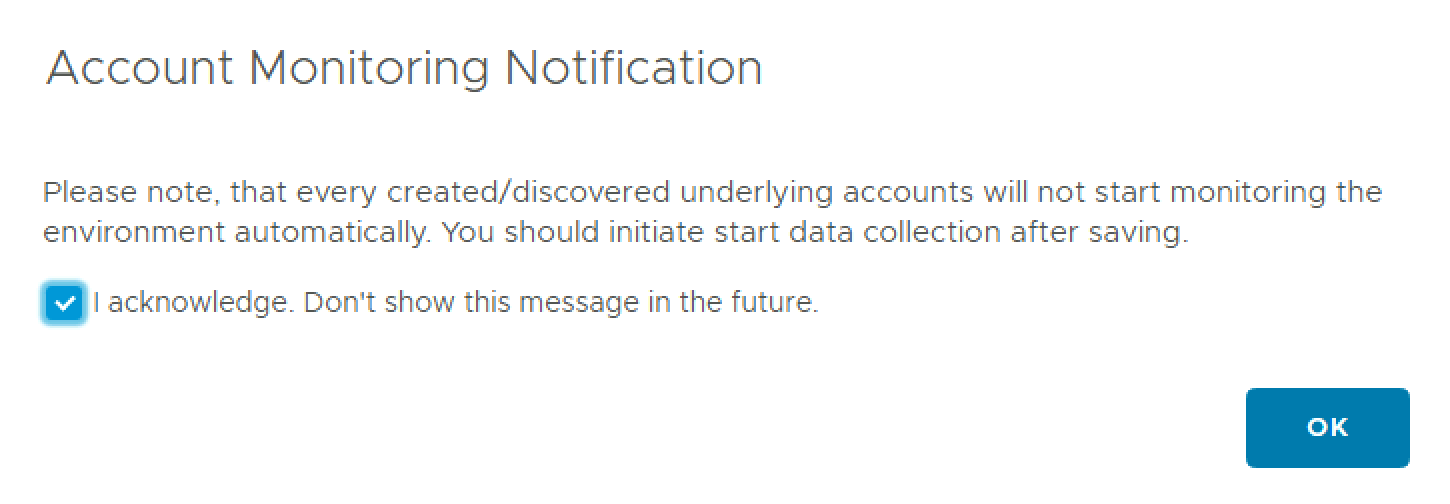
  • Acknowledge the Account Monitoring Notification and click OK.
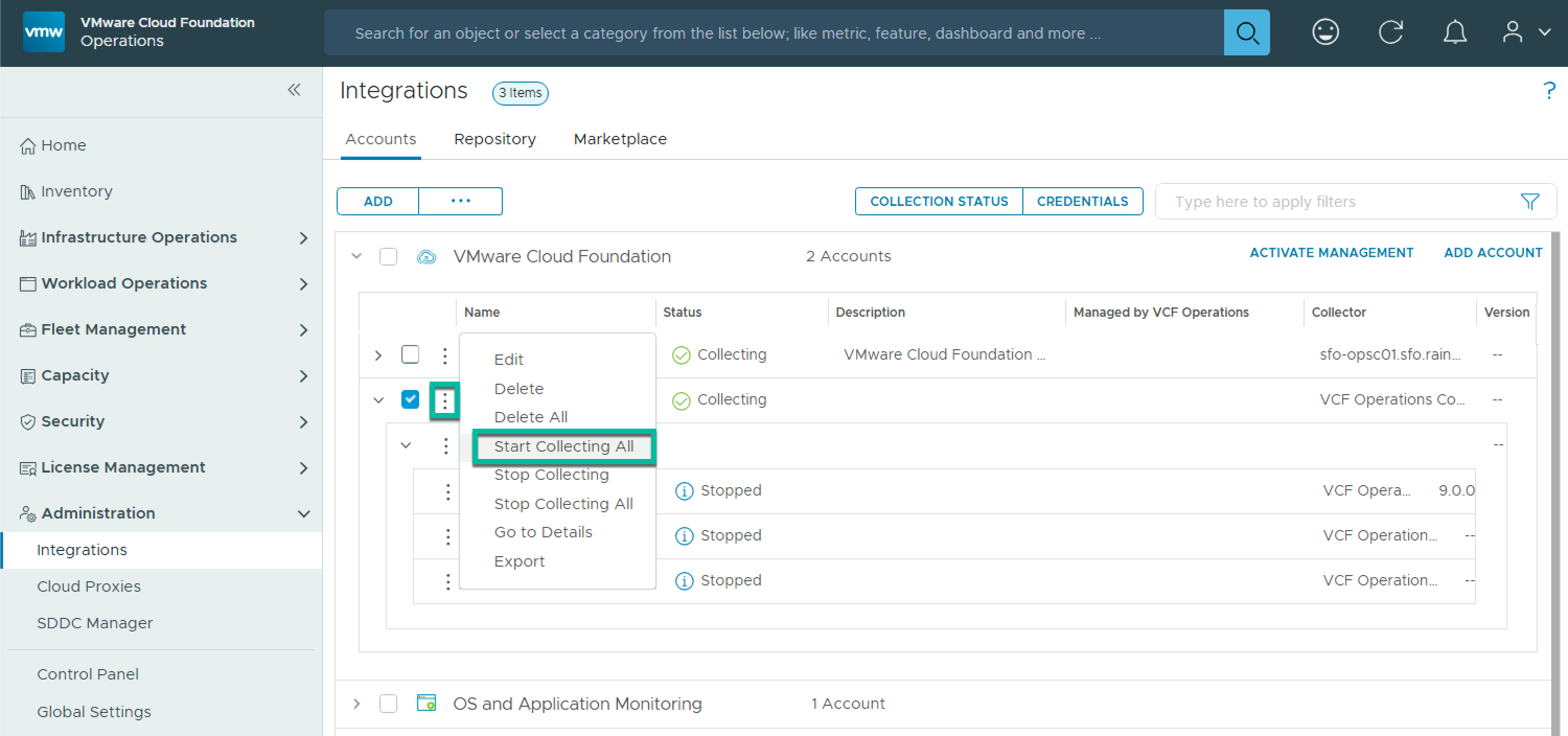
  • On the Integrations screen, expand VMware Cloud Foundation and expand the new Integration. You will see that the workload domain components are in a stopped status. To start them, click the vertical ellipsis at the VCF instance level and click Start Collecting All.

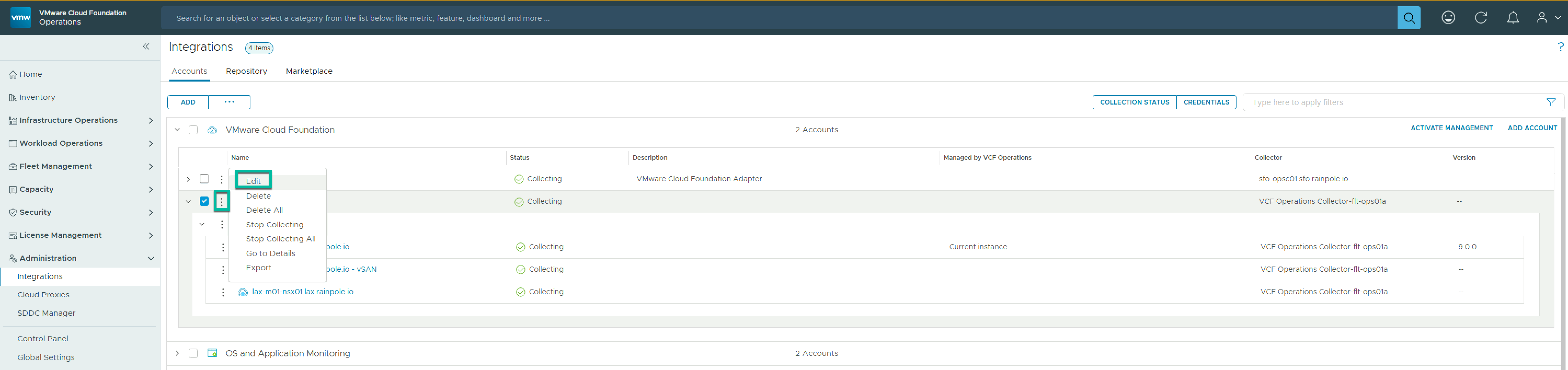
To move away from using a defined credential to a system managed service account, click the vertical ellipsis at the VCF instance level and click Edit.

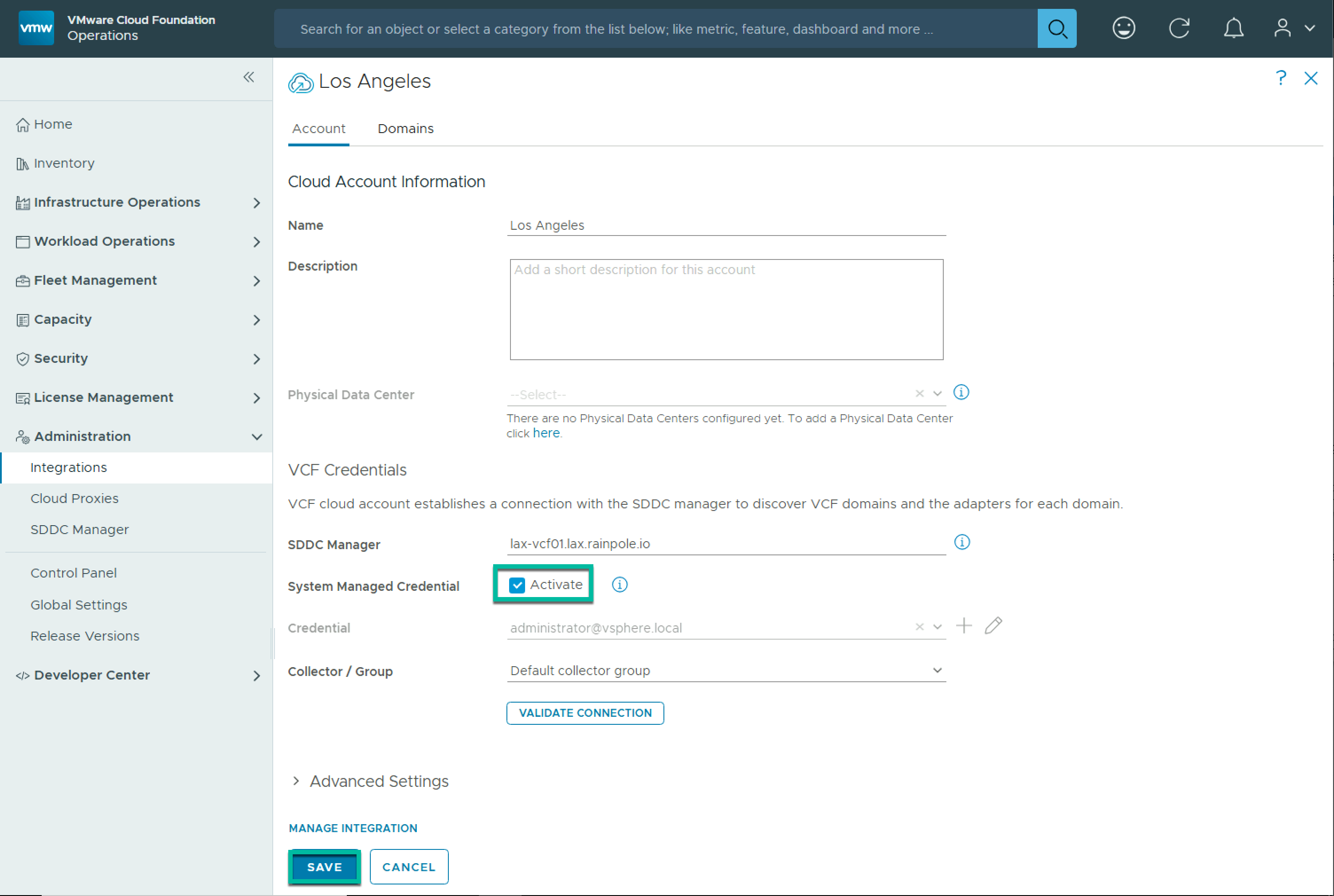
  • On the Cloud Account Information screen, under System Managed Credential, click Activate, and click Save.
  • You can now safely delete the ADMIN role credential you created earlier. On the Integrations screen, click Credentials.
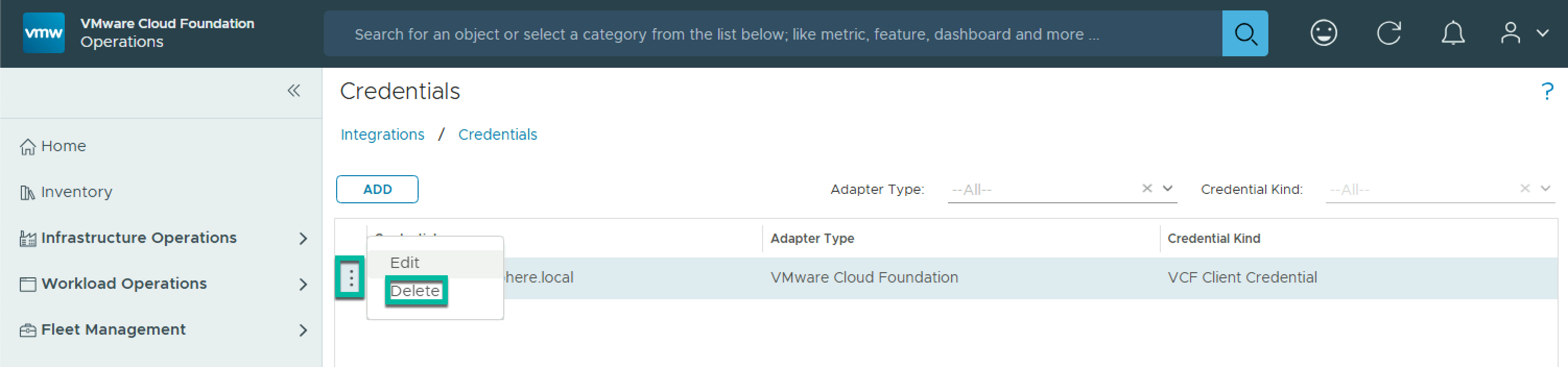
  • On the Credentials screen, click the vertical ellipsis next to the credential you created and click Delete.
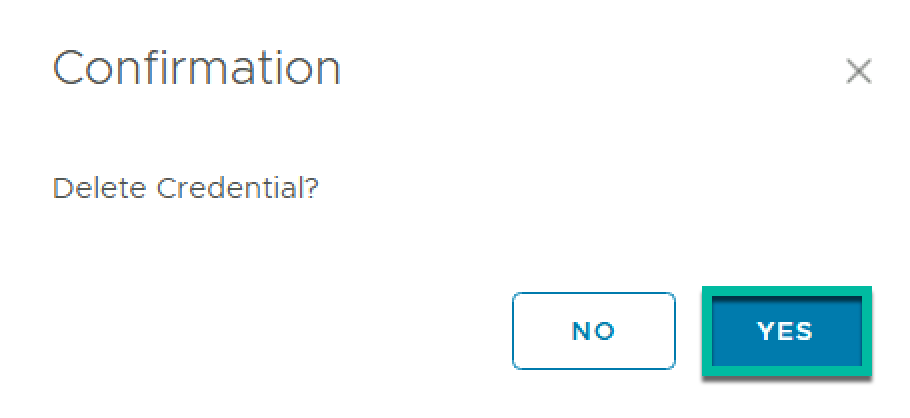
  • Click Yes to confirm the delete operation.

Next you need to add the management domain vCenter as a deployment target to allow you to deploy VCF Operations collector(s).

  • Navigate to Fleet Management > Lifecycle > Settings > Deployment Targets, and click Add Deployment Target.

The Add Deployment Target wizard will find vCenter instances that are configured as a VCF integration and present a list to choose from.

  • Select the vCenter and click Validate.
  • Once the validation is successful, click Add.
  • Monitor the task status until it completes.
  • To deploy VCF Operations collector(s) to the newly added VCF instance, navigate to Components and click operations in the components list.
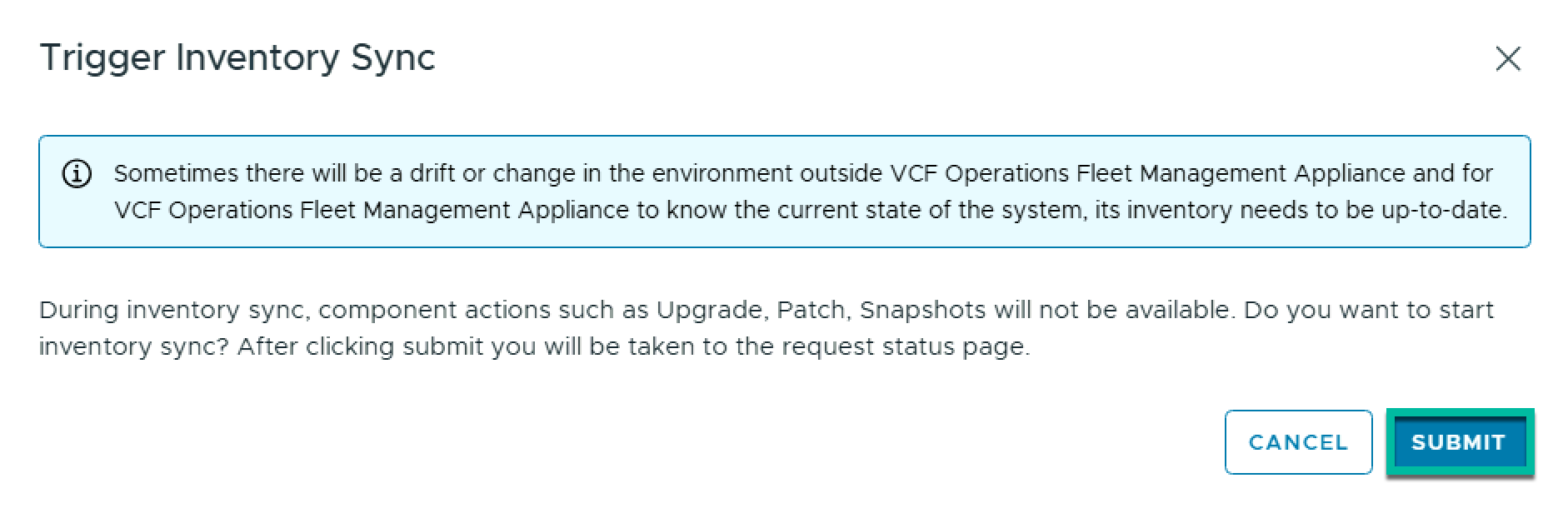
  • Before adding new nodes to the VCf Operations cluster, it is advisable to perform an inventory sync to avoid any drift. Click Trigger Inventory Sync.
  • On the Trigger Inventory Sync pop-up, click Submit.
  • Monitor the inventory sync task until it completes and then navigate back to the Add Nodes screen and click Add Node. As you have already performed the Inventory Sync, it can be ignored here. Click Proceed.
  • On the Infrastructure screen, select the newly added management domain vCenter from the drop down and select the target cluster, network and datastore and click Next.
  • On the Networks screen, do not make any changes. You will set the network information on the collector directly. Click Next.
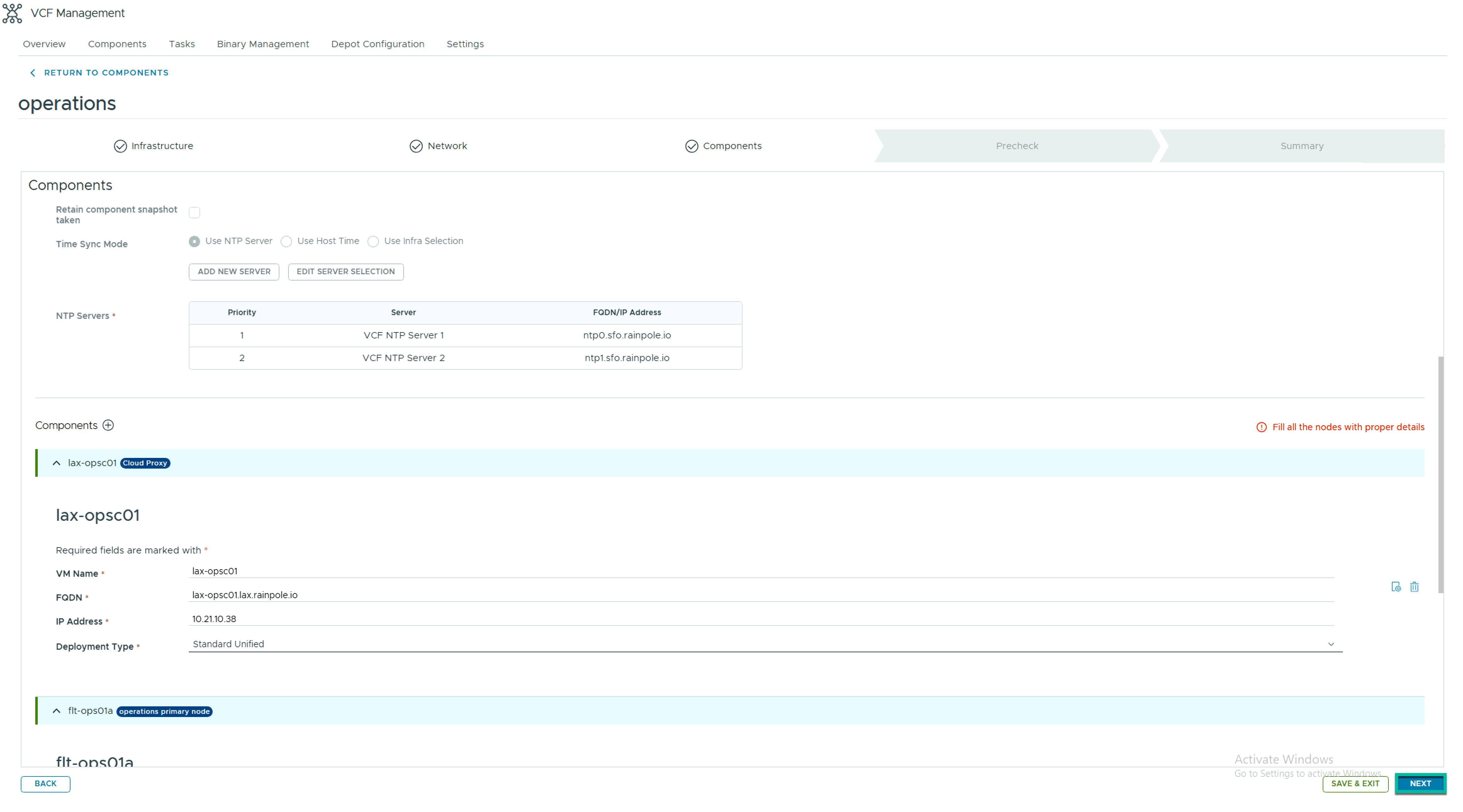
  • On the Components screen, uncheck Take component snapshot, as it is not required when adding collector nodes.
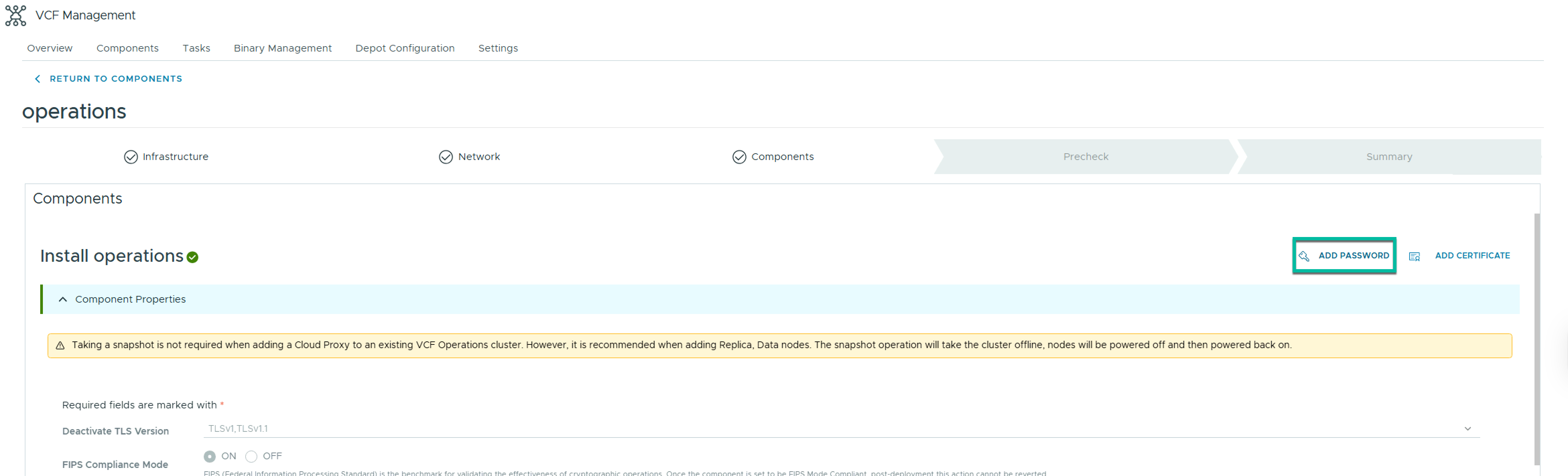
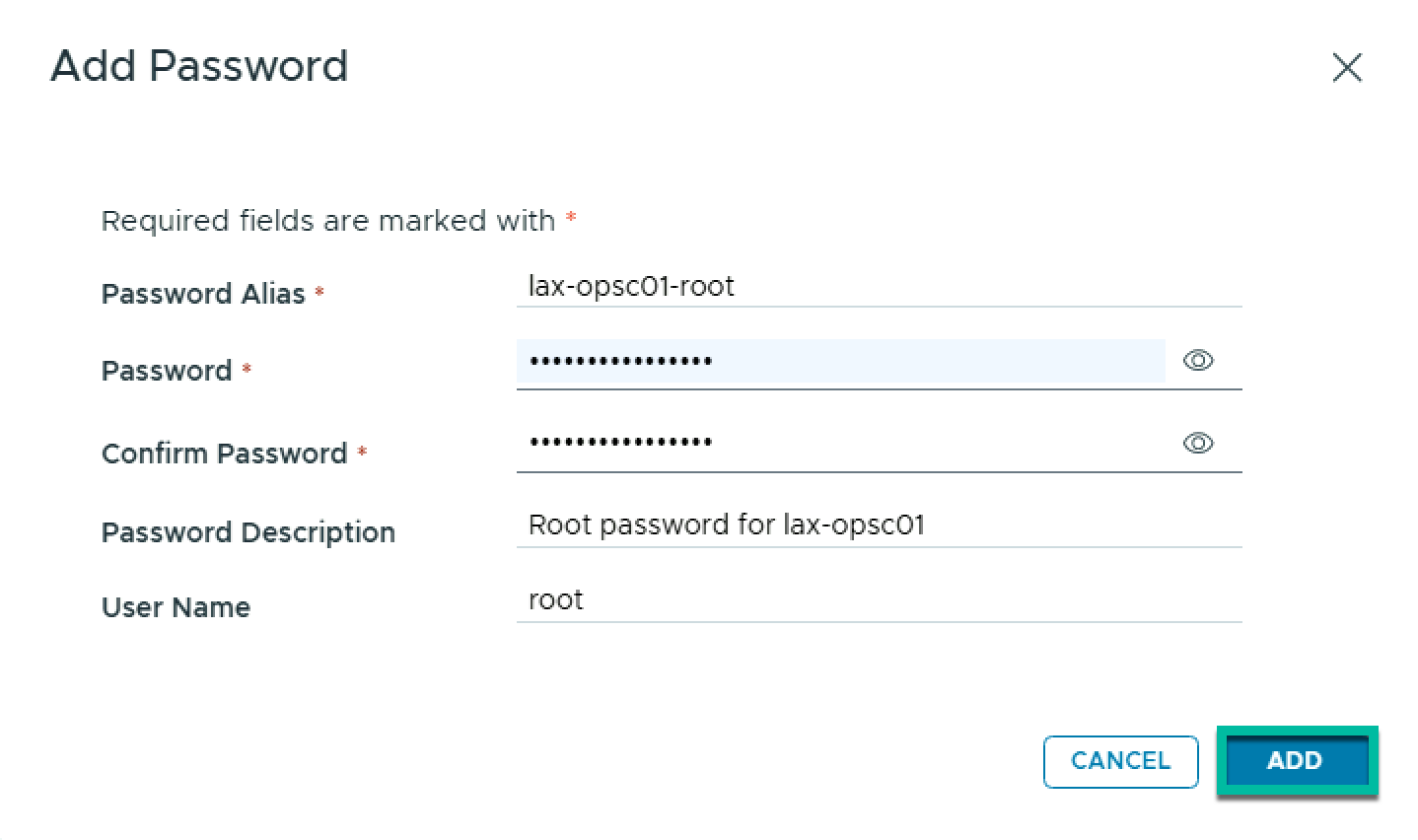
  • Before you can deploy the collector, you need to add a root user password for the collector to the credentials store. On the Components screen, click Add Password.
  • Enter the password details and click Add.
  • Scroll down to Components and click the + to add a component. From the list, select Cloud Proxy. Note: Cloud Proxy is the legacy name for the VCF Operations Collector.
  • Enter the details for the collector and click the settings icon on the right.
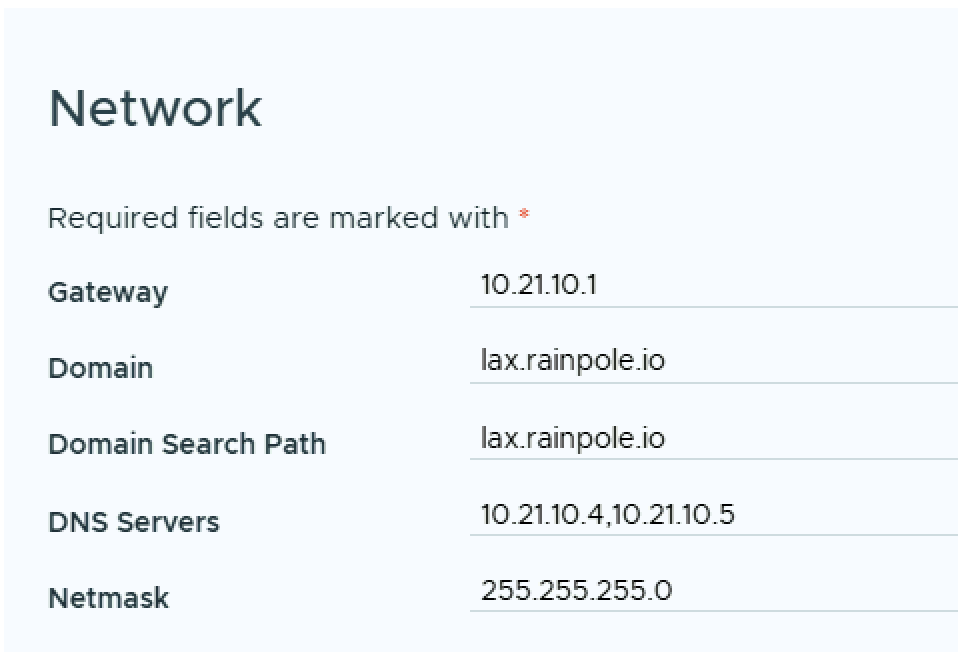
  • Update the network details to reflect the newly added VCF instance
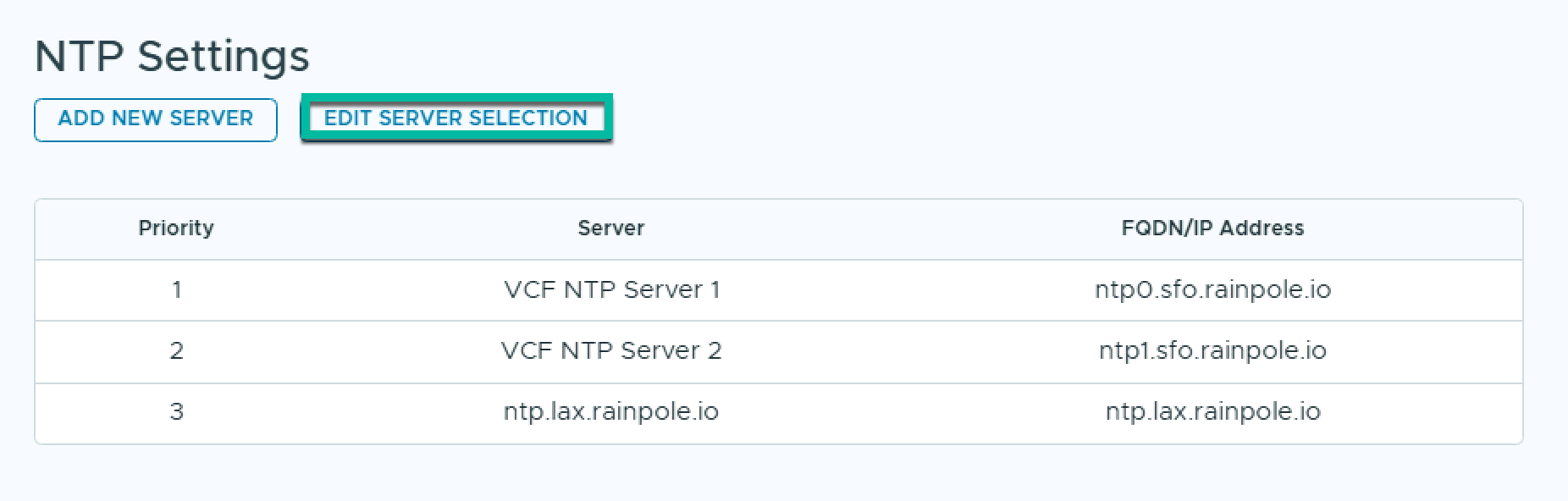
  • If additional NTP servers are required, under NTP Settings, click Add New Server. Enter the server details and click Submit.
  • To change the NTP Server selection, click Edit Server Selection.
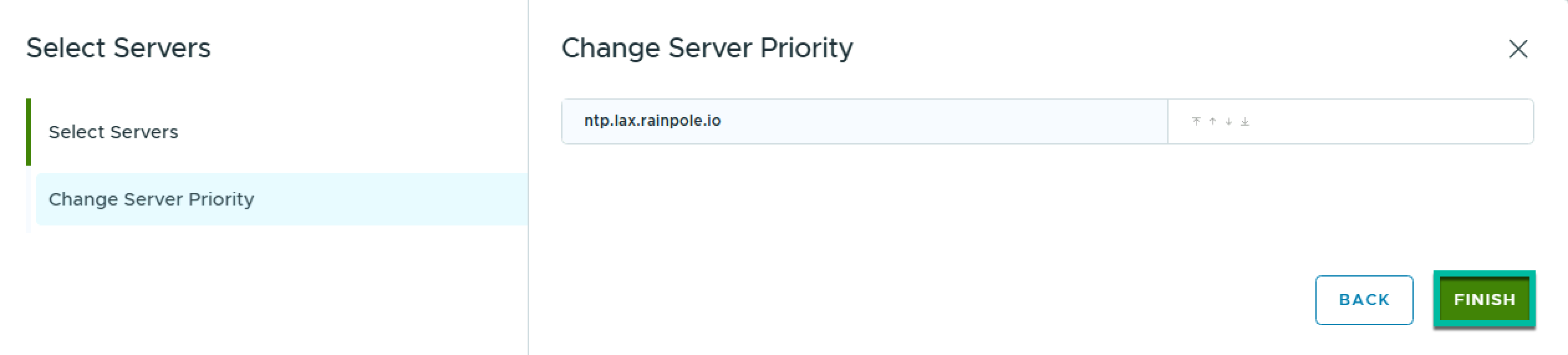
  • On the Select Servers screen, select the correct server(s) and click Next. If required, adjust the server priority and click Finish.
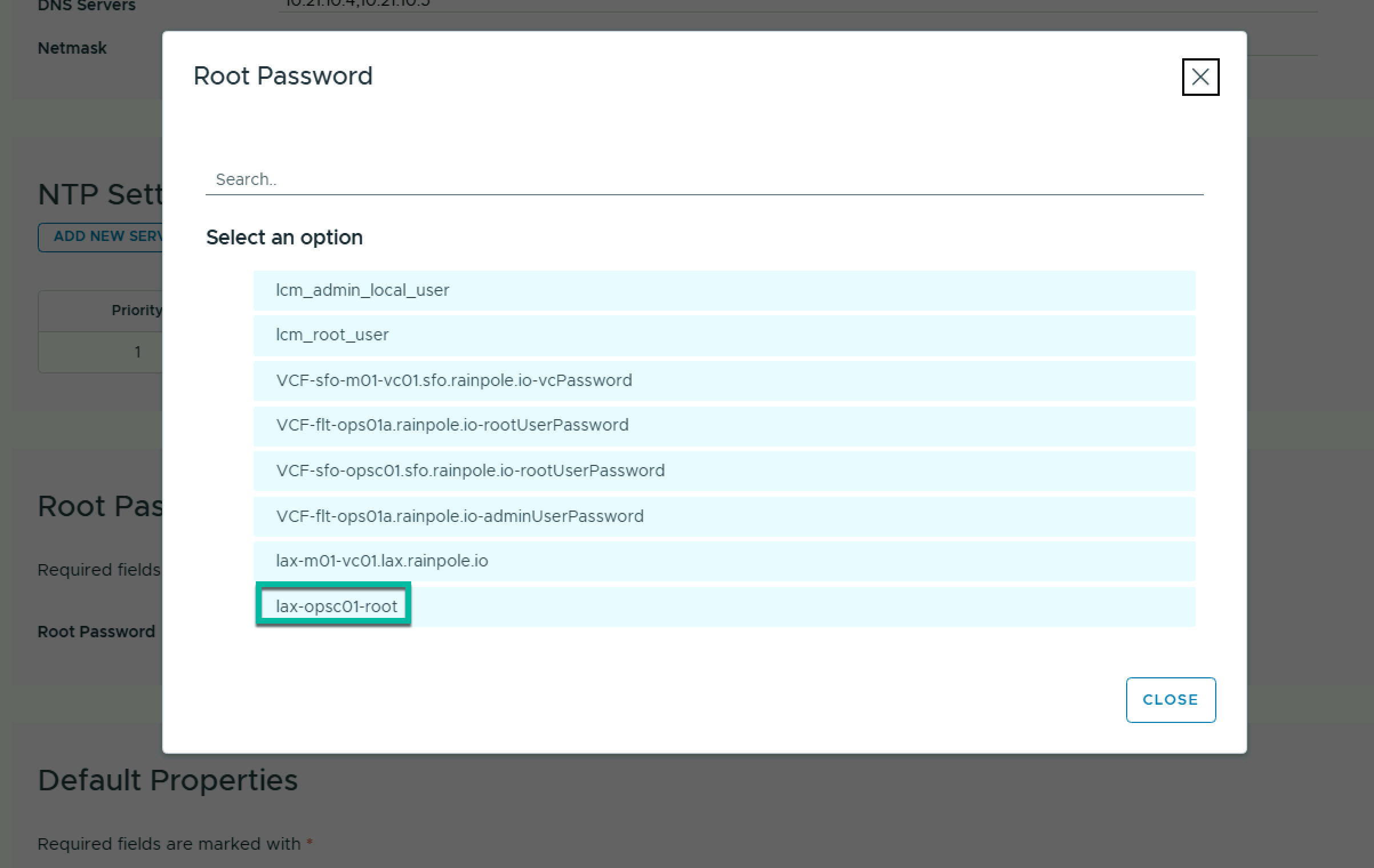
  • Under Root Password, click Select Root Password and select the root password created earlier.
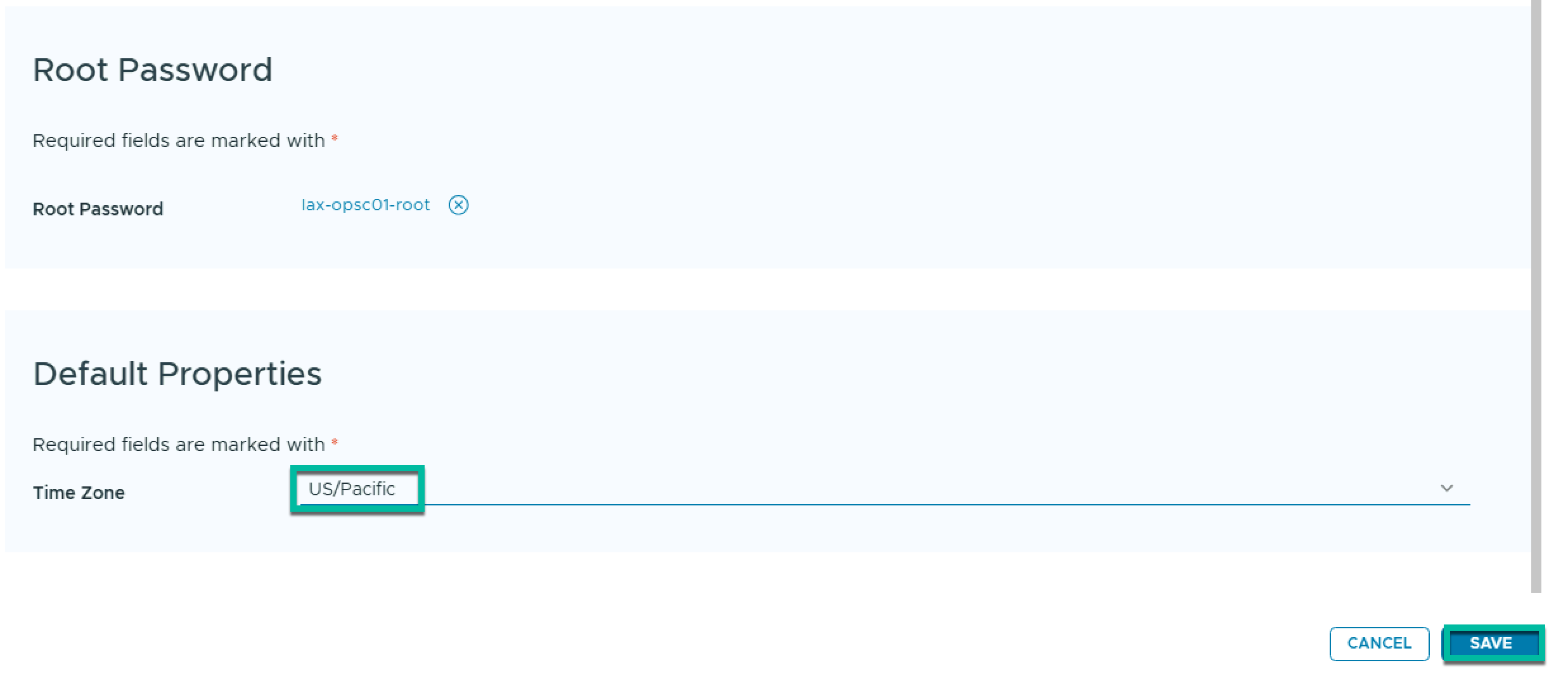
  • Under Timezone, select the correct timezone from the dropdown and click Save.
  • On the Components screen, click Next.
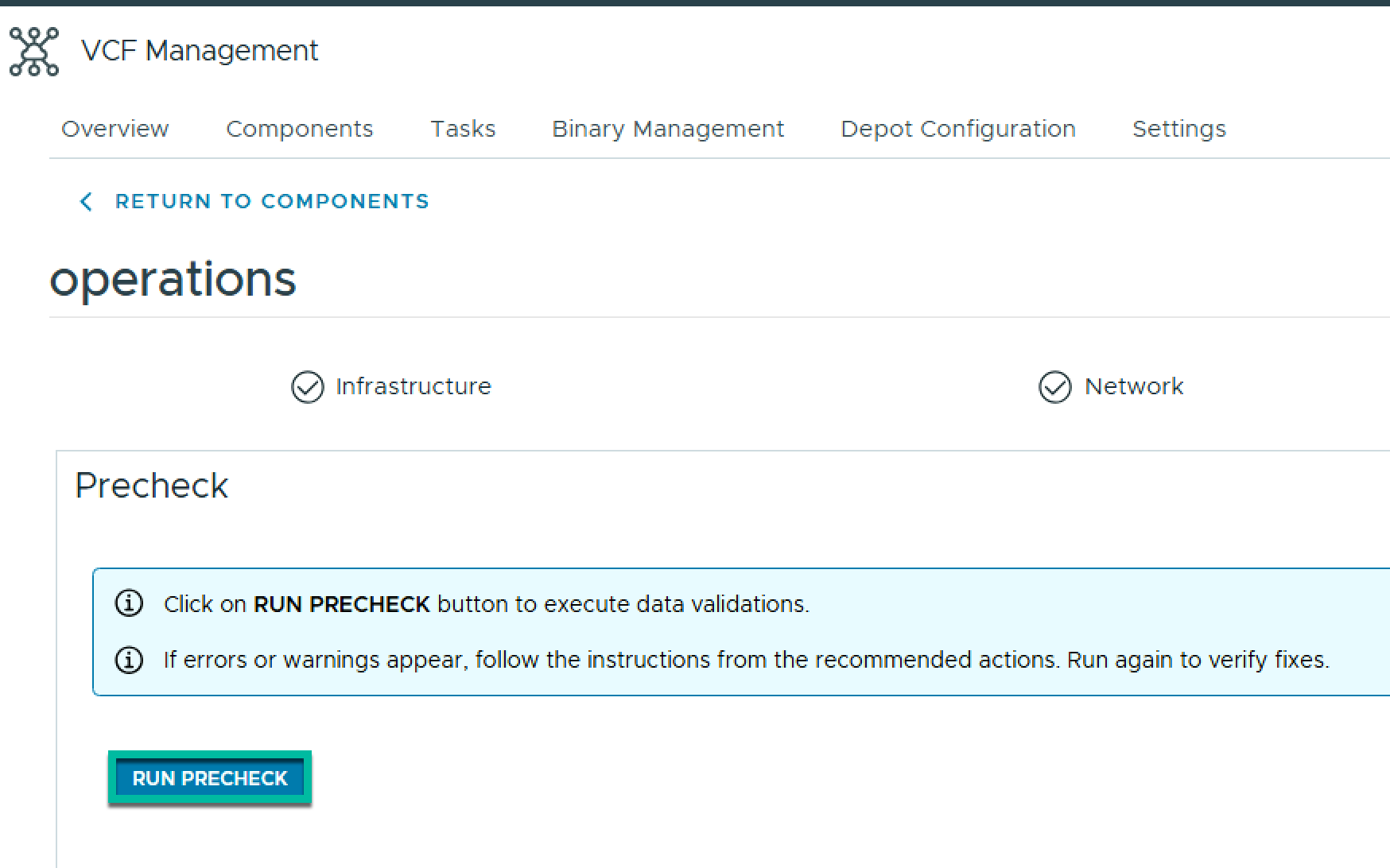
  • On the Precheck screen, click Run Precheck, and wait for the precheck to complete successfully. Once its complete, click Next.
  • On the Summary screen, click Submit to deploy the collector(s).
  • Monitor the deployment task to completion.
  • On the Integrations screen, expand VMware Cloud Foundation and expand the new Integration. Click the vertical ellipsis at the VCF instance level and click Edit.
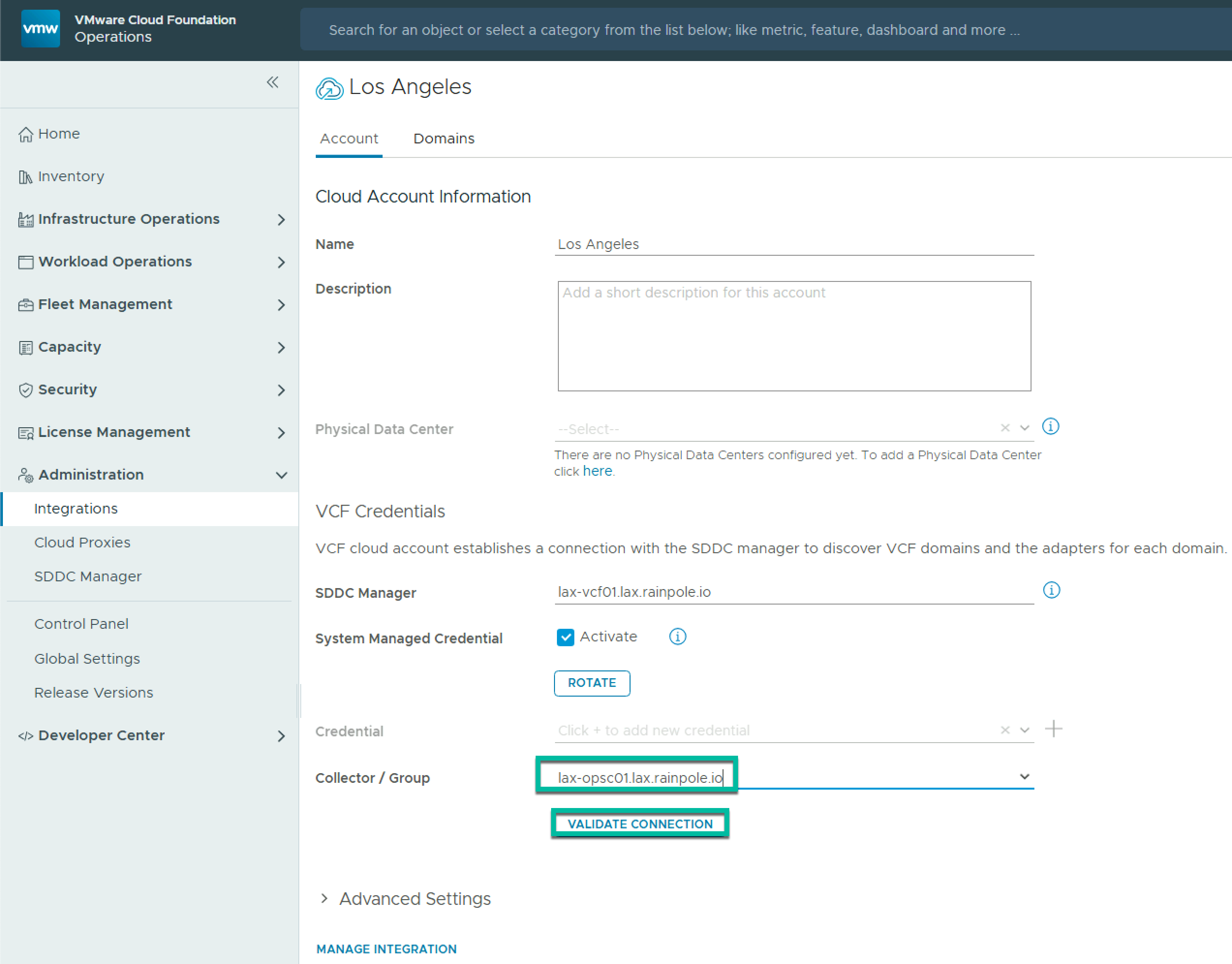
  • Under Collector / Group, select the newly deployed collector, and click Validate Connection.

That takes care of the instance-level setting, which will be applied to any new workload domains. You must repeat the process at a per-workload domain level for any existing domains.

  • Click the vertical ellipsis at the domain level, and click Edit.
  • On the vCenter screen, change the Collector / group to the new collector and click Validate Connection. Click Ok on the Test Connection popup and click Save.
  • Now you should see your new VCF instance using the correct collector/group.

If you are using VCF Automation, your new VCF instance should now be discovered automatically.

Upgrading VCF 5.2 to 9.0 – Part 8 – Deploy VCF Fleet Management Components

VCF 9.0 introduced the concept of VCF fleet, which is defined as:

An environment that is managed by a single set of fleet-level management components – VCF Operations & VCF Automation. A VCF fleet contains one or more VCF Instances and may contain one or more standalone vCenter instances, managed by the VCF Operations instance for the fleet. The management domain of the first VCF Instance in the VCF fleet typically hosts the fleet-level management components.

When deploying a new VCF fleet, you get the option to deploy the fleet-level management components using the VCF installer. Because I am upgrading from VCF 5.2, where I did not have Aria Operations or Aria Automation, I need to deploy new instances of each component (If I had pre-existing instances, they could be upgraded). You can deploy them manually from OVA, however, there is a new SDDC Manager API to automate the process using a JSON payload.

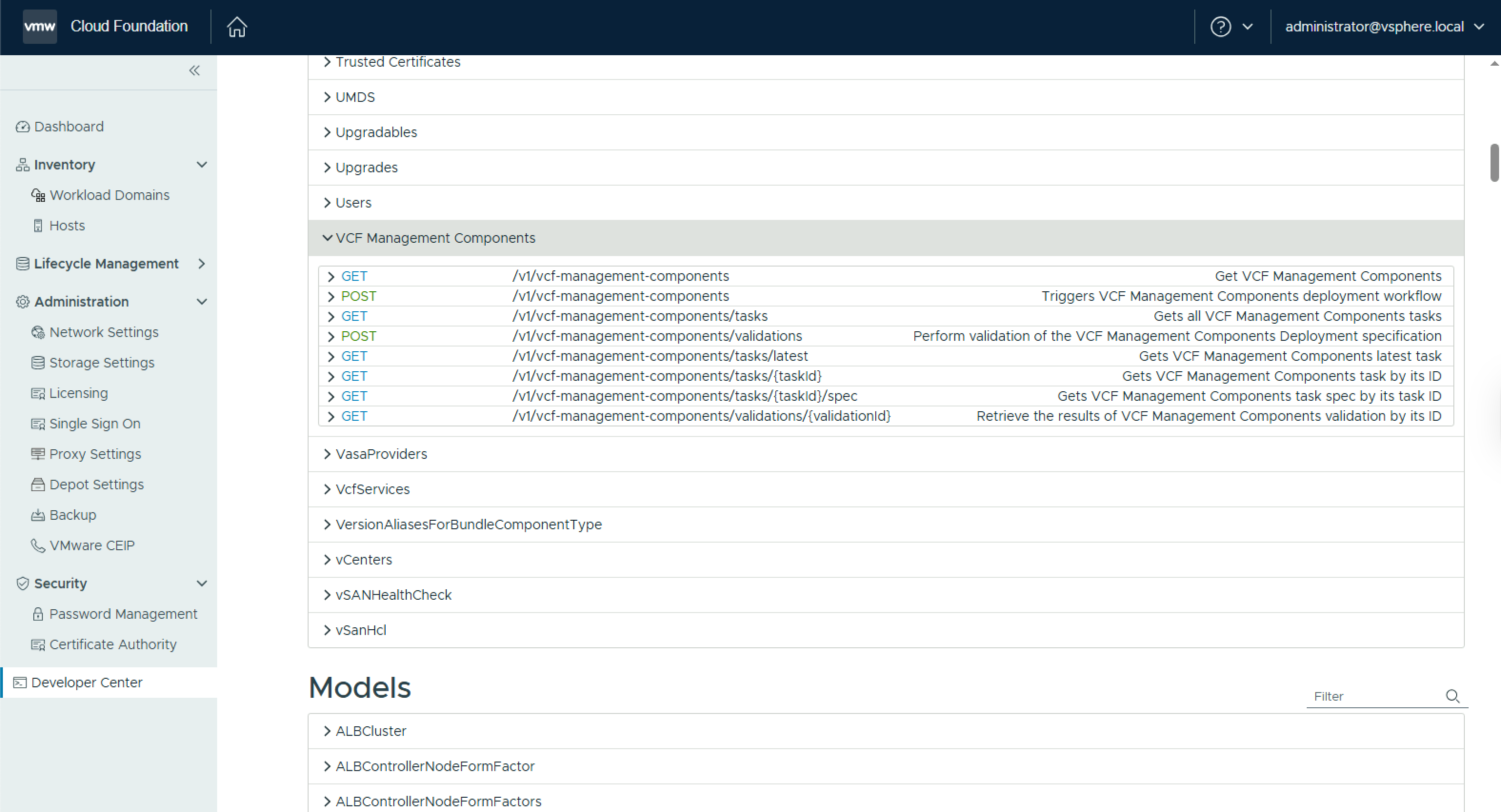
The API can be accessed via the SDDC Manager developer centre, under VCF Management Components.

The JSON payload to deploy VCF Operations (including a collector & the fleet management appliance) and VCF Automation is as follows: (NOTE: This spec is for a simple/single node deployment of the fleet management components where VCF Operations & VCF Automation will be deployed to an NSX Overlay segment, and the VCF Operations collector will be deployed to the management DVPG)

 {
    "vcfOperationsFleetManagementSpec": {
        "hostname": "flt-fm01.rainpole.io",
        "rootUserPassword": "VMw@re1!VMw@re1!",
        "adminUserPassword": "VMw@re1!VMw@re1!",
        "useExistingDeployment": false
    },
    "vcfOperationsSpec": {
        "nodes": [
            {
                "hostname": "flt-ops01a.rainpole.io",
                "rootUserPassword": "VMw@re1!VMw@re1!",
                "type": "master"
            }
        ],
        "useExistingDeployment": false,
        "applianceSize": "medium",
        "adminUserPassword": "VMw@re1!VMw@re1!"
    },
    "vcfOperationsCollectorSpec": {
        "hostname": "sfo-opsc01.sfo.rainpole.io",
        "rootUserPassword": "VMw@re1!VMw@re1!",
        "applianceSize": "small"
    },
    "vcfAutomationSpec": {
        "hostname": "flt-auto01.rainpole.io",
        "adminUserPassword": "VMw@re1!VMw@re1!",
        "useExistingDeployment": false,
        "ipPool": [
            "192.168.11.51",
            "192.168.11.52"
        ],
        "internalClusterCidr": "250.0.0.0/15",
        "vmNamePrefix": "flt-auto01"
    },
    "vcfInstanceName": "San Francisco VCF01",
    "vcfMangementComponentsInfrastructureSpec": {
        "localRegionNetwork": {
            "networkName": "sfo-m01-cl01-vds01-pg-vm-mgmt",
            "subnetMask": "255.255.255.0",
            "gateway": "10.11.10.1"
        },
        "xRegionNetwork": {
            "networkName": "xint-m01-seg01",
            "subnetMask": "255.255.255.0",
            "gateway": "192.168.11.1"
        }
    }
}

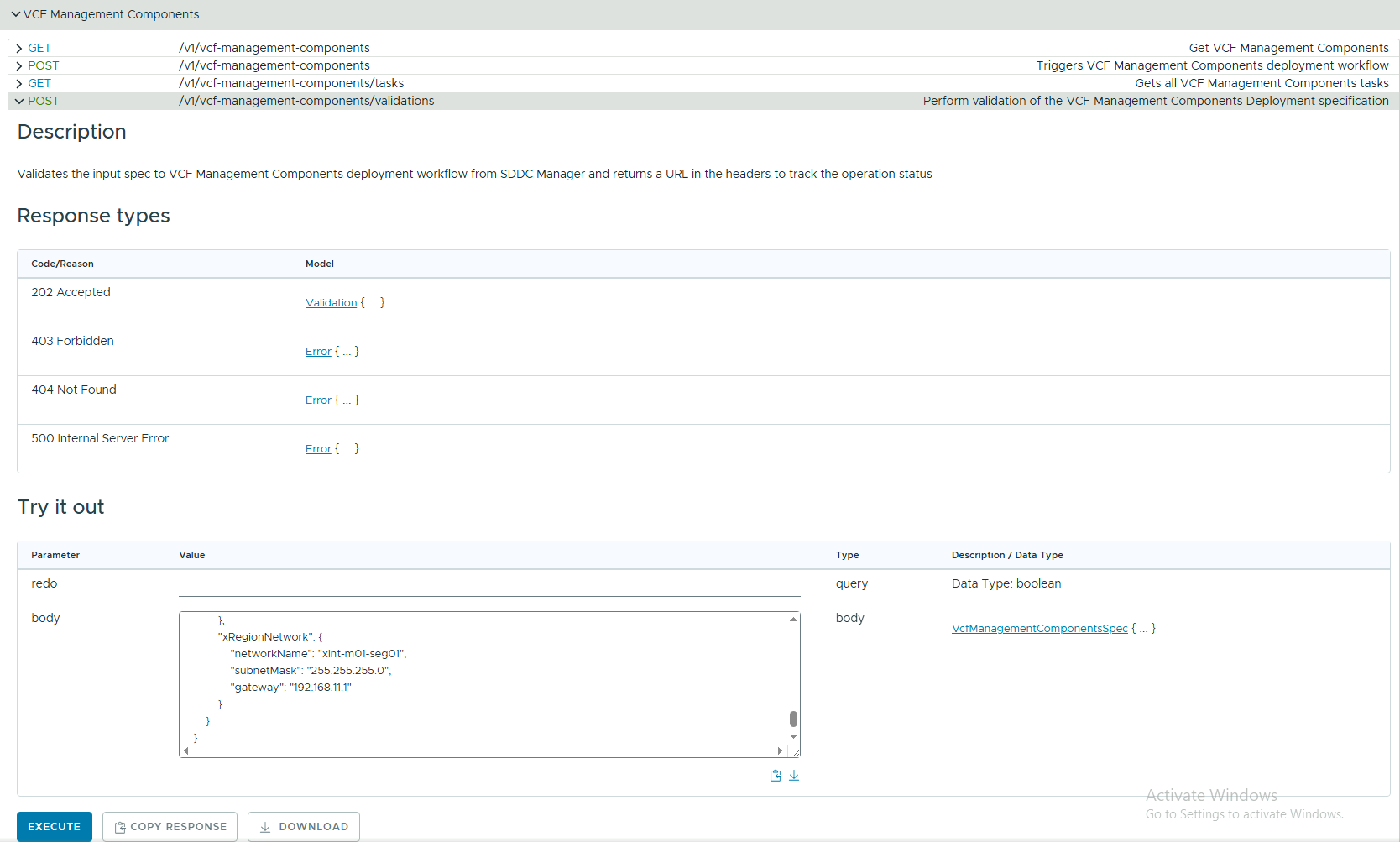
Validate your JSON payload using the POST /v1/vcf-management-components/validations API.

Executing this will return a task id. Copy this id to monitor the task

Check the status of the validation task using GET /v1/vcf-management-components/validations/{validationId} until it’s resultStatus is SUCCEEDED.

Now, submit the same JSON payload to POST /v1/vcf-management-components, and go grab a coffee!

Once the deployment completes, you should have a VCF Operations instance to manage your fleet, along with a VCF Automation instance for the consumption layer.

Upgrading VCF 5.2 to 9.0 – Part 7 – Upgrade vSphere Cluster

The next step in the upgrade sequence is to upgrade the vSphere cluster to 9.0.

Because the cluster is now managed by vLCM images, you need a vLCM image matching the target version you wish to upgrade to.

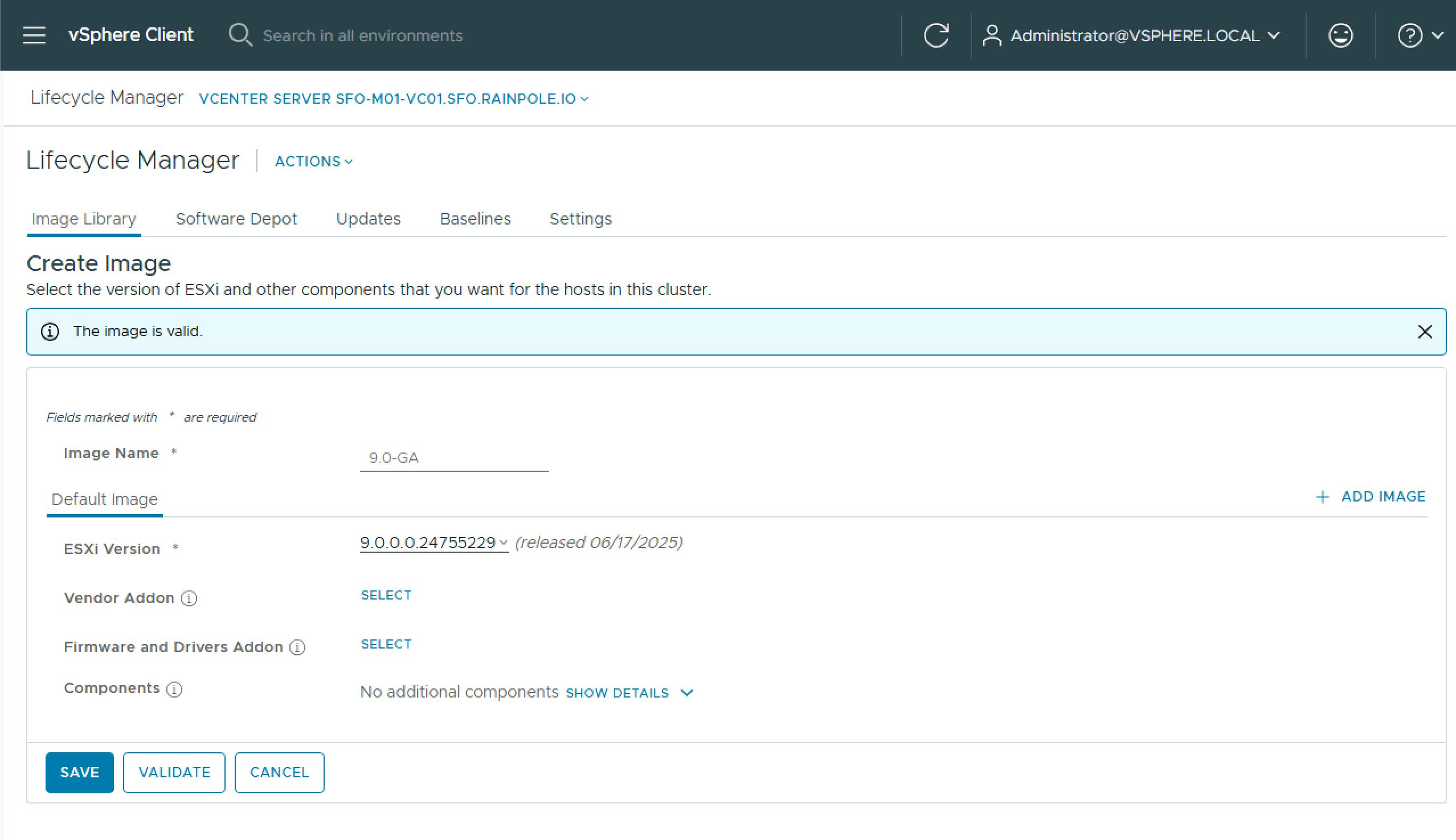
  • Log into the vSphere client and navigate to Menu > Lifecycle Manager, and click Create Image.
  • Give the image a name and select the correct target ESX version. Add any vendor/firmware/drivers you need and click Validate, and then Save.

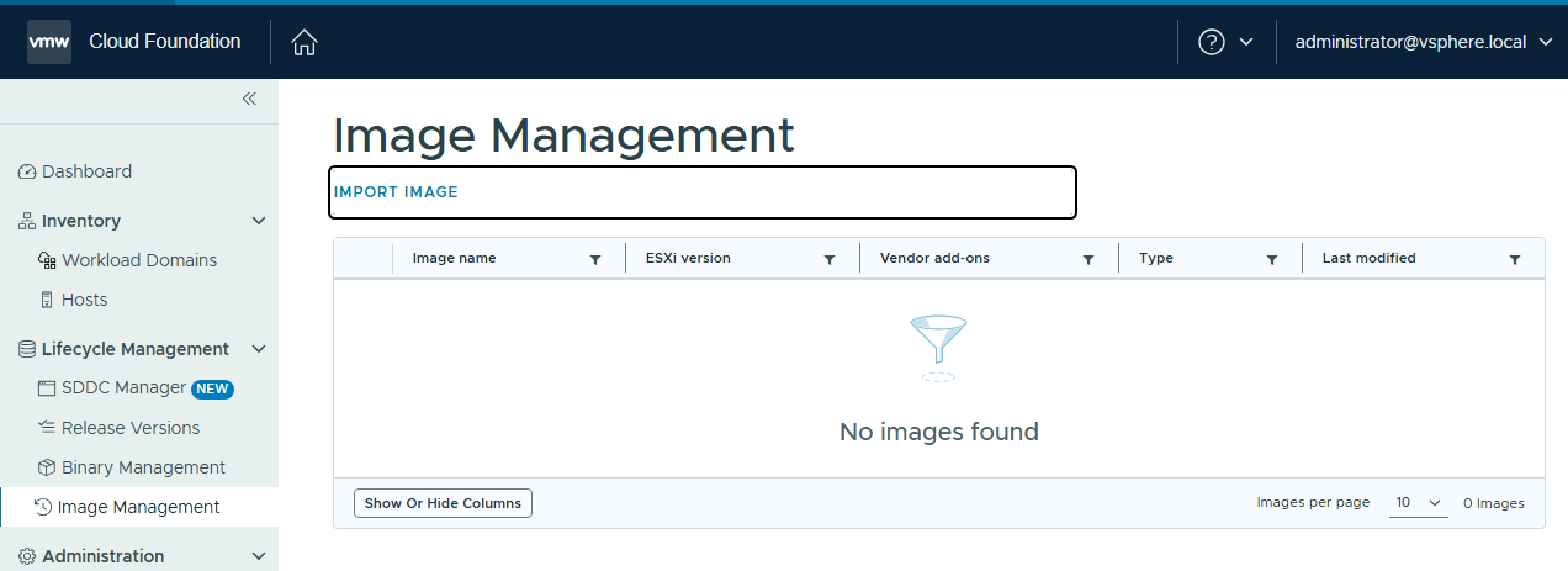
To import the image to SDDC Manager, navigate to Lifecycle Management > Image Management and click Import Image.

  • Select the vCenter, select the image, and click Import.

Once the vLCM image is imported, navigate to Workload Domains > Management Workload Domain > Updates, and click Run Precheck and ensure all prechecks pass. 

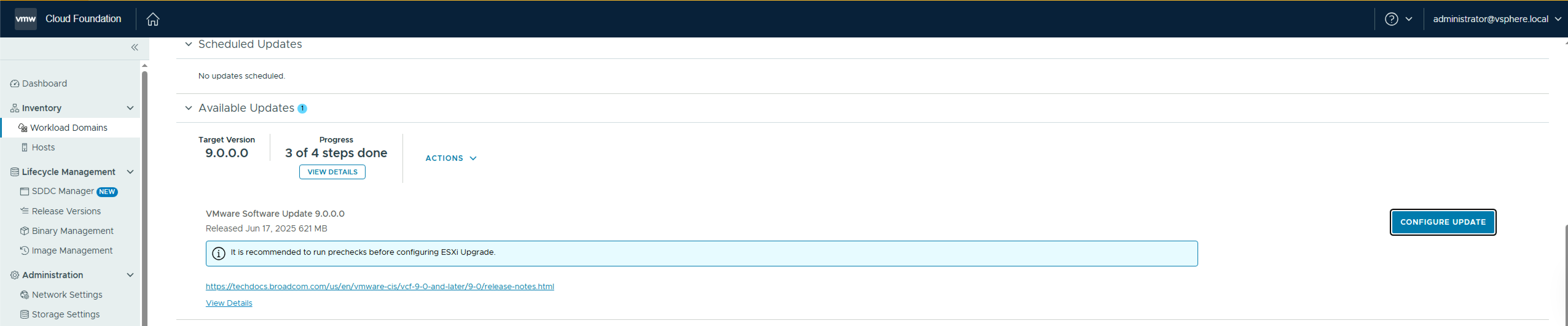
Once the pre-check passes, click Configure Update.

On the Introduction pane, review the details and click Next.

On the Select Clusters with Images pane, select the clusters to be upgraded, and click Next.

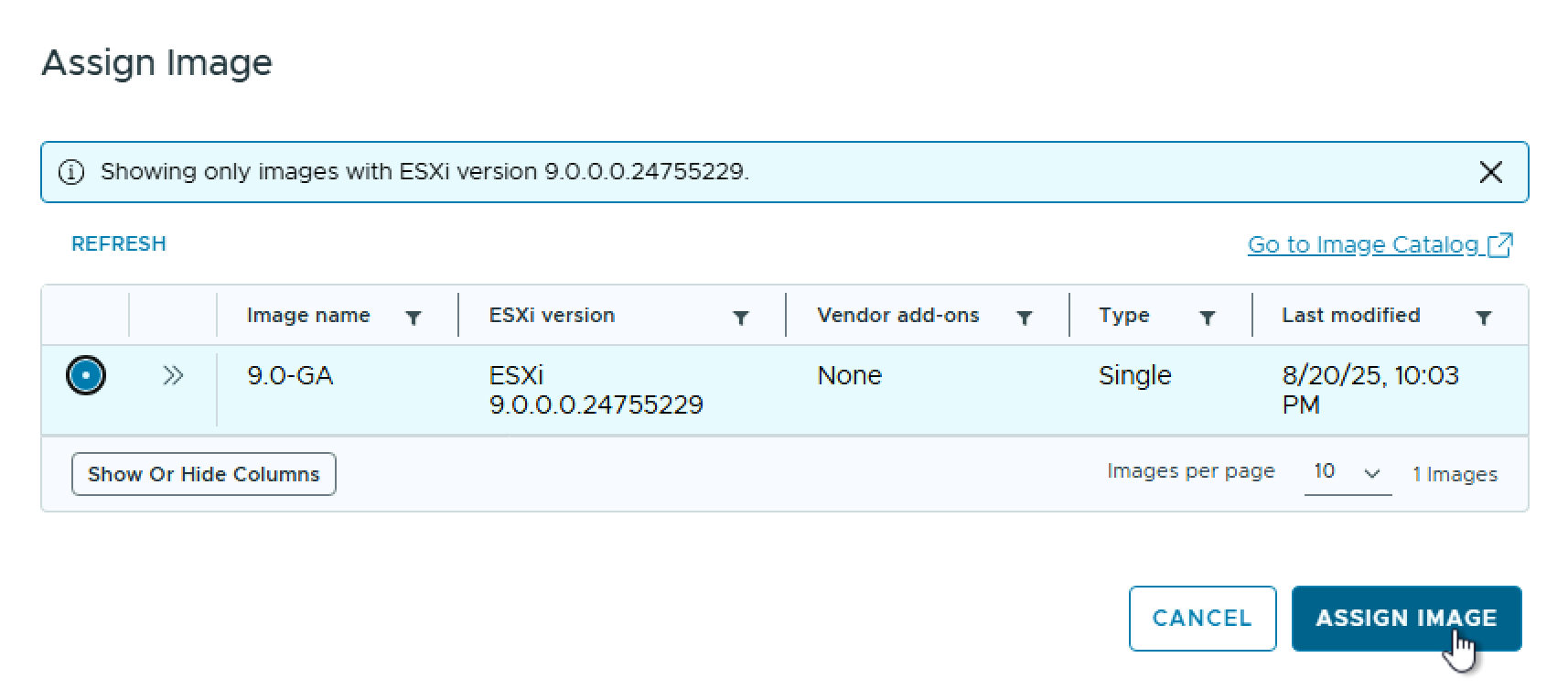
On the Assign Images pane, select the cluster, and click Assign Image.

On the Assign Image pane, select the desired image and click Assign Image, and click Next when returned to the Assign Images pane.

On the Upgrade Options pane, select the options you want and click Next.

On the Review pane, review the chosen options and click Run Precheck.

The vSphere cluster upgrade pre-check begins.

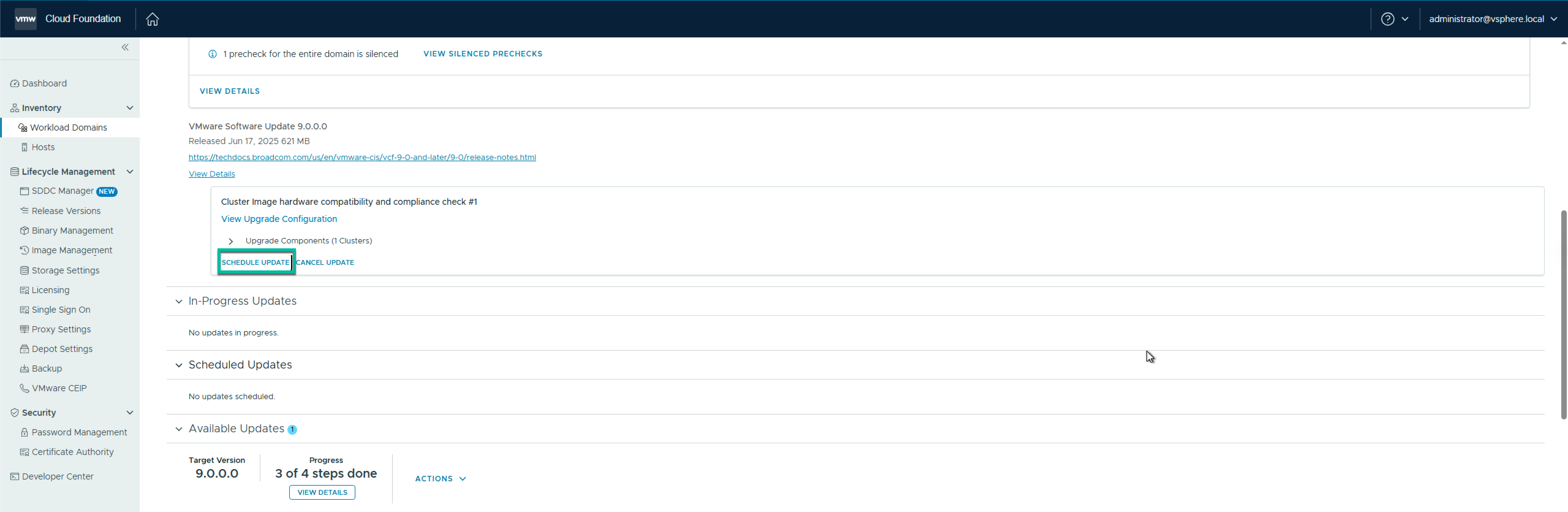
Once the pre-check completes, click Schedule Update.

On the review pane, review the settings and click Next.

On the Schedule Update pane, select your Maintenance Window, and click I have reviewed the hardware compatibility and compliance check result and have verified the clusters images are safe to apply, and click Finish.

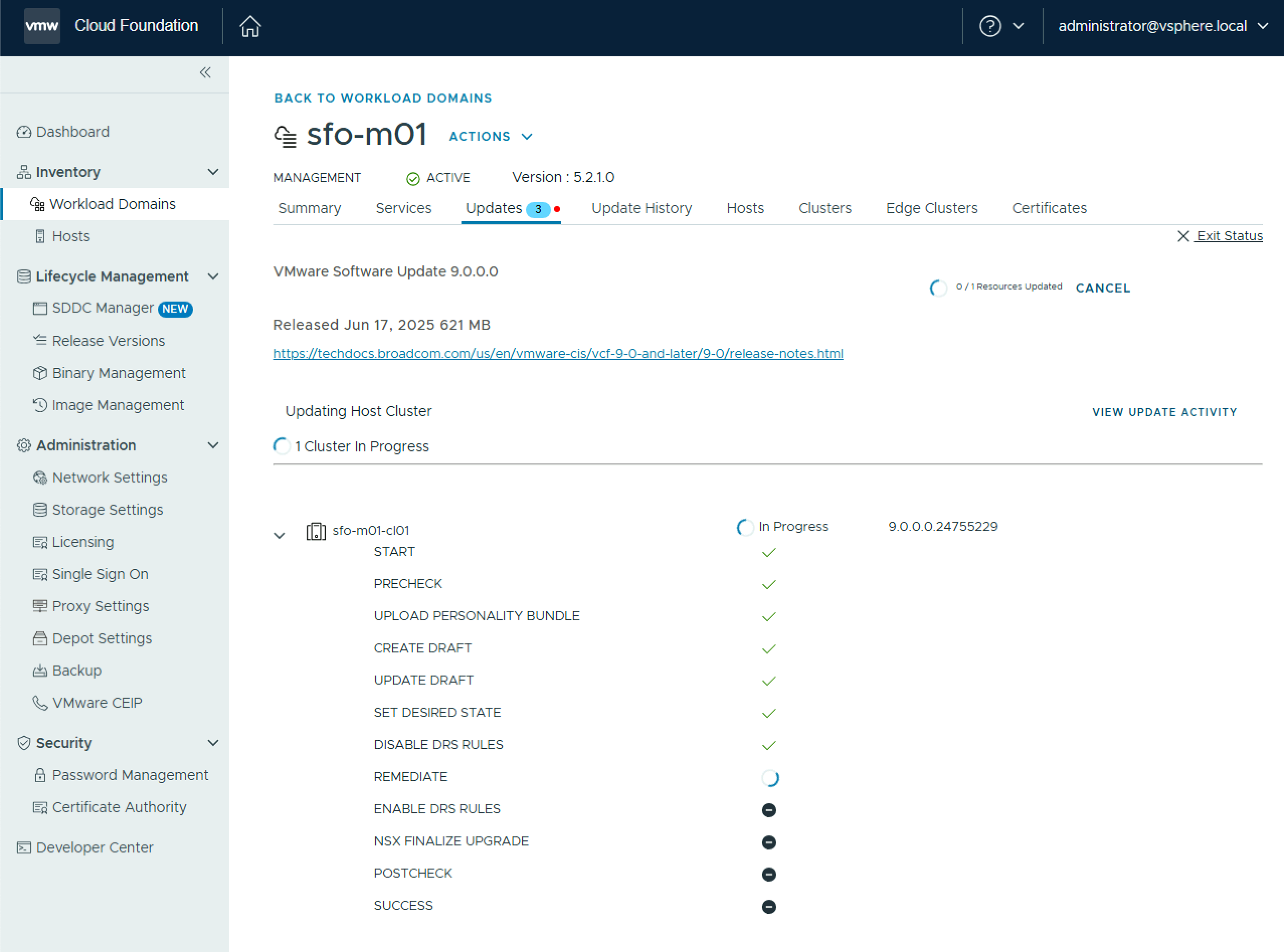
The vSphere cluster upgrade begins

Once the upgrade completes, you can move on to the next steps.

Upgrading VCF 5.2 to 9.0 – Part 6 – Transition a vSphere Cluster from vSphere Lifecycle Manager Baselines to Images

The next step of the upgrade is to upgrade the vSphere clusters in the workload domain. VCF 9.0 no longer supports vSphere Lifecycle Manager Baselines (aka VUM) as a method of lifecycle managing your clusters. So if you have clusters that are managed using vSphere Lifecycle Manager Baselines, you must transition them to vSphere Lifecycle Manager Images. This can be done using the SDDC Manager API, following the documentation or (more suitable for larger scale) using the PowerShell script on this KB https://knowledge.broadcom.com/external/article?articleNumber=385617. I only have a single cluster, so I will use a mixture of manual and scripted steps.

The first step is to create a vLCM image that corresponds to the currently installed ESX version. In my case, I am running VCF 5.2.1 so the installed ESX version is ESXi 8.0 U3b – 24280767.

  • Log into the vSphere client and navigate to Home > Lifecycle Manager > Image Library.
  • Enter a name and under ESX Versions, select the version corresponding to your running ESX version.
  • If you require vendor add-ons, add them here.
  • Click Validate, and click Save.
  • Next, log in to SDDC Manager and navigate to Lifecycle Management > Image Management and click Import Image. Select the vCenter where you created the image, select the image from the list and click Import.
  • Select the source vCenter and image and click Import.

The image imports into the SDDC Manager inventory.

Now launch the PowerShell script from the KB

.\VcfBaselineClusterTransition.ps1

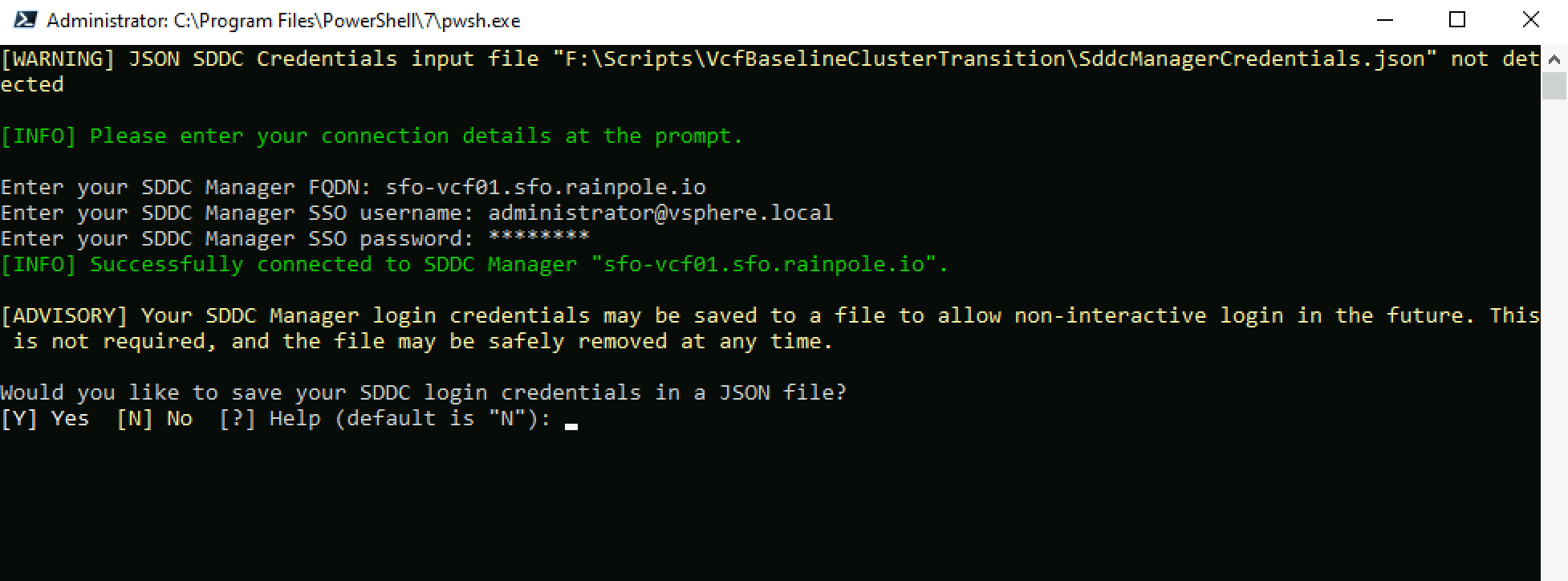
Choose option 1 to Connect to SDDC Manager and select vCenter. Enter the SDDC Manager FQDN and credentials and decide whether you want to save the credentials to a json file for future use.

Choose the vCenter you want to work against, or select all vCenter instances.

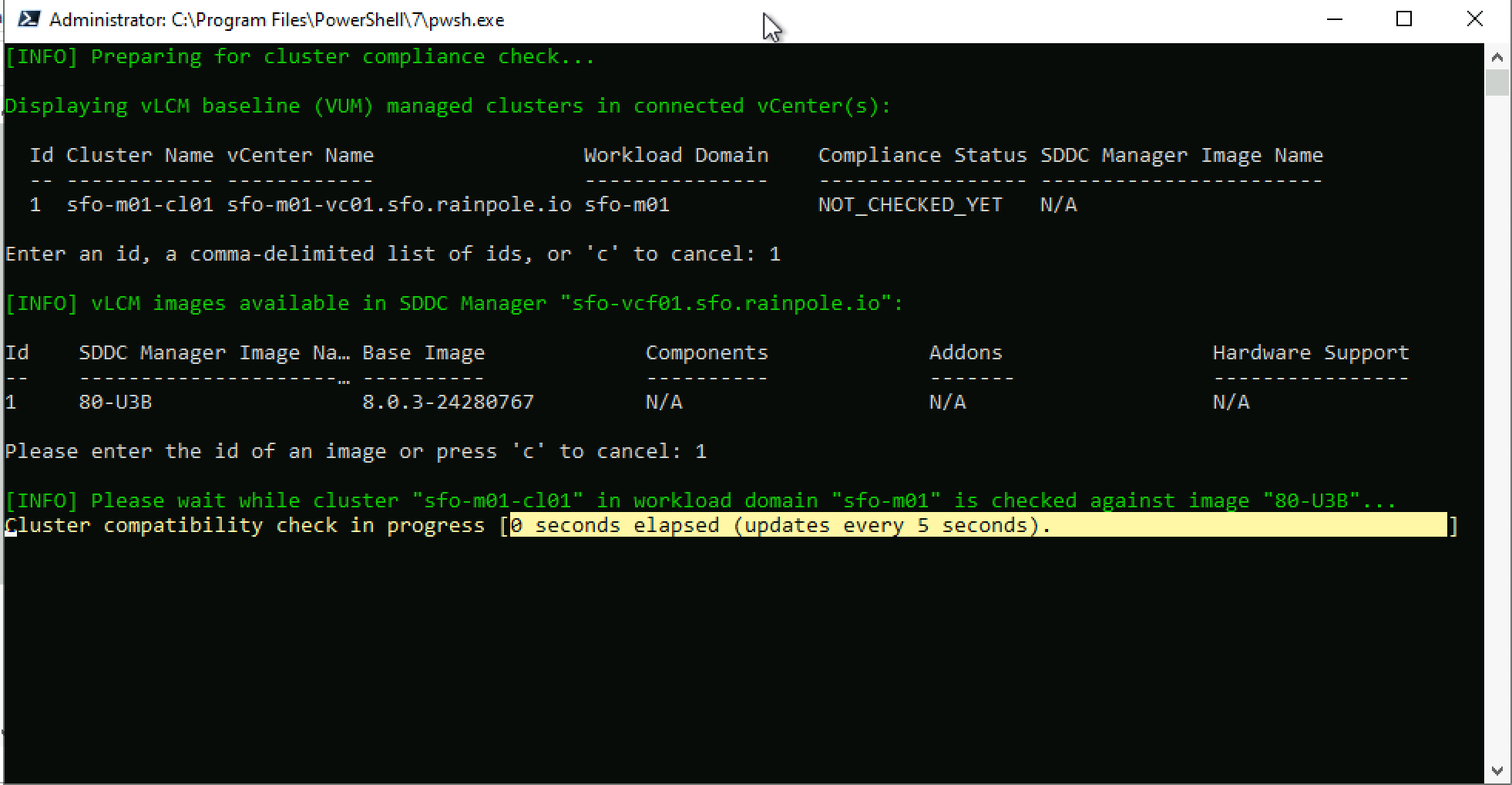
To Check existing cluster(s)’ vLCM image compliance, choose option 3. Enter a cluster id, and choose an image id to check against.

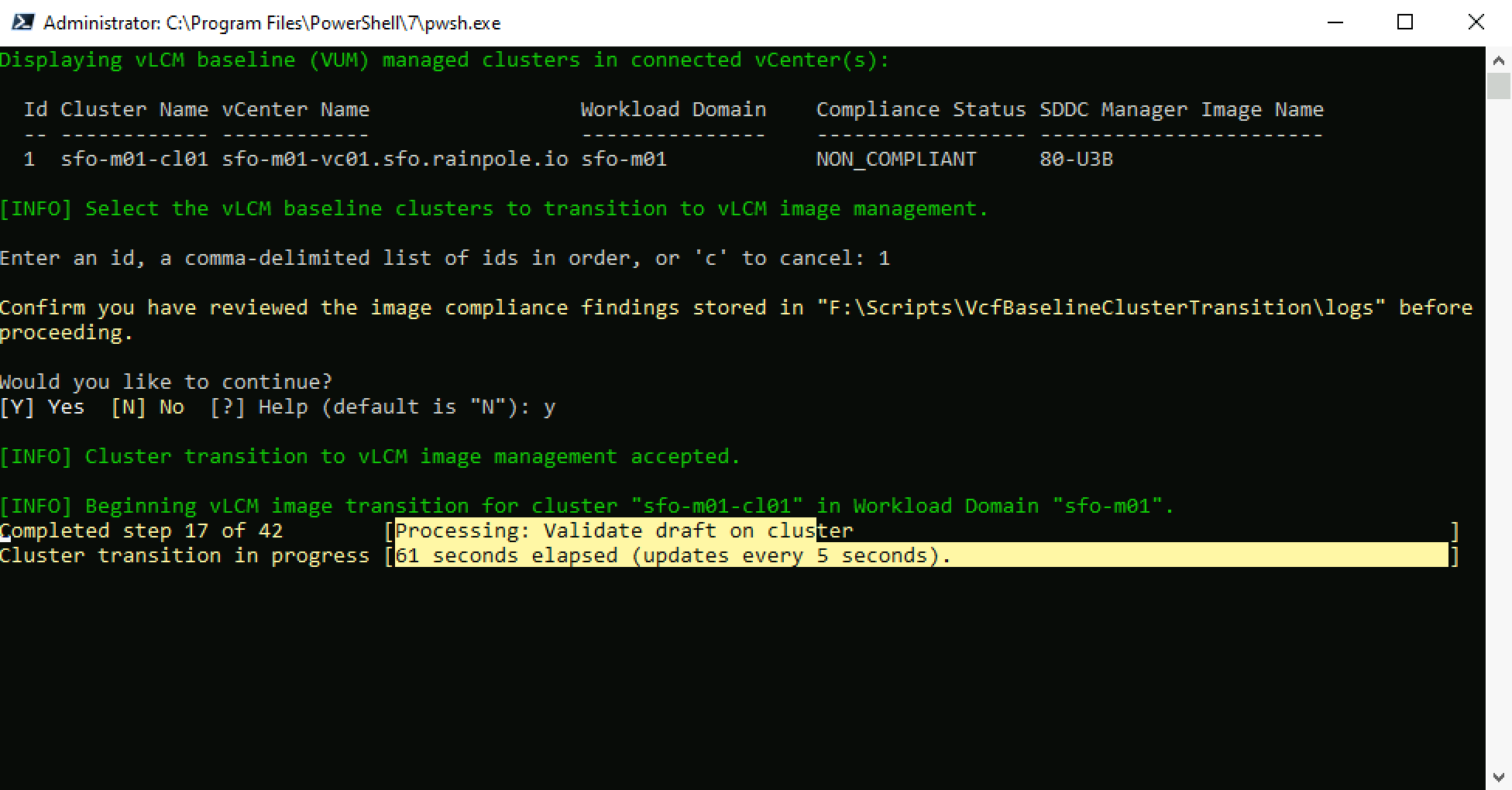
To Transition a vLCM baseline (VUM) cluster to vLCM image management, choose option 4. Enter a cluster id, and Confirm you have reviewed the image compliance findings. The transition process will begin.

The script will call the SDDC Manager APIs to transition the cluster from baselines to images.

Once the transition process completes, you can proceed with the next step of upgrading the vSphere cluster to vSphere 9.0.

Upgrading VCF 5.2 to 9.0 – Part 5 – Upgrade vCenter

The next step in the upgrade process is to upgrade vCenter. VCF 9.0 supports what is called Reduced Downtime Upgrade (RDU). RDU deploys a new vCenter appliance and copies the data from the old appliance. This drastically reduces the downtime as it is just a personality switchover that needs to happen after all the data is copied over. You need a free IP address in the same subnet as the vCenter. It does not require a DNS entry.

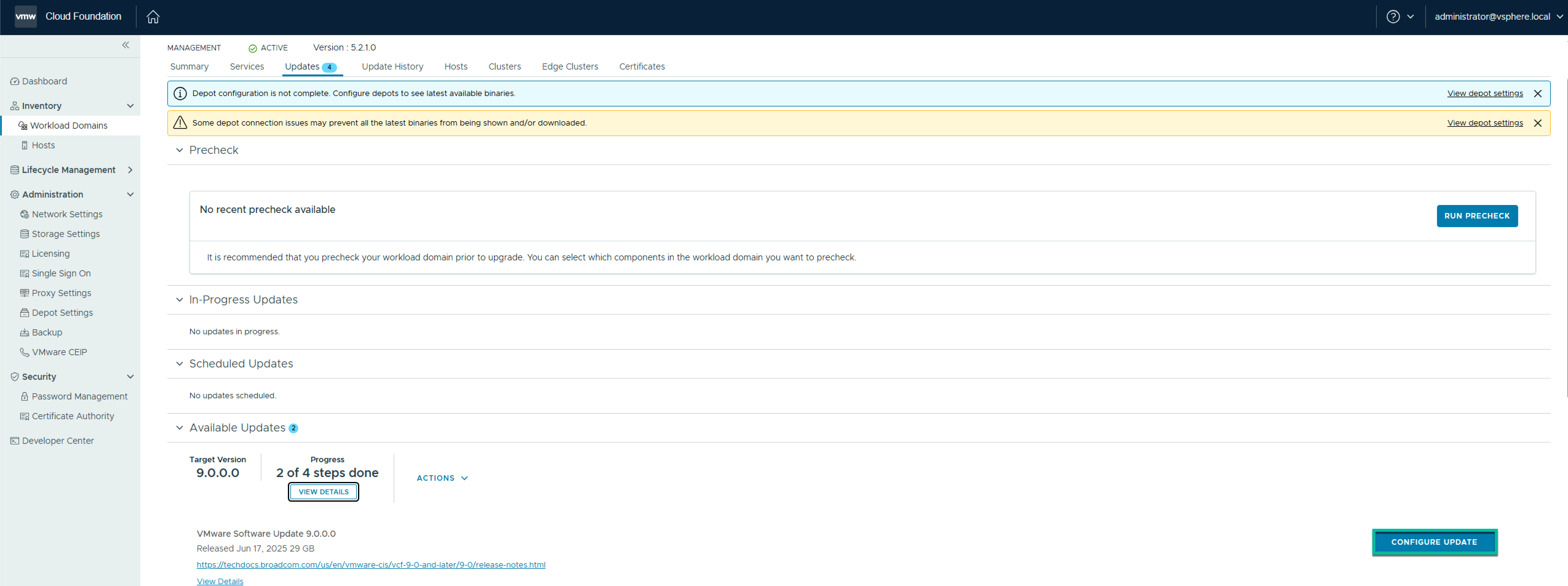
On the Available Updates screen, click Configure Update.

On the Upgrade Mechanism, review the details and click Next.

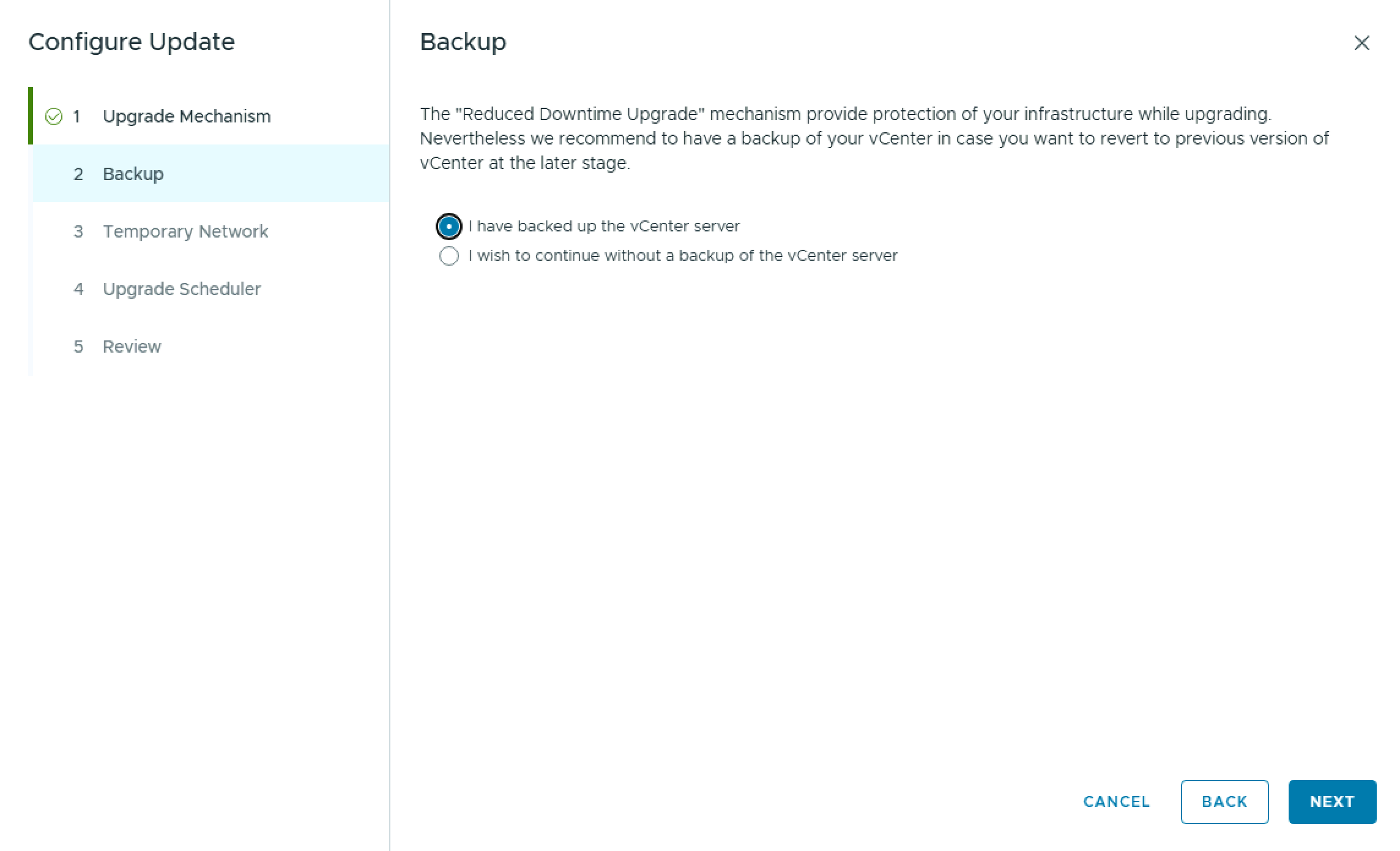
On the Backup pane, click I have backed up the vCenter server, and click Next.

On the Temporary Network pane, enter the temporary IP address that will be used during the Reduced Downtime Upgrade (RDU), and click Next. Reminder: The IP needs be unused and in the same subnet as the existing vCenter.

On the Upgrade Scheduler pane, select whether to perform the operations immediately or at a later time, and click Next.

On the Review pane, review the details and click Finish.

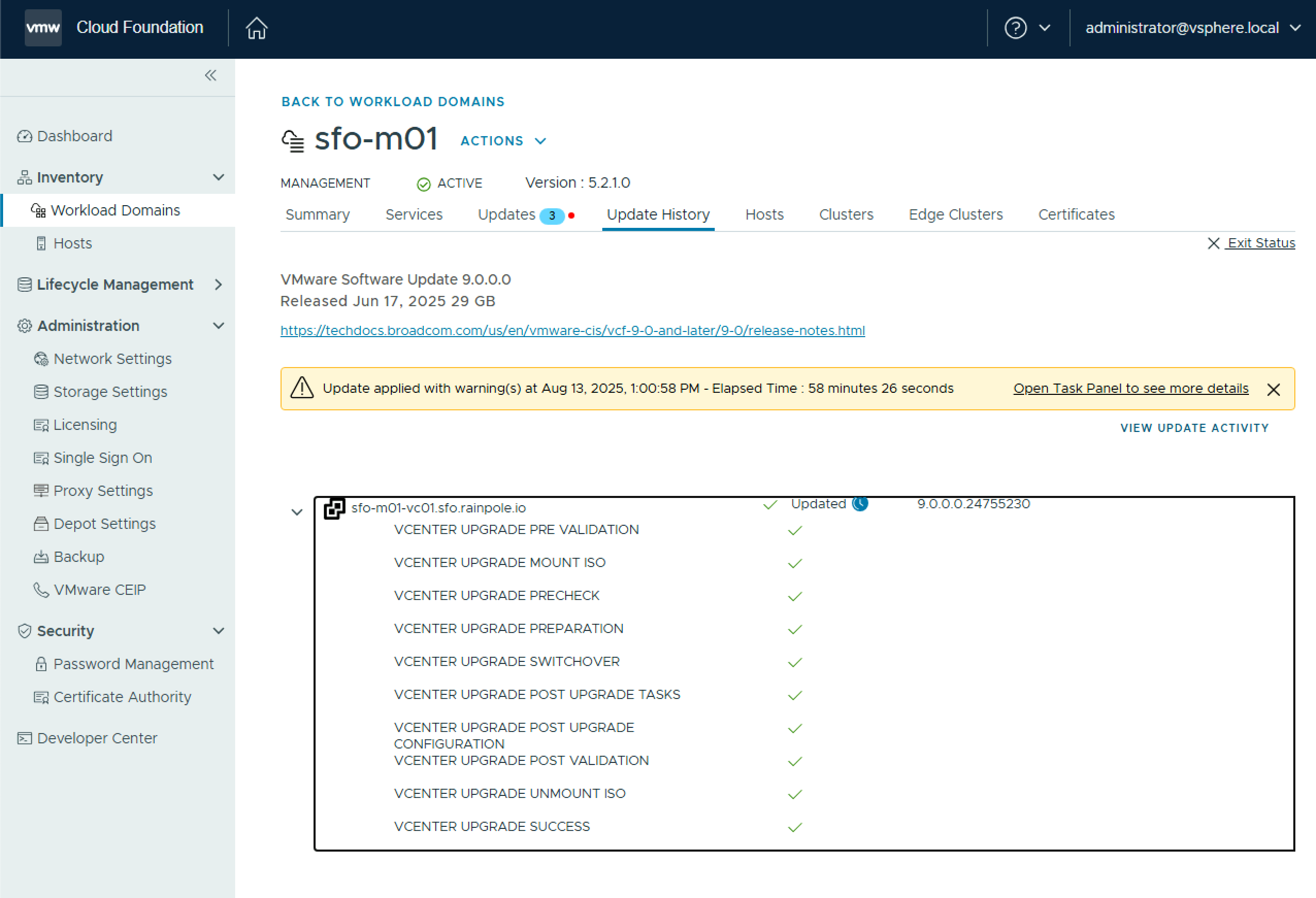
If you chose immediate, the upgrade process will begin.

All going well, your vCenter upgrade completes successfully, and you can proceed to the next step.

Upgrading VCF 5.2 to 9.0 – Part 4 – Upgrade NSX

Once your upgrade binaries are downloaded, the next step is to upgrade NSX. Once again, navigate to Workload Domains > Management Workload Domain > Updates, and click Run Precheck and ensure all prechecks pass.

Once the pre-check passes, click Configure Update.

On the Introduction page, click Next.

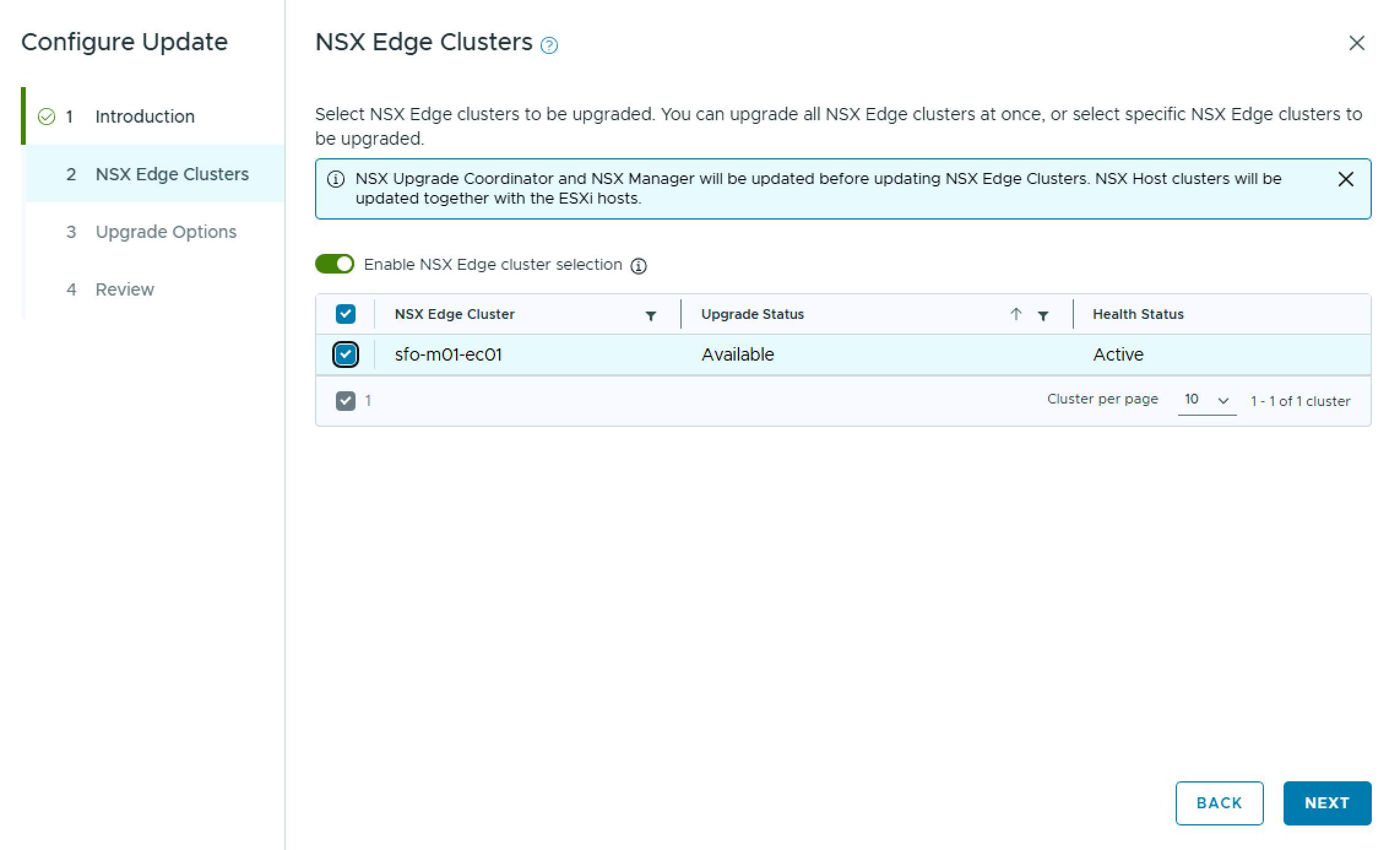
On the NSX Edge Clusters pane, you can choose to upgrade all NSX Edge Clusters, or select specific NSX Edge Clusters to upgrade. In my case, I only have one NSX Edge Cluster. Click Next.

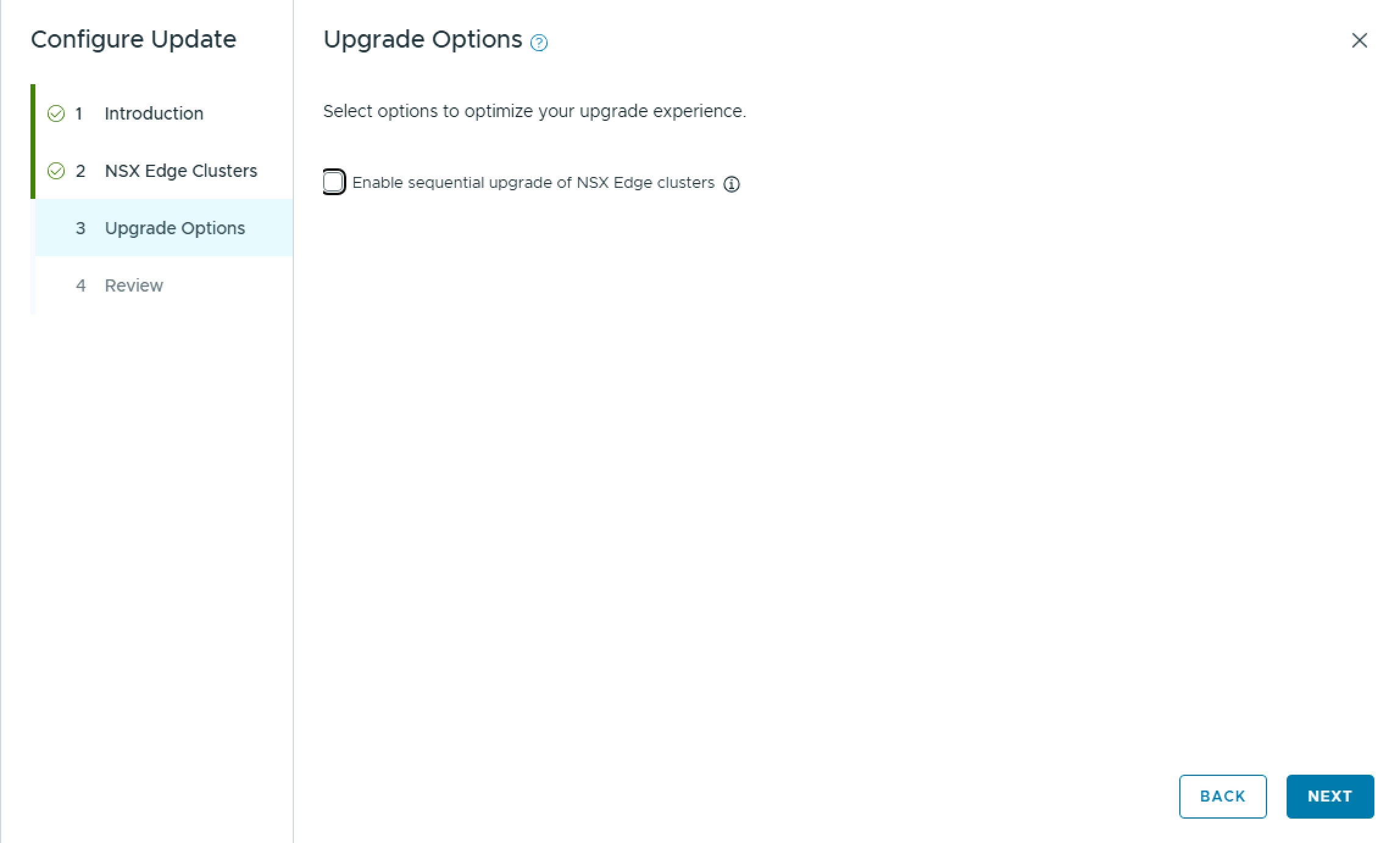
On the Upgrade Options pane, you have the option to Enable sequential upgrade of NSX Edge clusters. Click Next.

On the Review pane, review the choices made and click Run Precheck.

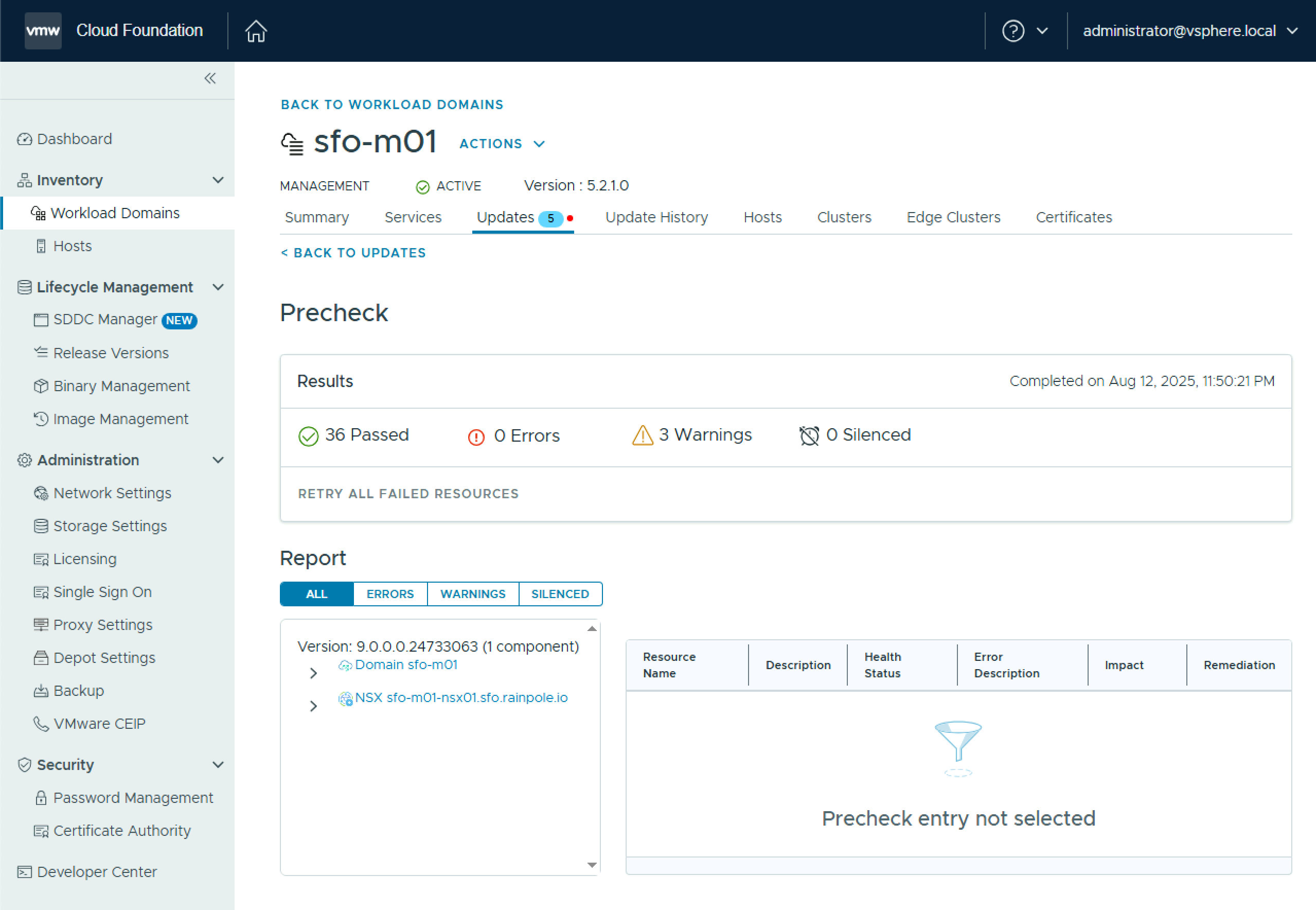
While it is called a Precheck, it will copy the upgrade bundle over to NSX Manager. During this copy, the progress will sit at 66% completed for a while, so dont panic.

Once it completes, review any errors & warnings before proceeding, and click Back to Updates.

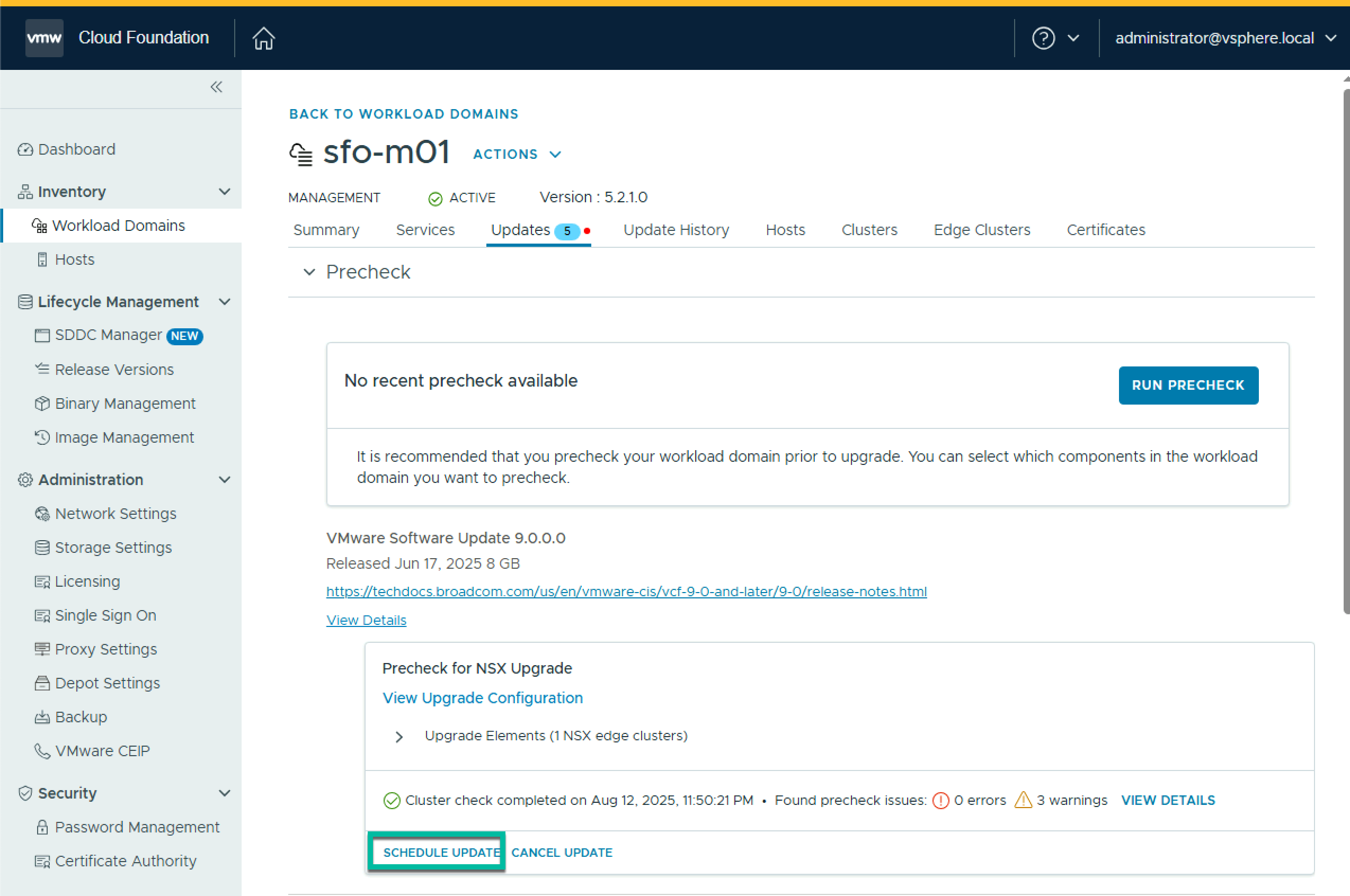
Click Schedule Update

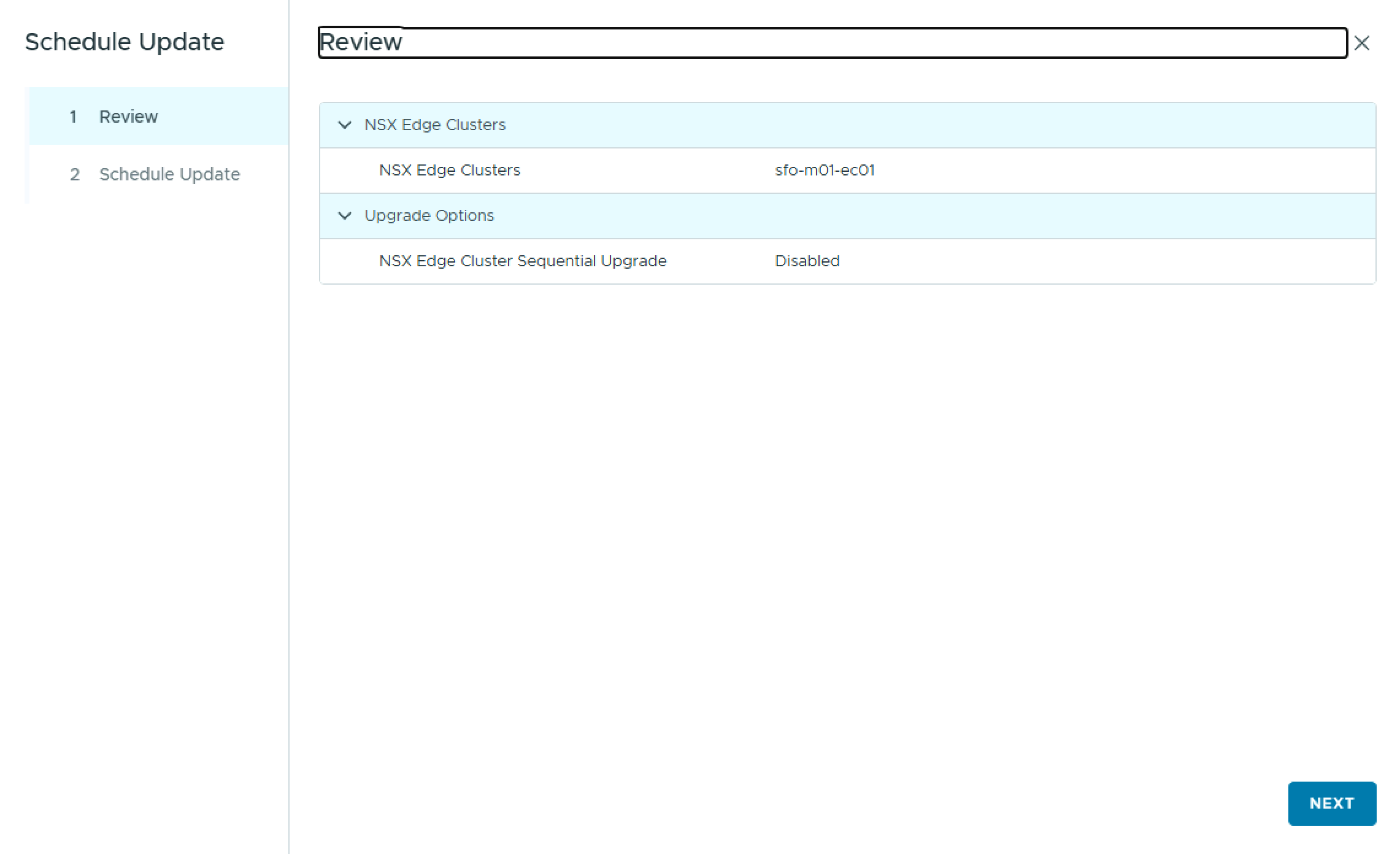
On the Review pane, click Next.

On the Schedule Update pane, select either Upgrade Now, or Schedule Update to choose a future start date & time, and check the box “I have reviewed the precheck report and have verified that the update is safe to apply“, and click Finish.

To monitor the status, click View Status.

Once the NSX upgrade completes, you can move on with the next step of upgrading vCenter.

Upgrading VCF 5.2 to 9.0 – Part 3 – Update SDDC Manager Depot

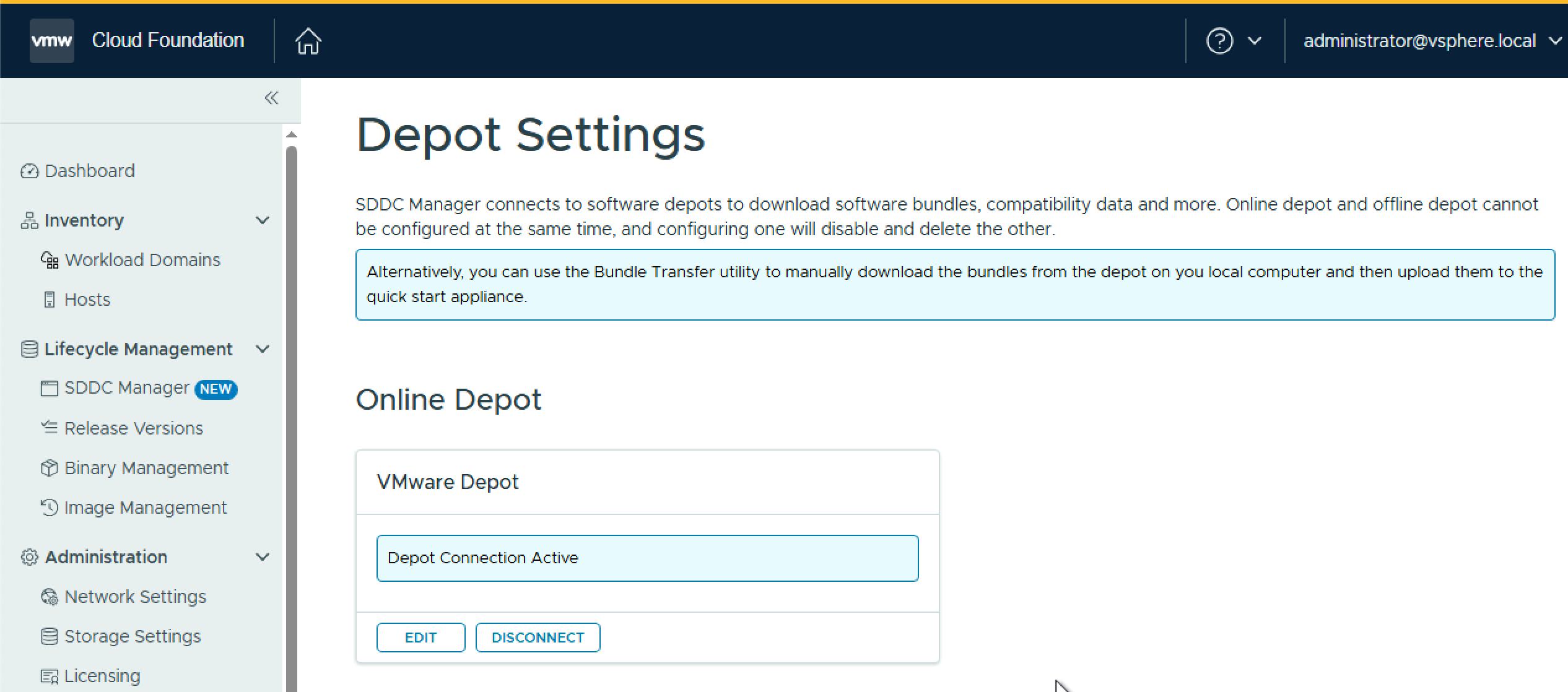
Once you have upgraded SDDC Manager to 9.0, you will notice the Binary Management screen looks a little different. To enable the depot to download the remaining bundles you need, you must update the download token (again!). To do this, navigate to Depot Settings and select your depot type. In this post I will use the Online Depot. I may create another variant with an offline depot in future.

Under Online Depot, click Edit. Paste your Broadcom support download token and click Authenticate.

You shound then see, Depot Connection Active.

Next, navigate to Binary Management > Upgrade Binaries and select the binaries you need to deploy. In my case I am selecting everything except SDDC Manager.

As I do not have VCF Operations or VCF Automation in my VCF 5.2 environment, and I need to install them as part of VCF 9.0, navigate to Install Binaries and select each one and click Download.

Wait for the downloads to complete before moving on to the next steps.

Upgrading VCF 5.2 to 9.0 – Part 2 – Upgrade SDDC Manager

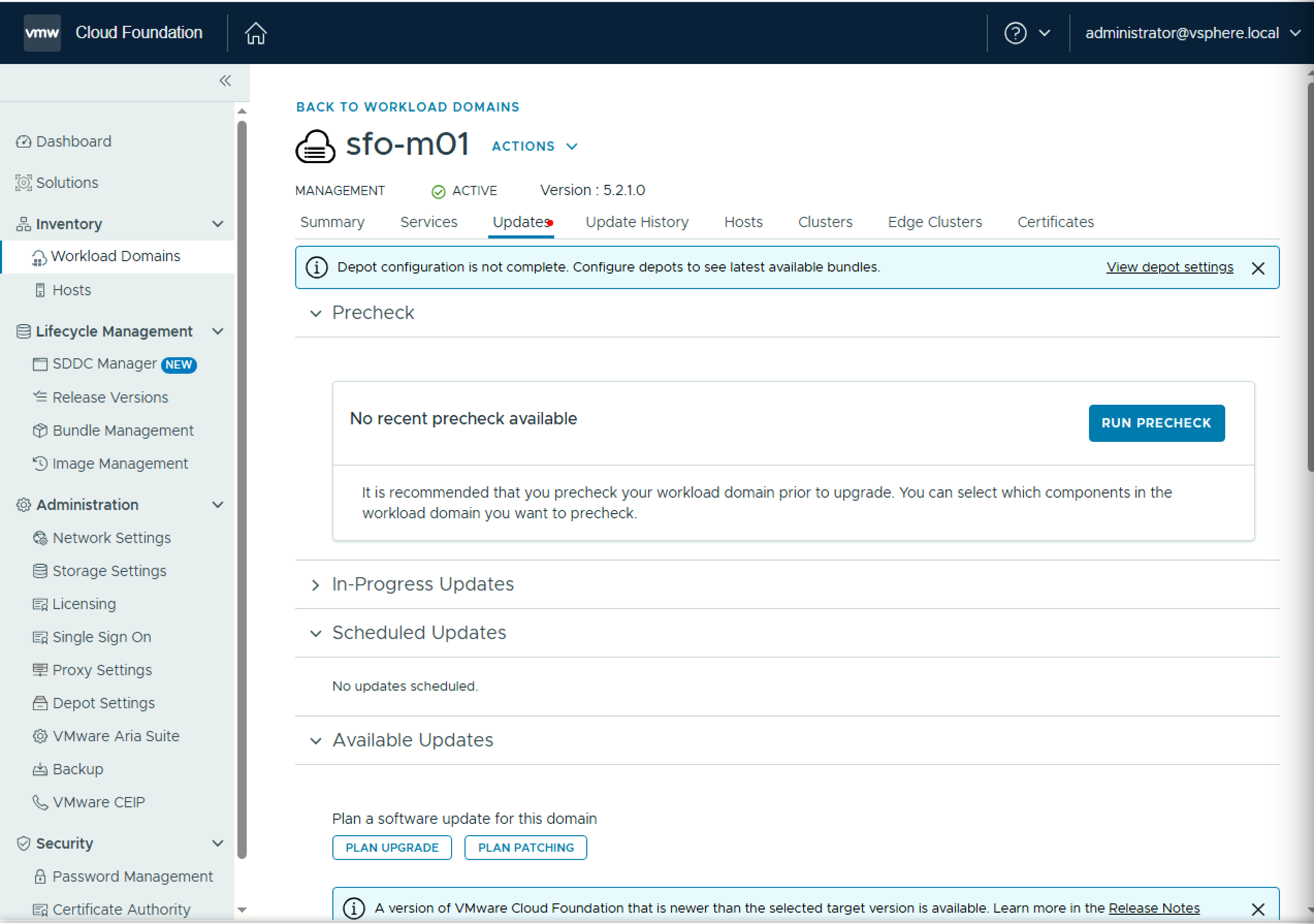
Once you have download the required SDDC Manager bundles, navigate to Workload Domains > Management Workload Domain > Updates, and click Run Precheck and ensure all prechecks pass.

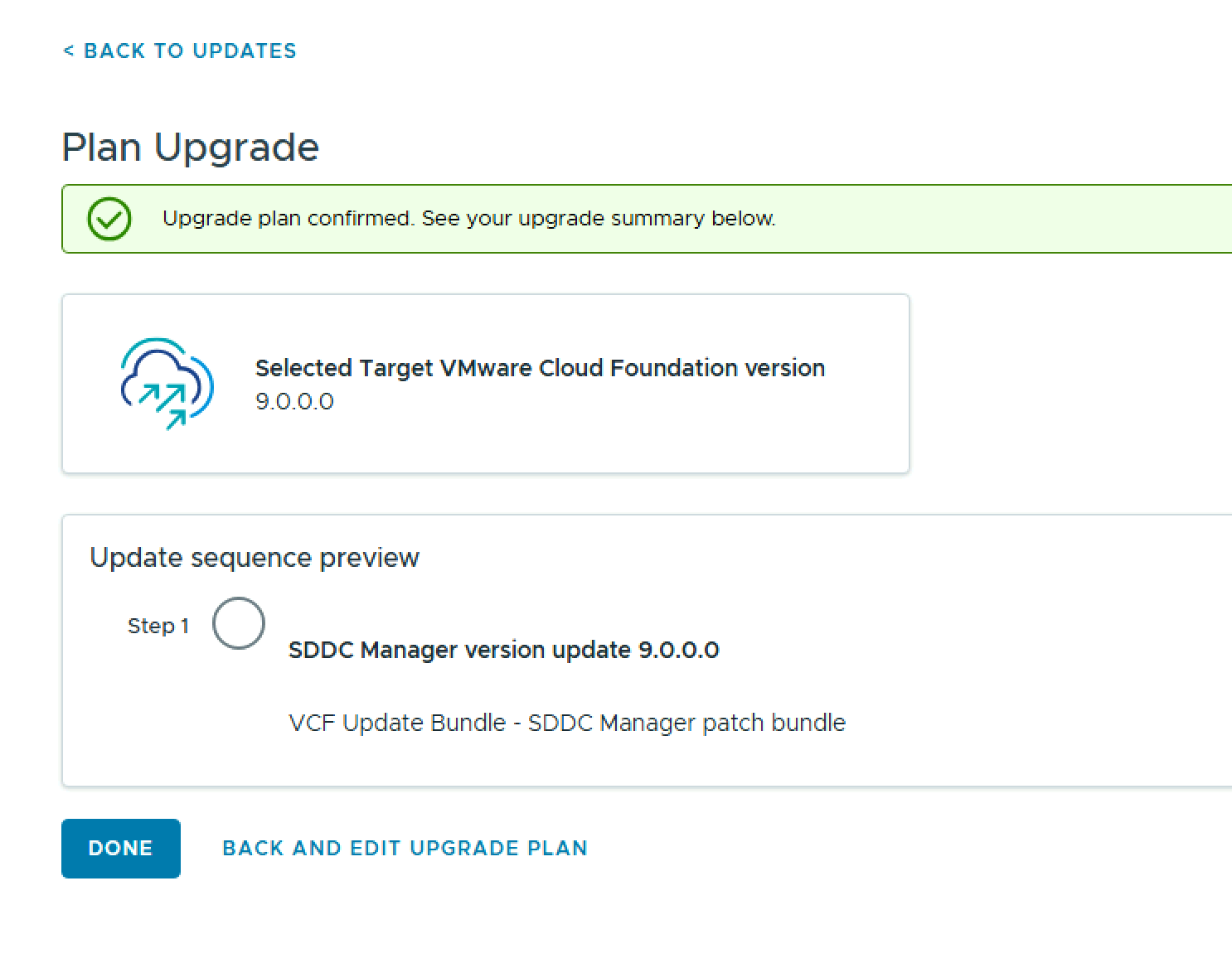
Under Target Version, select VMware Cloud Foundation 9.0.0.0, and click Next.

On the Change Summary screen, click Confirm, and then click Done.

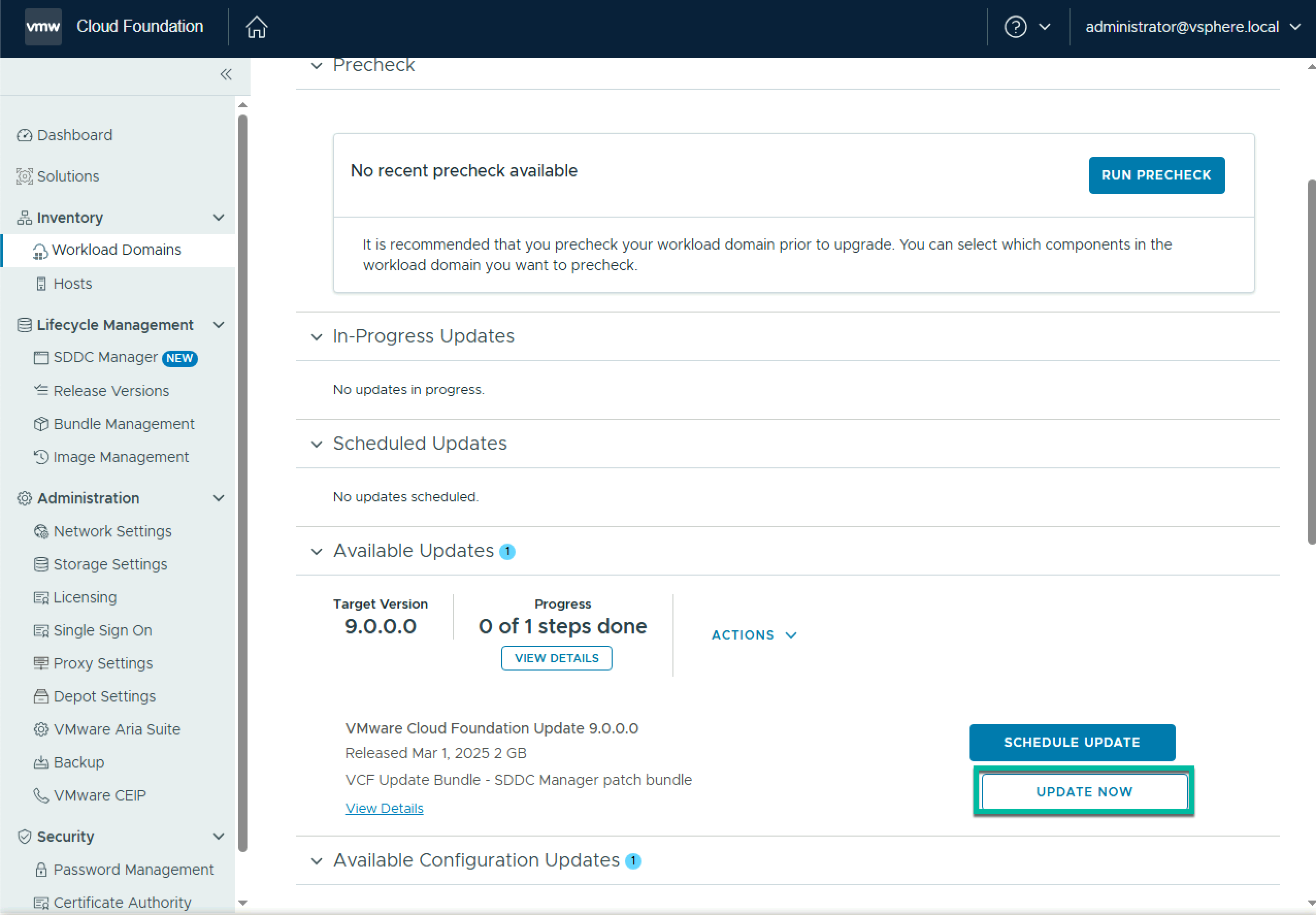
To start the upgrade, click Update Now.

The upgrade of SDDC Manager will begin

Once it completes your SDDC Manager has been upgraded to 9.0

Upgrading VCF 5.2 to 9.0 – Part 1 – Depot Configuration

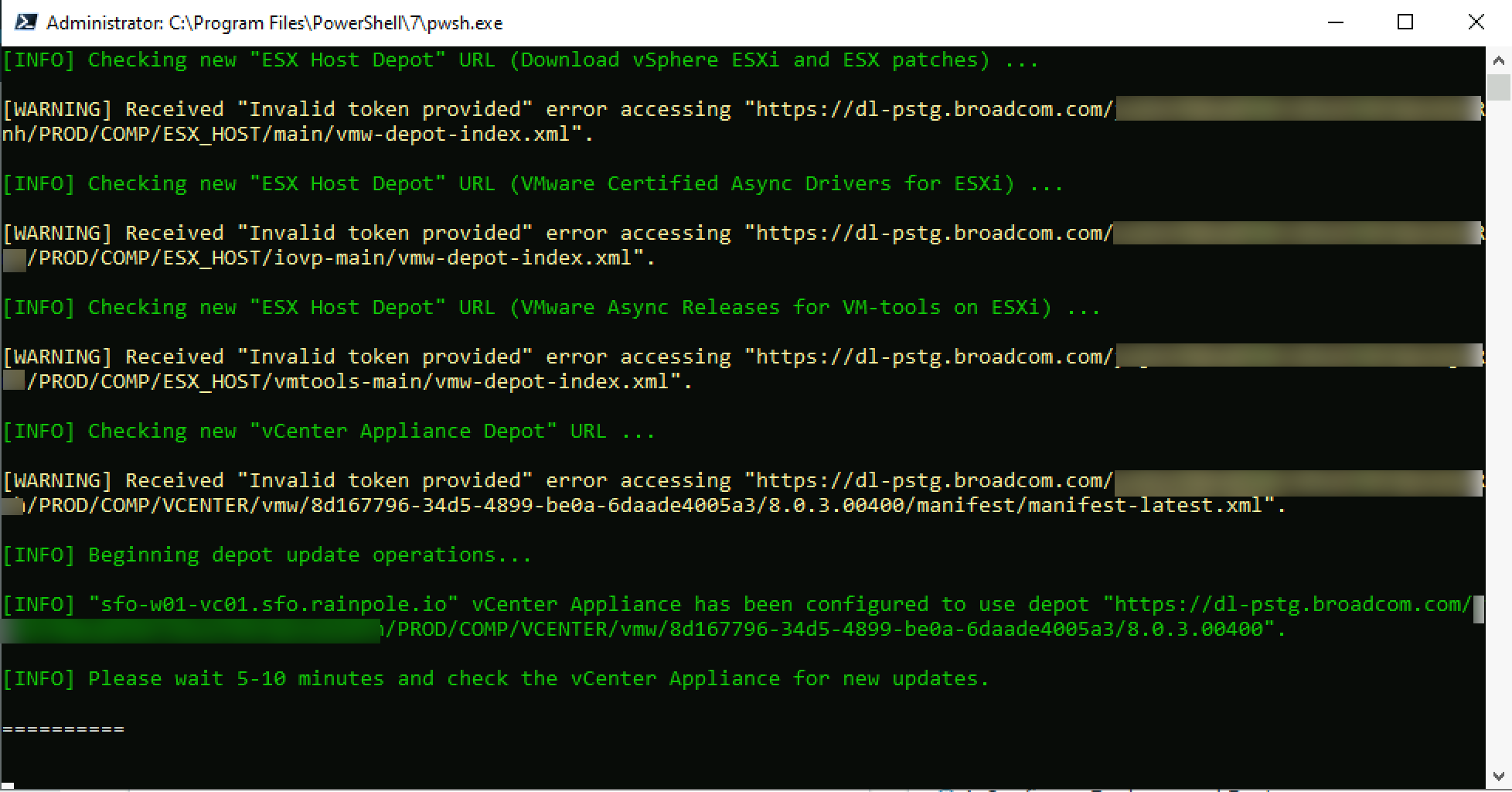
The first step in preparing for a VCF 5.2 to 9.0 upgrade is to update your Depot configuration to use token based authentication instead of username & password. This was a change that was made recently to how customers authenticate to the VMware/Broadcom software depots.

The easiest way to do this is to run a Powershell script that is attached to the following KB https://knowledge.broadcom.com/external/article/389276

I am not going to repeat all the pre-reqs and steps from the KB here. The following steps assume you have retrieved your support entitlement token along with taking the necessary backups.

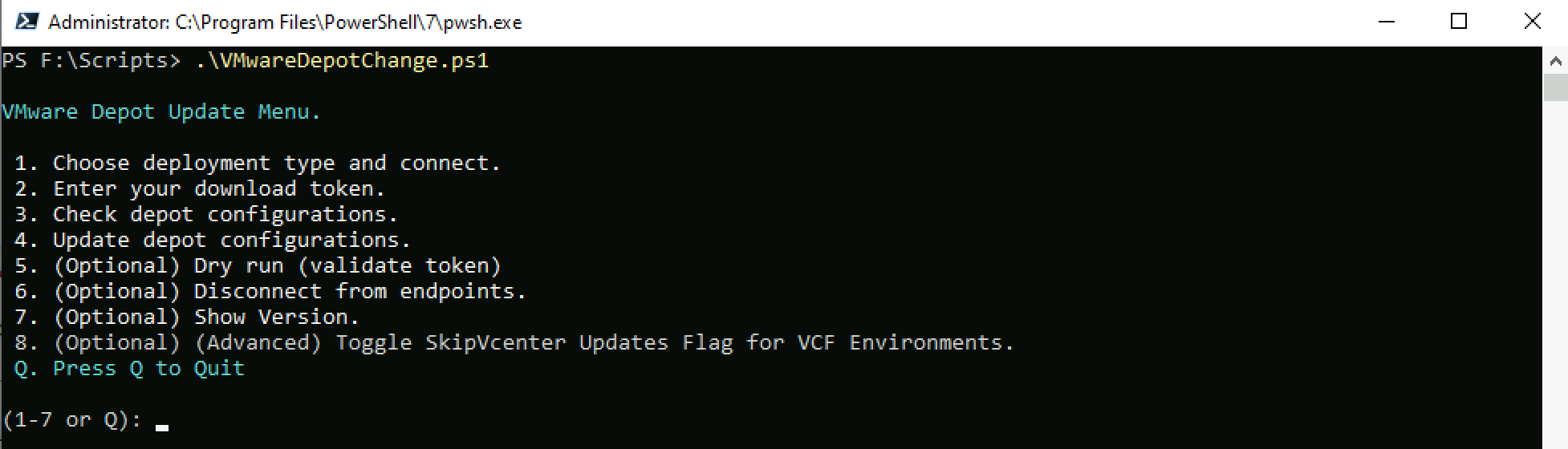
To run the script in interactive mode (with a menu) just run the following

.\VMwareDepotChange.ps1

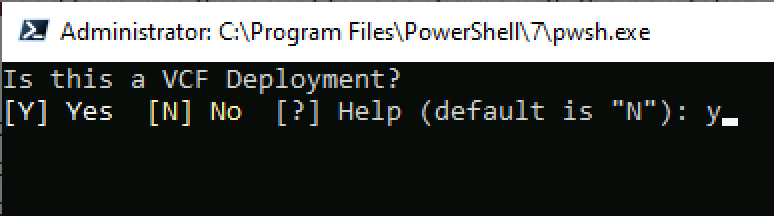
Run option 1 to set the deployment type and enter Y when prompted to confirm it is a VCF deployment

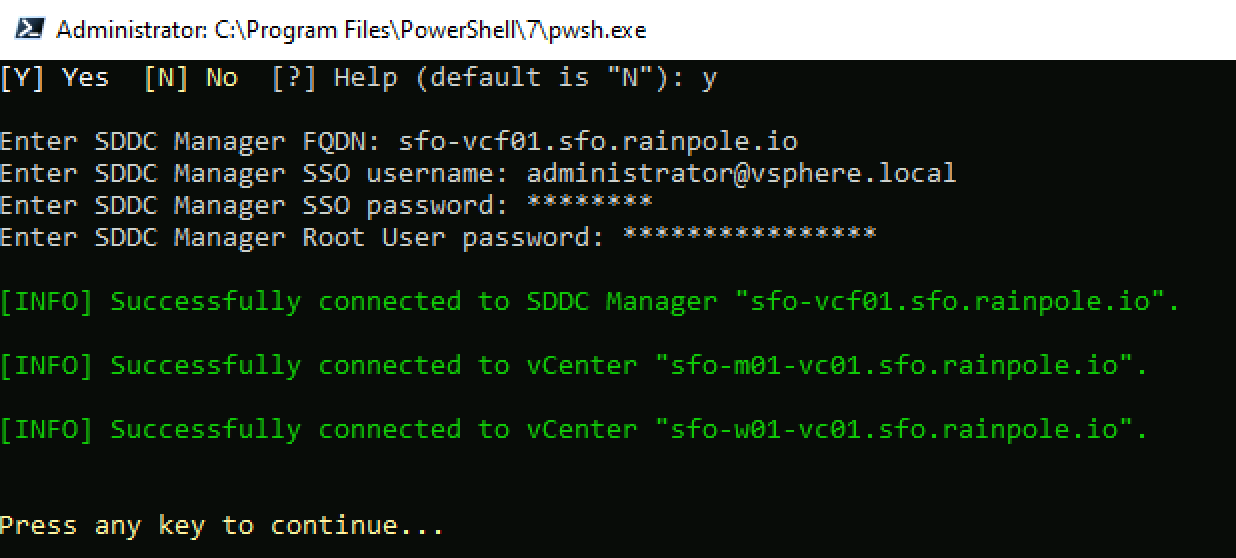
Enter the SDDC Manager details when prompted and hit enter to validate the credentials

Run option 2 to input your Broadcom download token

Run option 4 to Update your depot configuration to use the token

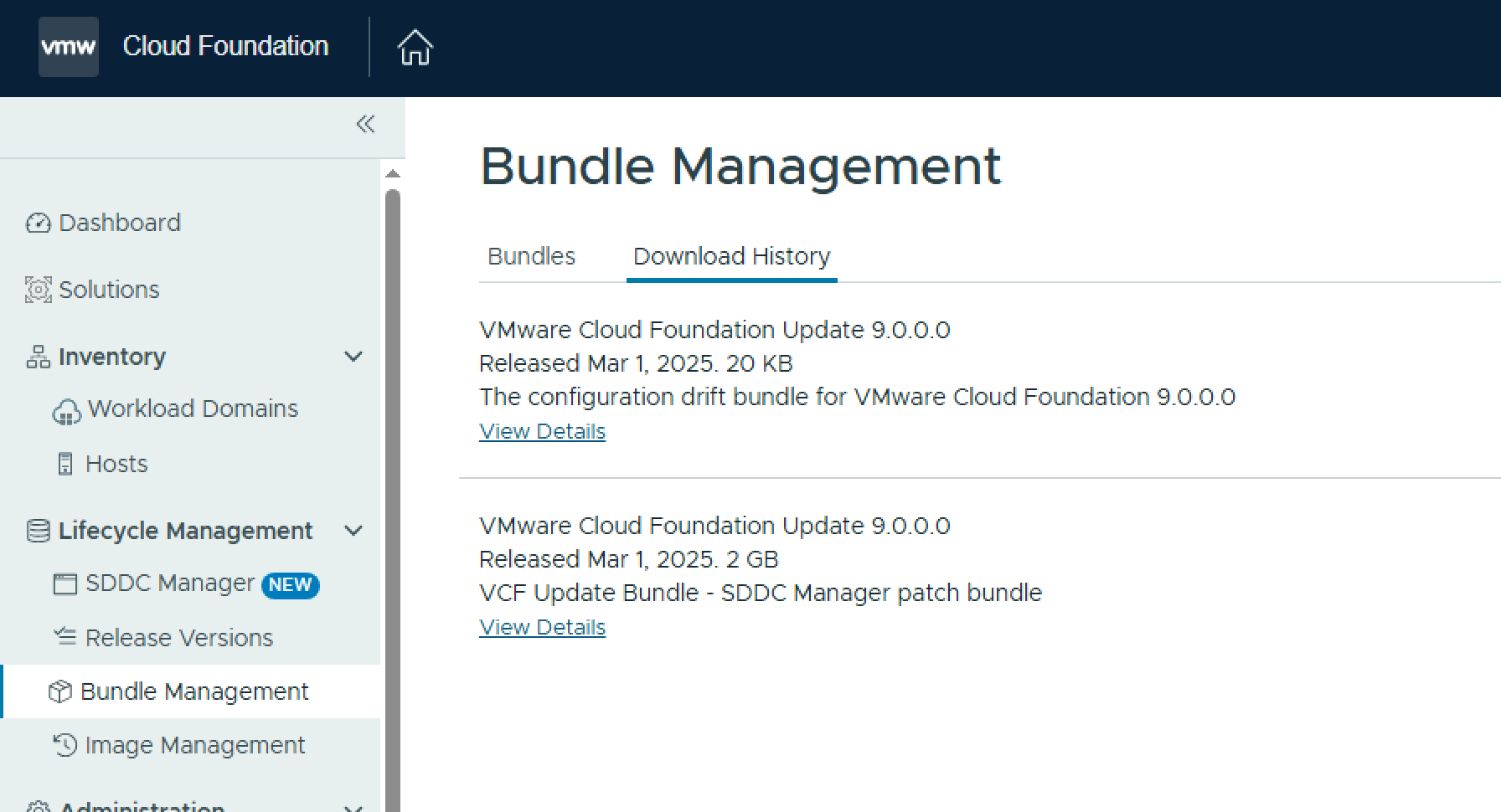
Once the depot URLs are updated with your token you should now be able to download the required SDDC Manager bundles.