Protection & more importantly, recovery of VMware Cloud Foundation (VCF) is something I and Ken Gould have worked closely on for a number of years now. Whether it was a VVD based deployment or in more recent years, a VCF deployment, we have tested, validated & documented the process & procedures you need to follow to be successful, should you need to recover from a failure.
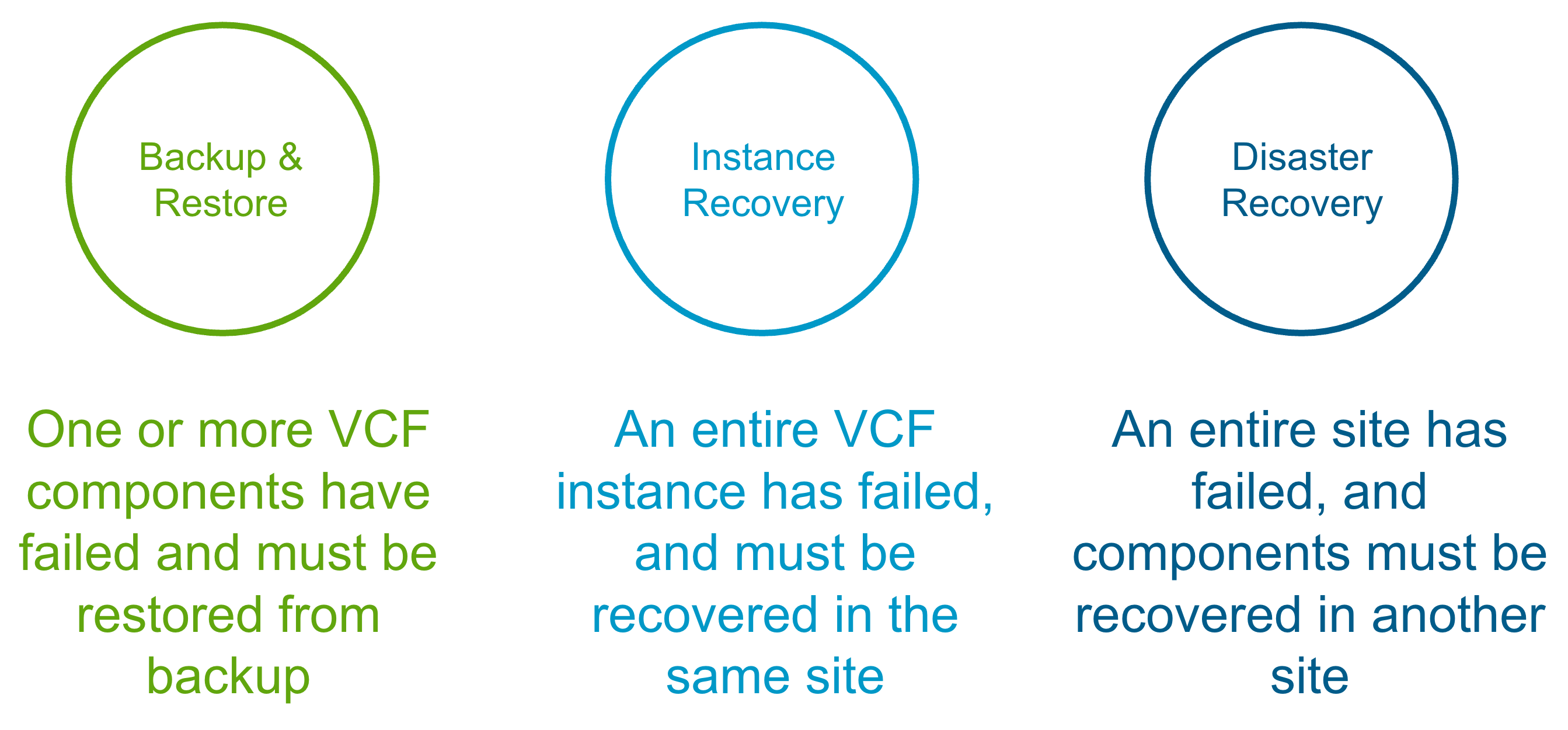
When we talk about VCF Recovery Models, there are 3 main pillars.
Backup & Restore
This is the traditional scenario, where one or more components have failed and you need to recover/restore them in-place. The table below shows what is required for each VCF 9.0 component in the event of a single component failure. https://techdocs.broadcom.com/us/en/vmware-cis/vcf/vvs/9-X/site-protection-and-disaster-recovery-for-vmware-cloud-foundation.html
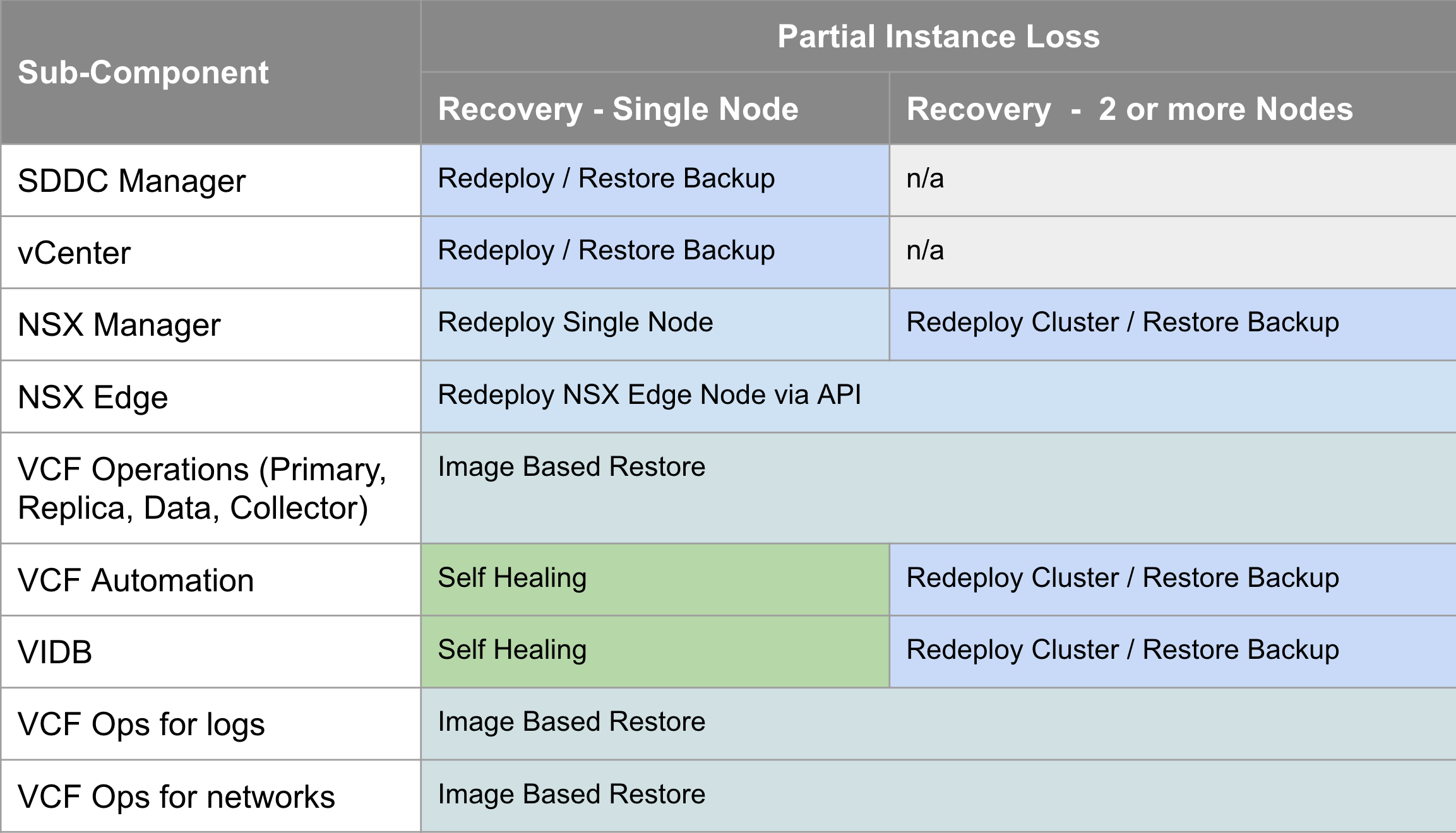
The VCF 9.0 documentation for component-level backup & restore covers the manual steps required to configure backup for each component, and then how to recover/restore each component, and is available here https://techdocs.broadcom.com/us/en/vmware-cis/vcf/vcf-9-0-and-later/9-0/fleet-management/backup-and-restore-of-cloud-foundation.html
VCF Instance Recovery
VCF Instance Recovery takes things a step further where an entire VCF Instance has failed and needs to be recovered. This could be due to a site outage (where a recovery site is not available), a catastrophic hardware failure, or a cyber attack. Many financial customers also have regulatory requirements like DORA (Digital Operational Resilience Act) where they must be able to demonstrate to the regulator that they can bring their critical infrastructure back in the case of a cyber attack. The table below shows what is required for each VCF 9.0 component in the event of an entire VCF Instance failure.
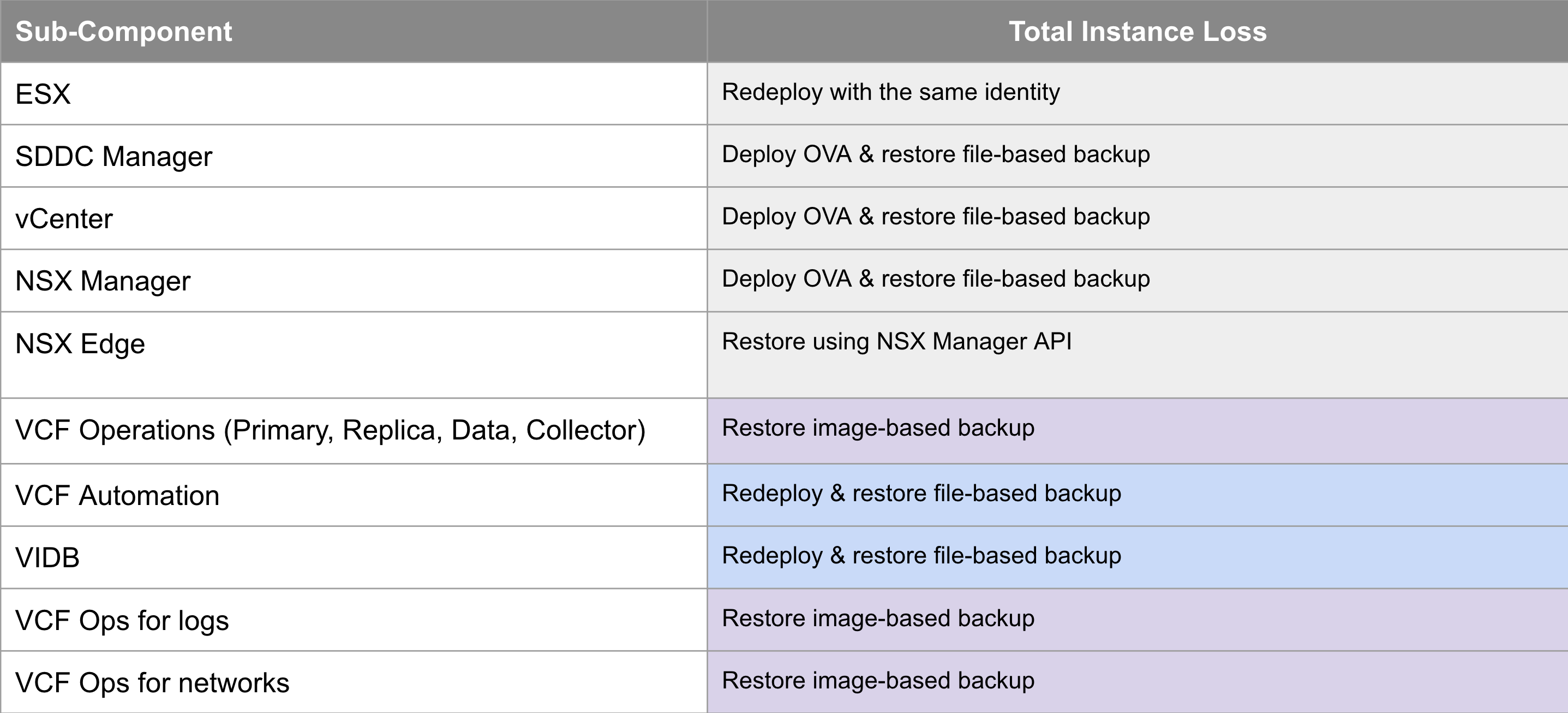
The VCF 9.0 documentation for VCF Instance Recovery leverages backups for the components that support it, and redeploy for those that don’t to bring the VCF instance back with the same identity as it had before it went down. We also provide a PowerShell module to automate many of the manual, potentially error-prone & onerous tasks to expedite the recovery time. The documentation is available here https://techdocs.broadcom.com/us/en/vmware-cis/vcf/vcf-9-0-and-later/9-0/fleet-management/-vmware-cloud-foundation-instance-recovery.html
VCF Disaster Recovery
VCF Disaster Recovery is used to protect a VCF Instance across physical sites/regions. It requires a second, recovery VCF Instance available in another site/region with IP mobility between the instances. How you provide the IP mobility is up to you. As VMware, we would love you to use NSX Federation, but you can just as easily use fabric enabled stretched L2. For VCF 9.0 we use a combination of VMware Live Recovery & redeploy/restore from backup to recover the management components from the protected to the recovery sites. The same process can be used to recover business workloads.
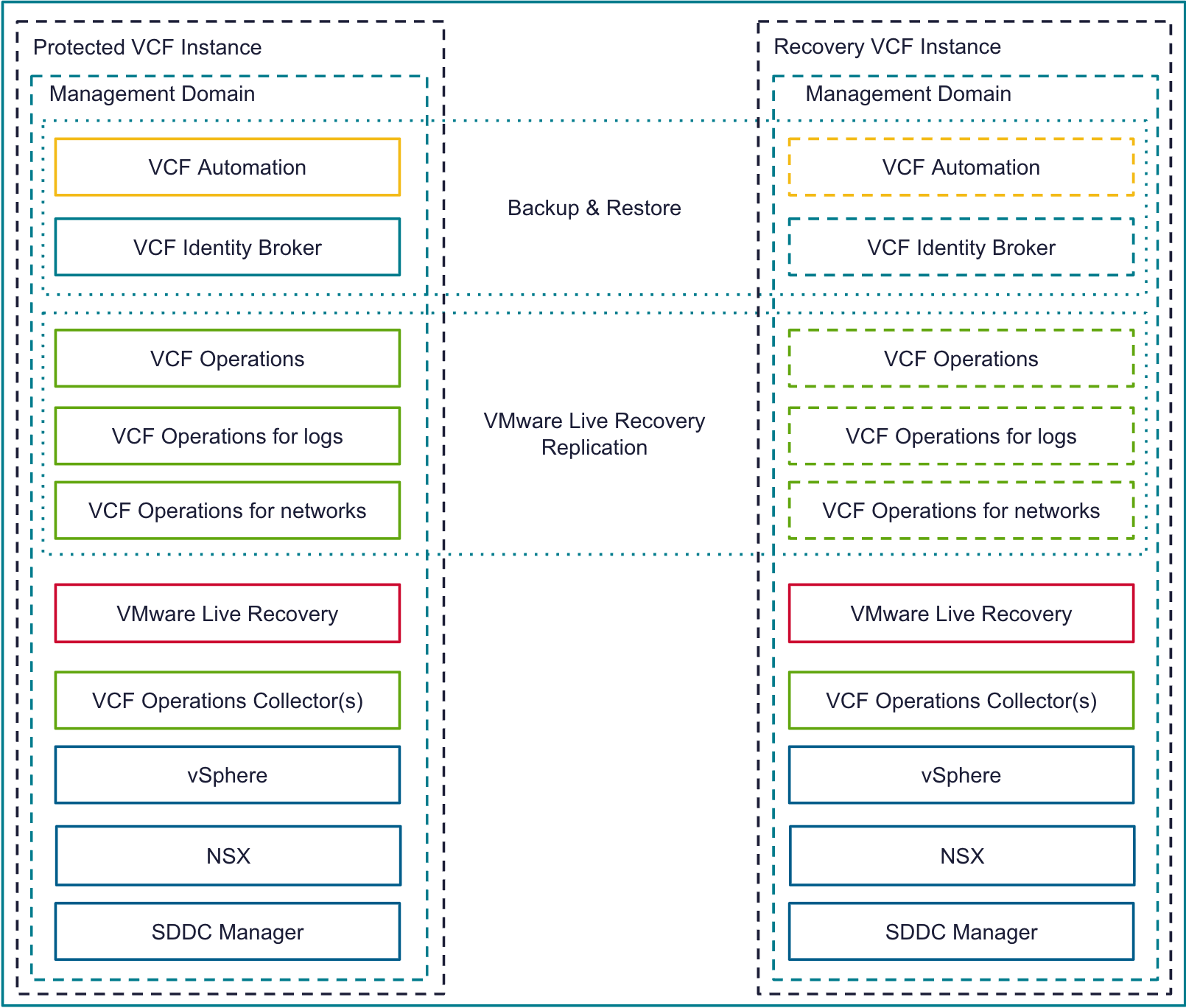
The table below shows how each VCF 9.0 component is recovered on the recovery site in the event of an entire VCF site failure.
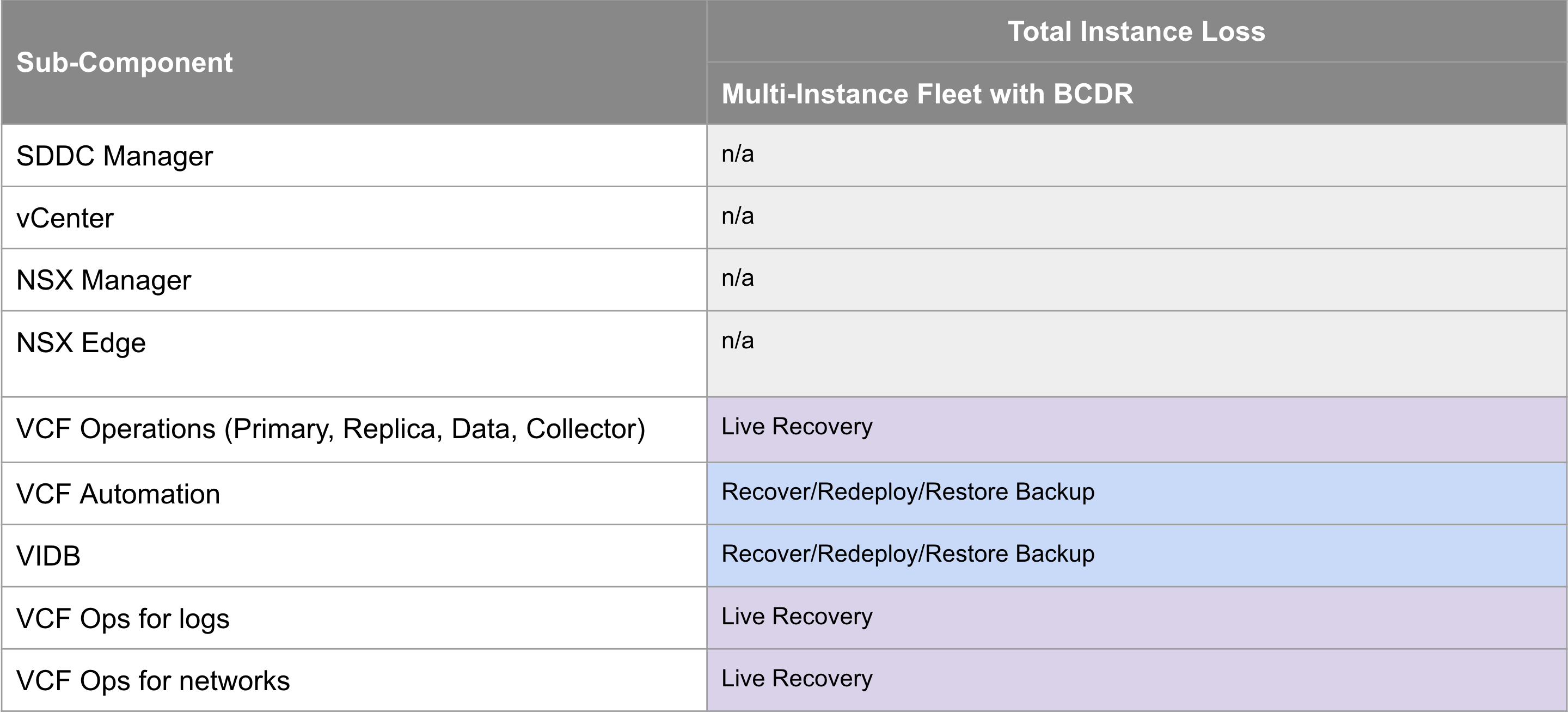
The VCF 9.0 documentation for VCF Disaster Recovery was published as a validated solution. It leverages live recovery replication and recovery plans for the components that support it, and redeploy & restore from backup for those that don’t. The documentation is available here https://techdocs.broadcom.com/us/en/vmware-cis/vcf/vvs/9-X/site-protection-and-disaster-recovery-for-vmware-cloud-foundation.html
In the next major VCF release we are planning to bring these VCF Recovery Model pillars together so they are easier to find and compare side by side, and also add additional ones around ransomware recovery and lateral security to round out the VCF Protection & Recovery story. Credit to my colleague Tom Harrington for the colourful tables!

















































 LifeOfBrianOC