When you deploy a component using VMware Aria Suite Lifecycle, it stores the credentials in it’s locker. If you need to SSH to a VCF Operations appliance and you dont know the root password, you need to retrieve the root password from the VMware Aria Suite Lifecycle locker. To do this you need to query the Aria Suite Lifecycle API for a list of locker entries using basic auth.
GET https://flt-fm01.rainpole.io/lcm/locker/api/v2/passwords?from=0&size=10
From the response, locate the corresponding vmid for the VCF OPs appliance
Query the Aria Suite Lifecycle locker for the decrypted password, again with basic auth, passing the Aria Suite Lifecycle root password in the payload body.
#BODY (Aria Suite Lifecycle root password)
{
  "rootPassword": "VMw@re1!VMw@re1!"
}

POST https://flt-fm01.rainpole.io/lcm/locker/api/v2/passwords/a789765f-6cfc-497a-8273-9d8bff2684a5/decrypted
As you are no doubt aware I am a fan of PowerShell and PowerCLI. Since my early days working with VMware products, whether it was vCenter, vCloud Director or VMware Cloud Foundation (VCF), I have always leveraged PowerCLI to get the job done. Up until recently, there was no native PowerCLI support for the VMware Cloud Foundation API. Hence why I started the open-source PowerVCF project almost 5 years ago! PowerVCF has grown and matured as new maintainers came onboard. Open-source projects are a great way to deliver functionality to our customers that is not yet available in officially supported channels. Since the release of PowerCLI 13.1 I am delighted to say that we now have officially supported, native PowerCLI modules for VMware Cloud Foundation.
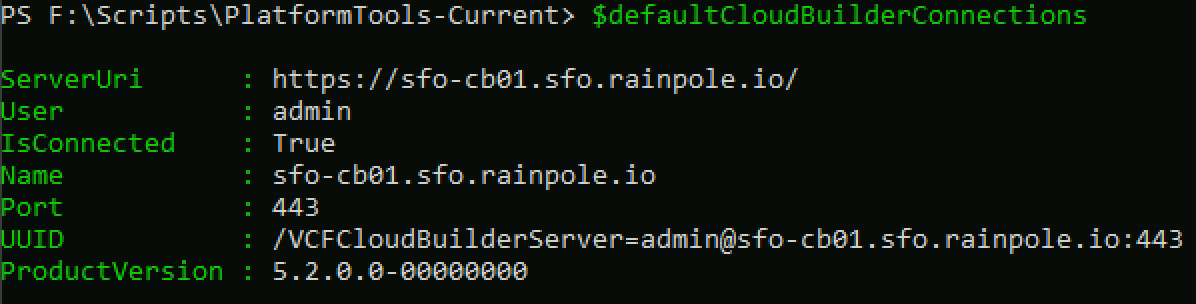
2 distinct modules are now part of PowerCLI. One for the Cloud Builder API and one for the SDDC Manager API.
This connection object is then stored in $defaultsddcManagerConnections
Note: If you are working in a lab environment with untrusted certs you can pass -IgnoreInvalidCertificate to each of the above commands.
Once you have an active connection, you can begin to query the API. The example below returns a list of all hosts from SDDC Manager. One thing you will notice, if you are a PowerVCF user, is that you will need to parse the response a little more than you needed to with the PowerVCF cmdlet Get-VCFHost.
Running Invoke-VcfGetHosts will return a list of host elements
So to parse the response, you can do something like this, which will return the details of all hosts
But lets say you would like to filter the response to just the hosts from a specific workload domain. You first need the Id of the workload domain, in this case sfo-m01.
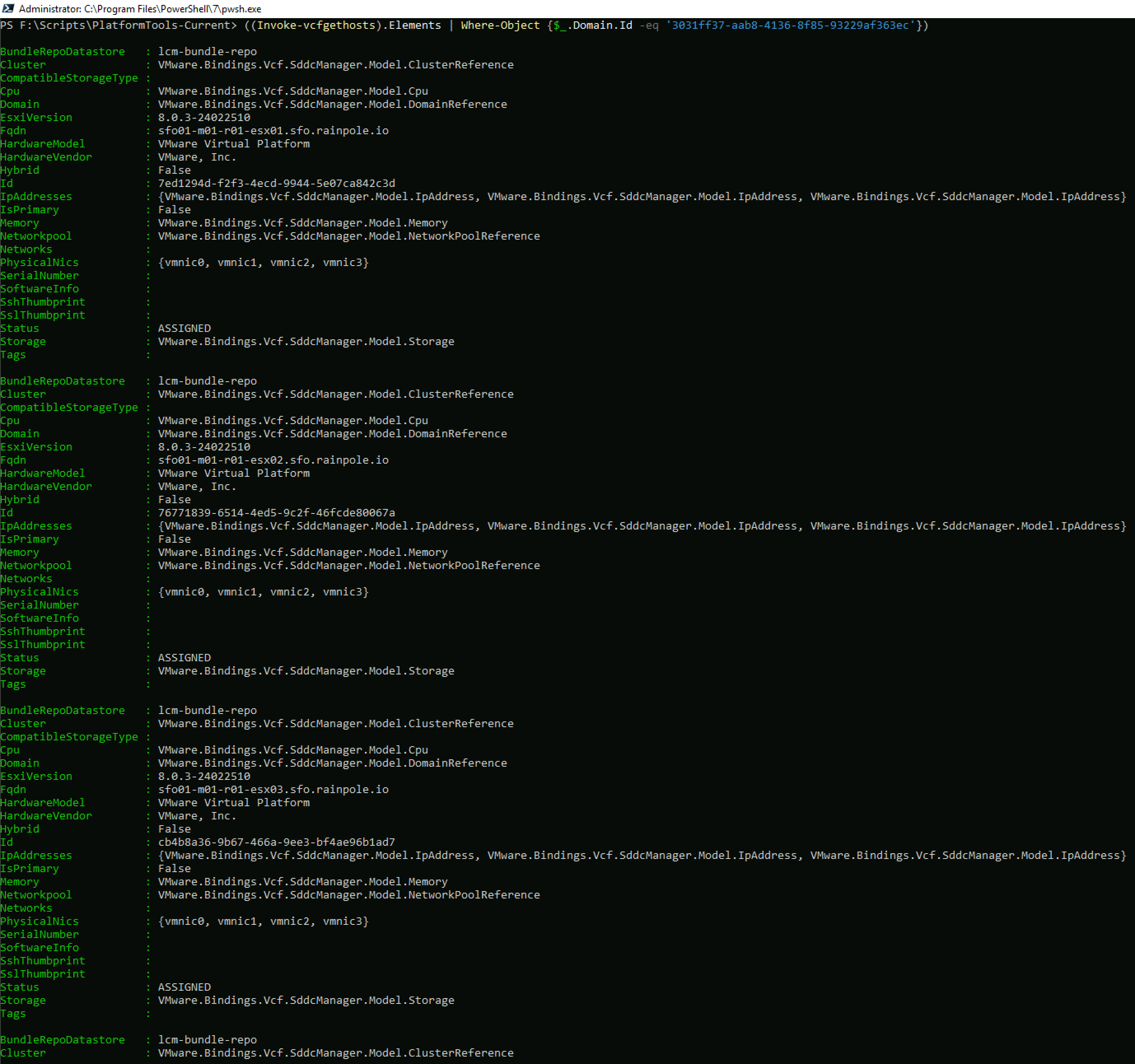
And you can then get a filtered list of hosts for that domain
Hopefully, this introduction was helpful, I will put together a series of blogs over the next few weeks covering some of the main VCF operations, such as bringup, commissioning hosts, deploying workload domains etc. As always, comments & feedback are welcome. Please let me know what your experience is with the new modules and I can feed it back to the engineering team.
I have covered how to clean up general failed tasks in Cleanup Failed Credentials Tasks in VMware Cloud Foundation in a previous post. Another type of task that can be in a failed state is a credentials rotation operation. Credential operations can fail for a number of reasons (the underlying component is unreachable at the time of the operation etc), and this type of failed task is a blocking task – i.e. you cannot perform another credential task until you clean up or cancel the failed task. The script below leverages the PowerVCF cmdlet Get-VCFCredentialTask to discover failed credential tasks and Stop-VCFCredentialTask to clean them up. As with all scripts, please test thoroughly in a lab before using it in production.
# Script to cleanup failed credential tasks in SDDC Manager
# Written by Brian O'Connell - Staff II Solutions Architect @ VMware
#User Variables
# SDDC Manager FQDN. This is the target that is queried for failed tasks
$sddcManagerFQDN = "sfo-vcf01.sfo.rainpole.io"
# SDDC Manager API User. This is the user that is used to query for failed tasks. Must have the SDDC Manager ADMIN role
$sddcManagerAPIUser = "administrator@vsphere.local"
$sddcManagerAPIPassword = "VMw@re1!"
# DO NOT CHANGE ANYTHING BELOW THIS LINE
#########################################
# Set TLS to 1.2 to avoid certificate mismatch errors
[Net.ServicePointManager]::SecurityProtocol = [Net.SecurityProtocolType]::Tls12
# Install PowerVCF if not already installed
if (!(Get-InstalledModule -name PowerVCF -MinimumVersion 2.4.0 -ErrorAction SilentlyContinue)) {
Install-Module -Name PowerVCF -MinimumVersion 2.4.0 -Force
}
# Request a VCF Token using PowerVCF
Request-VCFToken -fqdn $sddcManagerFQDN -username $sddcManagerAPIUser -password $sddcManagerAPIPassword
# Retrieve a list of failed tasks
$failedTaskIDs = @()
$ids = (Get-VCFCredentialTask -status "Failed").id
Foreach ($id in $ids) {
$failedTaskIDs += ,$id
}
# Cleanup the failed tasks
Foreach ($taskID in $failedTaskIDs) {
Stop-VCFCredentialTask -id $taskID
# Verify the task was deleted
Try {
$verifyTaskDeleted = (Get-VCFCredentialTask -id $taskID)
if (!$verifyTaskDeleted) {
Write-Output "Task ID $taskID Deleted Successfully"
}
}
catch {
Write-Error "Something went wrong. Please check your SDDC Manager state"
}
}
Before you can deploy a vSphere Lifecycle Manager (vLCM) image based cluster in VMware Cloud Foundation, you must first import an image into the Image Management Inventory in SDDC Manager. You can do this via the SDDC Manager UI for a pre existing cluster.
Or you can now use PowerVCF to import the image thanks to the addition of New-VCFPersonality (vLCM images are known as personalities in VCF hence the name of the cmdlet).
The sequence of events to be able to import an image is as follows:
Extract a vLCM image from a host that you wish to use in the workload domain. The host doesn’t need to be in the vCenter or SDDC Manager inventory
Create a temporary cluster in vCenter (must be created in a VCF workload domain) and assign the image from the previous step.
Import the image from the source cluster into SDDC Manager
To achieve step 1 we can use PowerCLI
# Variables

$sourceHostUrl = "https://sfo01-w01-esx01.sfo.rainpole.io"
$sourceHostBuild = "21495797"
$sourceHostRootPassword = "VMw@re1!"
$vcenterFQDN = "sfo-m01-vc01.sfo.rainpole.io"
$ssoUsername = "administrator@vsphere.local"
$ssoPassword = "VMw@re1!"
$vcenterDC = "sfo-m01-dc01"
$sddcManagerFQDN = "sfo-vcf01.sfo.rainpole.io"

# Retrieve the source host thumbprint

$response = [System.Net.WebRequest]::Create($sourceHostUrl)
$response.GetResponse()
$cert = $response.ServicePoint.Certificate
$sourceHostThumbprint = $cert.GetCertHashString() -replace '(..(?!$))','$1:'

# Connect to vCenter and import the image from the source host to the depot

connect-viserver -server $vcenterFQDN -user $vcenterUsername -password $vcenterPassword

$OfflineHostCredentials = Initialize-SettingsDepotsOfflineHostCredentials -HostName $sourceHostUrl -UserName "root" -Password $sourceHostRootPassword -Port 443 -SslThumbPrint $sourceHostThumbprint

$OfflineConnectionSpec = Initialize-SettingsDepotsOfflineConnectionSpec -AuthType "USERNAME_PASSWORD" -HostCredential $OfflineHostCredentials

Invoke-CreateFromHostDepotsOfflineAsync -SettingsDepotsOfflineConnectionSpec $SettingsDepotsOfflineConnectionSpec

# Create a temporary cluster and assign the image

$LcmImage = Get-LcmImage -Type BaseImage | where {$_.Version -match $sourceHostBuild}
$clusterID = (New-Cluster -Location $vcenterDC -Name 'vLCM-Cluster' -HAEnabled -DrsEnabled -BaseImage $LcmImage).ExtensionData.MoRef.Value

# Import the image to SDDDC Manager

Request-VCFToken -fqdn $sddcManagerFQDN -username $ssoUsername -password $ssoPassword

$vCenterID = (Get-VCFvCEnter | where {$_.fqdn -match $vcenterFQDN}).id

New-VCFPesonality -name "21495797" -vCenterId $vCenterID -clusterId $clusterID
That should import the new image into the SDDC Manager image repo for use creating a vLCM image based workload domain.
Since the introduction of subscription based licensing for VMware Cloud Foundation (VCF+) there are now 2 licensing modes in VCF (Perpetual or Subscription). To make it easier to identify the subscription status of the system and each workload domain we have added support for Get-VCFLicenseMode into the latest release of PowerVCF 2.3.0.1004.







 LifeOfBrianOC