VMware Cloud Foundation Terraform Provider: Create a New VCF Instance

Following on from my VMware Cloud Foundation Terraform Provider introduction post here I wanted to start by using it to create a new VCF instance (or perform a VCF bring-up).

As of writing this post I am using version 0.5.0 of the provider.

First off we need to define some variables to be used in our plan. Here is a copy of the variables.tf I am using. For reference, I am using the default values in the VCF Planning & Preparation Workbook for my configuration. Note “sensitive = true” on password and licence key variable to stop them from showing up on the console and in logs.

variable "cloud_builder_username" {
  description = "Username to authenticate to CloudBuilder"
  default = "admin"
}

variable "cloud_builder_password" {
  description = "Password to authenticate to CloudBuilder"
  default = "VMw@re1!"
  sensitive = true
}

variable "cloud_builder_host" {
  description = "Fully qualified domain name or IP address of the CloudBuilder"
  default = "sfo-cb01.sfo.rainpole.io"
}

variable "sddc_manager_root_user_password" {
  description = "Root user password for the SDDC Manager VM. Password needs to be a strong password with at least one alphabet and one special character and at least 8 characters in length"
  default = "VMw@re1!"
  sensitive = true
}

variable "sddc_manager_secondary_user_password" {
  description = "Second user (vcf) password for the SDDC Manager VM.  Password needs to be a strong password with at least one alphabet and one special character and at least 8 characters in length."
  default = "VMw@re1!"
  sensitive = true
}

variable "vcenter_root_password" {
  description = "root password for the vCenter Server Appliance (8-20 characters)"
  default = "VMw@re1!"
  sensitive = true
}

variable "nsx_manager_admin_password" {
  description = "NSX admin password. The password must be at least 12 characters long. Must contain at-least 1 uppercase, 1 lowercase, 1 special character and 1 digit. In addition, a character cannot be repeated 3 or more times consecutively."
  default = "VMw@re1!VMw@re1!"
  sensitive = true
}

variable "nsx_manager_audit_password" {
  description = "NSX audit password. The password must be at least 12 characters long. Must contain at-least 1 uppercase, 1 lowercase, 1 special character and 1 digit. In addition, a character cannot be repeated 3 or more times consecutively."
  default = "VMw@re1!VMw@re1!"
  sensitive = true
}

variable "nsx_manager_root_password" {
  description = " NSX Manager root password. Password should have 1) At least eight characters, 2) At least one lower-case letter, 3) At least one upper-case letter 4) At least one digit 5) At least one special character, 6) At least five different characters , 7) No dictionary words, 6) No palindromes"
  default = "VMw@re1!VMw@re1!"
  sensitive = true
}

variable "esx_host1_pass" {
  description = "Password to authenticate to the ESXi host 1"
  default = "VMw@re1!"
  sensitive = true
}

variable "esx_host2_pass" {
  description = "Password to authenticate to the ESXi host 2"
  default = "VMw@re1!"
  sensitive = true
}

variable "esx_host3_pass" {
  description = "Password to authenticate to the ESXi host 3"
  default = "VMw@re1!"
  sensitive = true
}

variable "esx_host4_pass" {
  description = "Password to authenticate to the ESXi host 4"
  default = "VMw@re1!"
  sensitive = true
}

variable "nsx_license_key" {
  description = "NSX license to be used"
  default = "AAAAA-BBBBB-CCCCC-DDDDD-EEEE"
  sensitive = true
}

variable "vcenter_license_key" {
  description = "vCenter license to be used"
  default = "AAAAA-BBBBB-CCCCC-DDDDD-EEEE"
  sensitive = true
}

variable "vsan_license_key" {
  description = "vSAN license key to be used"
  default = "AAAAA-BBBBB-CCCCC-DDDDD-EEEE"
  sensitive = true
}

variable "esx_license_key" {
  description = "ESXi license key to be used"
  default = "AAAAA-BBBBB-CCCCC-DDDDD-EEEE"
  sensitive = true
}

Next, we need our main.tf file that contains what we want to do – in this case – perform a VCF bring-up. For now, I’m using a mix of variables from the above variables.tf file and hard-coded values in my main.tf to achieve my goal. I will follow up with some better practices in a later post.

terraform {
  required_providers {
    vcf = {
      source = "vmware/vcf"
    }
  }
}
provider "vcf" {
  cloud_builder_host = var.cloud_builder_host
  cloud_builder_username = var.cloud_builder_username
  cloud_builder_password = var.cloud_builder_password
  allow_unverified_tls = true
}

resource "vcf_instance" "sddc_1" {
  instance_id = "sfo-m01"
  dv_switch_version = "7.0.3"
  skip_esx_thumbprint_validation = true
  management_pool_name = "sfo-m01-np"
  ceip_enabled = false
  esx_license = var.esx_license_key
  task_name = "workflowconfig/workflowspec-ems.json"
  sddc_manager {
    ip_address = "172.16.11.59"
    hostname = "sfo-vcf01"
    root_user_credentials {
      username = "root"
      password = var.sddc_manager_root_user_password
    }
    second_user_credentials {
      username = "vcf"
      password = var.sddc_manager_secondary_user_password
    }
  }
  ntp_servers = [
    "172.16.11.4"
  ]
  dns {
    domain = "sfo.rainpole.io"
    name_server = "172.16.11.4"
    secondary_name_server = "172.16.11.5"
  }
  network {
    subnet = "172.16.11.0/24"
    vlan_id = "1611"
    mtu = "1500"
    network_type = "MANAGEMENT"
    gateway = "172.16.11.1"
  }
  network {
    subnet = "172.16.13.0/24"
    include_ip_address_ranges {
      start_ip_address = "172.16.13.101"
      end_ip_address = "172.16.13.108"
    }
    vlan_id = "1613"
    mtu = "8900"
    network_type = "VSAN"
    gateway = "172.16.13.1"
  }
  network {
    subnet = "172.16.12.0/24"
    include_ip_address_ranges {
      start_ip_address = "172.16.12.101"
      end_ip_address = "172.16.12.104"
    }
    vlan_id = "1612"
    mtu = "8900"
    network_type = "VMOTION"
    gateway = "172.16.12.1"
  }
  nsx {
    nsx_manager_size = "medium"
    nsx_manager {
      hostname = "sfo-m01-nsx01a"
      ip = "172.16.11.72"
    }
    root_nsx_manager_password = var.nsx_manager_root_password
    nsx_admin_password = var.nsx_manager_admin_password
    nsx_audit_password = var.nsx_manager_audit_password
    overlay_transport_zone {
      zone_name = "sfo-m01-overlay-tz"
      network_name = "sfo-m01-overlay"
    }
    vip = "172.16.11.71"
    vip_fqdn = "sfo-m01-nsx01"
    license = var.nsx_license_key
    transport_vlan_id = 1614
  }
  vsan {
    license = var.vsan_license_key
    datastore_name = "sfo-m01-vsan"
  }
  dvs {
    mtu = 8900
    nioc {
      traffic_type = "VSAN"
      value = "HIGH"
    }
    nioc {
      traffic_type = "VMOTION"
      value = "LOW"
    }
    nioc {
      traffic_type = "VDP"
      value = "LOW"
    }
    nioc {
      traffic_type = "VIRTUALMACHINE"
      value = "HIGH"
    }
    nioc {
      traffic_type = "MANAGEMENT"
      value = "NORMAL"
    }
    nioc {
      traffic_type = "NFS"
      value = "LOW"
    }
    nioc {
      traffic_type = "HBR"
      value = "LOW"
    }
    nioc {
      traffic_type = "FAULTTOLERANCE"
      value = "LOW"
    }
    nioc {
      traffic_type = "ISCSI"
      value = "LOW"
    }
    dvs_name = "SDDC-Dswitch-Private"
    vmnics = [
      "vmnic0",
      "vmnic1"
    ]
    networks = [
      "MANAGEMENT",
      "VSAN",
      "VMOTION"
    ]
  }
  cluster {
    cluster_name = "sfo-m01-cl01"
    cluster_evc_mode = ""
    resource_pool {
      name = "Mgmt-ResourcePool"
      type = "management"
    }
    resource_pool {
      name = "Network-ResourcePool"
      type = "network"
    }
    resource_pool {
      name = "Compute-ResourcePool"
      type = "compute"
    }
    resource_pool {
      name = "User-RP"
      type = "compute"
    }
  }
  psc {
    psc_sso_domain = "vsphere.local"
    admin_user_sso_password = "VMw@re1!"
  }
  vcenter {
    vcenter_ip = "172.16.11.70"
    vcenter_hostname = "sfo-m01-vc01"
    license = var.vcenter_license_key
    root_vcenter_password = var.vcenter_root_password
    vm_size = "tiny"
  }
  host {
    credentials {
      username = "root"
      password = "VMw@re1!"
    }
    ip_address_private {
      subnet = "255.255.255.0"
      cidr = ""
      ip_address = "172.16.11.101"
      gateway = "172.16.11.1"
    }
    hostname = "sfo01-m01-esx01"
    vswitch = "vSwitch0"
    association = "SDDC-Datacenter"
  }
  host {
    credentials {
      username = "root"
      password = "VMw@re1!"
    }
    ip_address_private {
      subnet = "255.255.255.0"
      cidr = ""
      ip_address = "172.16.11.102"
      gateway = "172.16.11.1"
    }
    hostname = "sfo01-m01-esx02"
    vswitch = "vSwitch0"
    association = "SDDC-Datacenter"
  }
  host {
    credentials {
      username = "root"
      password = "VMw@re1!"
    }
    ip_address_private {
      subnet = "255.255.255.0"
      cidr = ""
      ip_address = "172.16.11.103"
      gateway = "172.16.11.1"
    }
    hostname = "sfo01-m01-esx03"
    vswitch = "vSwitch0"
    association = "SDDC-Datacenter"
  }
  host {
    credentials {
      username = "root"
      password = "VMw@re1!"
    }
    ip_address_private {
      subnet = "255.255.255.0"
      cidr = ""
      ip_address = "172.16.11.104"
      gateway = "172.16.11.1"
    }
    hostname = "sfo01-m01-esx04"
    vswitch = "vSwitch0"
    association = "SDDC-Datacenter"
  }
}

Once the above is defined you can run the following to create your Terraform Plan:

terraform init
terraform plan -out=vcf-bringup

Once there are no errors from the above plan command you can run the following to start the VCF bring-up

terraform apply .\vcf-bringup

All going well, this should result in a successful VMware Cloud Foundation bring-up

VMware Cloud Foundation Terraform Provider: Introduction

HashiCorp Terraform has become an industry standard, infrastructure-as-code & desired-state configuration tool for managing on-premises and cloud-based entities. If you are not familiar with Terraform, I’ve covered some early general learnings on Terraform in some posts here & here. The internal engineering team are working on a Terraform provider for VCF, so I decided to give it a spin to review its capabilities & test drive it in the lab.

First off what VCF operations is the Provider capable of supporting today:

  • Deploying a new VCF instance (bring-up)
  • Commissioning hosts
  • Creating network pools
  • Deploying a new VI Workload domain
  • Creating clusters
  • Expanding clusters
  • Adding users

New functionality is being added every week, and as with all new initiatives like this, customer consumption and adoption will drive innovation and progress.

The GitHub repo contains some great example files to get you started. I am going to do a few blog posts on what I’ve learned so far but for now, here are the important links you need if you would like to take a look at the provider

If you want to get started by using the examples take a look here.

PowerVCF 2.4.0 Released

PowerVCF 2.4.0 was released today. Below are the highlights of this release

To install the latest release simply run Install-Module -Name PowerVCF -MinimumVersion 2.4.0

To update your current version run Update-module -Name PowerVCF

  • Updated Request-VCFToken cmdlet for better error handling.
  • Enhanced Get-VCFCluster cmdlet to return associated vSphere Distributed Switches.
  • Enhanced Get-VCFManager cmdlet to return the SDDC Manager version in x.y.z format.
  • Enhanced Get-VCFManager cmdlet to return the SDDC Manager build in xxxxxxx format.
  • Added Set-VCFCredentialAutoRotate cmdlet to configure or disable credential auto-rotation for a credential managed by SDDC Manager.
  • Added Get-VCFProxy cmdlet to retrieve the proxy configuration for the SDDC Manager.
  • Added Set-VCFProxy cmdlet to configure the proxy configuration for the SDDC Manager.
  • Added Get-VCFIdentityProvider cmdlet to retrieve the identity provider configuration.
  • Added Remove-VCFIdentityProvider cmdlet to delete an identity provider.
  • Added New-VCFIdentityProvider cmdlet to configure an embedded or external identity provider.
  • Added Update-VCFIdentityProvider cmdlet to update the configuration of an embedded or external identity provider.
  • Added cmdlet aliases:
    • Added Get-VCFNsxManagerCluster for Get-VCFNsxtCluster.
    • Added Get-VCFNsxEdgeCluster for Get-VCFEdgeCluster.
    • Added Get-VCFAriaLifecycle for Get-VCFVrslcm.
    • Added New-VCFAriaLifecycle for New-VCFVrslcm.
    • Added Remove-VCFAriaLifecycle for Remove-VCFVrslcm.
    • Added Reset-VCFAriaLifecycle for Reset-VCFVrslcm.
    • Added Get-VCFAriaOperations for Get-VCFVrops.
    • Added Get-VCFAriaOperationsConnection for Get-VCFVropsConnection.
    • Added Set-VCFAriaOperationsConnection for Set-VCFVropsConnection.
    • Added Get-VCFAriaOperationsLogs for Get-VCFVrli.
    • Added Get-VCFAriaOperationsLogsConnection for Get-VCFVrliConnection.
    • Added Set-VCFAriaOperationsLogsConnection for Set-VCFVrliConnection.
    • Added Get-VCFAriaAutomation for Get-VCFVra.
  • Fixed validateJsonInput function to prevent it from truncating directly passed JSON content.

Import a vLCM Cluster image to SDDC Manager using PowerVCF

Before you can deploy a vSphere Lifecycle Manager (vLCM) image based cluster in VMware Cloud Foundation, you must first import an image into the Image Management Inventory in SDDC Manager. You can do this via the SDDC Manager UI for a pre existing cluster.

Or you can now use PowerVCF to import the image thanks to the addition of New-VCFPersonality (vLCM images are known as personalities in VCF hence the name of the cmdlet).

The sequence of events to be able to import an image is as follows:

  1. Extract a vLCM image from a host that you wish to use in the workload domain. The host doesn’t need to be in the vCenter or SDDC Manager inventory
  2. Create a temporary cluster in vCenter (must be created in a VCF workload domain) and assign the image from the previous step.
  3. Import the image from the source cluster into SDDC Manager

To achieve step 1 we can use PowerCLI

# Variables

$sourceHostUrl = "https://sfo01-w01-esx01.sfo.rainpole.io"
$sourceHostBuild = "21495797"
$sourceHostRootPassword = "VMw@re1!"
$vcenterFQDN = "sfo-m01-vc01.sfo.rainpole.io"
$ssoUsername = "administrator@vsphere.local"
$ssoPassword = "VMw@re1!"
$vcenterDC = "sfo-m01-dc01"
$sddcManagerFQDN = "sfo-vcf01.sfo.rainpole.io"
 
# Retrieve the source host thumbprint

$response = [System.Net.WebRequest]::Create($sourceHostUrl)
$response.GetResponse()
$cert = $response.ServicePoint.Certificate
$sourceHostThumbprint = $cert.GetCertHashString() -replace '(..(?!$))','$1:'

# Connect to vCenter and import the image from the source host to the depot

connect-viserver -server $vcenterFQDN -user $vcenterUsername -password $vcenterPassword

$OfflineHostCredentials = Initialize-SettingsDepotsOfflineHostCredentials -HostName $sourceHostUrl -UserName "root" -Password $sourceHostRootPassword -Port 443 -SslThumbPrint $sourceHostThumbprint

$OfflineConnectionSpec = Initialize-SettingsDepotsOfflineConnectionSpec -AuthType "USERNAME_PASSWORD" -HostCredential $OfflineHostCredentials

Invoke-CreateFromHostDepotsOfflineAsync -SettingsDepotsOfflineConnectionSpec $SettingsDepotsOfflineConnectionSpec

# Create a temporary cluster and assign the image

$LcmImage = Get-LcmImage -Type BaseImage | where {$_.Version -match $sourceHostBuild}
$clusterID = (New-Cluster -Location $vcenterDC -Name 'vLCM-Cluster' -HAEnabled -DrsEnabled -BaseImage $LcmImage).ExtensionData.MoRef.Value

# Import the image to SDDDC Manager

Request-VCFToken -fqdn $sddcManagerFQDN -username $ssoUsername -password $ssoPassword

$vCenterID = (Get-VCFvCEnter | where {$_.fqdn -match $vcenterFQDN}).id

New-VCFPesonality -name "21495797" -vCenterId $vCenterID -clusterId $clusterID


That should import the new image into the SDDC Manager image repo for use creating a vLCM image based workload domain.

Check VCF License Mode with PowerVCF

Since the introduction of subscription based licensing for VMware Cloud Foundation (VCF+) there are now 2 licensing modes in VCF (Perpetual or Subscription). To make it easier to identify the subscription status of the system and each workload domain we have added support for Get-VCFLicenseMode into the latest release of PowerVCF 2.3.0.1004.

First you need to request an API token using

Request-VCFToken -fqdn sfo-vcf01.sfo.rainpole.io -username administrator@vsphere.local -password VMw@re1!

Then run the new cmdlet to retrieve the license mode Get-VCFLicenseMode

Adding an NVMe Controller & Device to a VM with PowerCLI

Virtual NVMe isn’t a new concept. It’s been around since the 6.x days. As part of some lab work I needed to automate adding an NVMe controller and some devices to a VM. This can be accomplished using the PowerCLI cmdlets for the vSphere API.

# NVME Using PowerCLI
$vcenterFQDN = "sfo-m01-vc01.sfo.rainpole.io"
$vcenterUsername = "administrator@vsphere.local"
$vcenterPassword = "VMw@re1!"
$vms = @("sfo01-w01-esx01","sfo01-w01-esx02","sfo01-w01-esx03","sfo01-w01-esx04")

# Install the required module
Install-Module VMware.Sdk.vSphere.vCenter.Vm

# Connect to vCenter
connect-viserver -server $vcenterFQDN -user $vcenterUsername -password $vcenterPassword

# Add an NVMe controller to each VM
Foreach ($vmName in $vms)
{
$VmHardwareAdapterNvmeCreateSpec = Initialize-VmHardwareAdapterNvmeCreateSpec -Bus 0 -PciSlotNumber 0
Invoke-CreateVmHardwareAdapterNvme -vm (get-vm $vmName).ExtensionData.MoRef.Value -VmHardwareAdapterNvmeCreateSpec $VmHardwareAdapterNvmeCreateSpec
}

# Add an NVMe device
Foreach ($vmName in $vms)
{
$VmHardwareDiskVmdkCreateSpec = Initialize-VmHardwareDiskVmdkCreateSpec -Capacity 274877906944
$VmHardwareDiskCreateSpec = Initialize-VmHardwareDiskCreateSpec -Type "NVME" -NewVmdk $VmHardwareDiskVmdkCreateSpec
Invoke-CreateVmHardwareDisk -Vm (get-vm $vmName).ExtensionData.MoRef.Value -VmHardwareDiskCreateSpec $VmHardwareDiskCreateSpec
}

Terraform Learnings: Deploy an OVA Using the vSphere Provider

Once i got my head around the basics of Terraform I wanted to play with the vSphere provider to see what its was capable of. A basic use case that everyone needs is to deploy a VM. So my first use case is to deploy a VM from an OVA. The vSphere provider documentation for deploying an OVA uses William Lam’s nested ESXi OVA as an example. This is a great example of how to use the provider but seeing as I plan to play with the NSX-T provider also, I decided to use NSX-T Manager OVA as my source to deploy.

So first thing to do is setup your provider. Every provider in the Terraform registry has a Use Provider button on the provider page that pops up a How to use this provider box. This shows you what you need to put in your required_providers & provider block. In my case I will use a providers.tf file and it will look like the below example. Note you can only have one required_providers block in your configuration, but you can have multiple providers. So all required providers go in the same required_providers block and each provider has its own provider block.

# providers.tf

terraform {
  required_providers {
    vsphere = {
      source  = "hashicorp/vsphere"
      version = "2.1.1"
    }
  }
}
provider "vsphere" {
  user                 = var.vsphere_user
  password             = var.vsphere_password
  vsphere_server       = var.vsphere_server
  allow_unverified_ssl = true
}

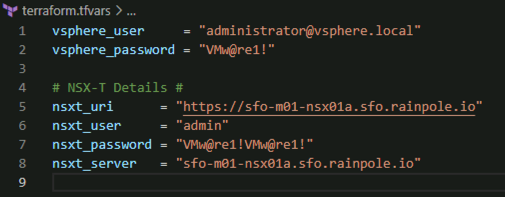
To authenticate to our chosen provider (in this case vSphere) we need to provide credentials. If you read my initial post on Terraform you would have seen me mention a terraform.tfvars file which can be used for sensitive variables. We will declare these as variables later in the variables.tf file but this is where we assign the values. So my terraform.tfvars file looks like this

# terraform.tfvars

# vSphere Provider Credentials
vsphere_user     = "administrator@vsphere.local"
vsphere_password = "VMw@re1!"

Next we need variables to enable us to deploy our NSX-T Manager appliance. So we create a variables.tf file and populate it with our variables. Note – variables that have a default value are considered optional and the default value will be used if no value is passed.

# variables.tf 

# vSphere Infrastructure Details 
variable "data_center" { default = "sfo-m01-dc01" } 
variable "cluster" { default = "sfo-m01-cl01" } 
variable "vds" { default = "sfo-m01-vds01" } 
variable "workload_datastore" { default = "vsanDatastore" } 
variable "compute_pool" { default = "sfo-m01-cl01" } 
variable "compute_host" {default = "sfo01-m01-esx01.sfo.rainpole.io"} 
variable "vsphere_server" {default = "sfo-m01-vc01.sfo.rainpole.io"} 

# vCenter Credential Variables 
variable "vsphere_user" {} 
variable "vsphere_password" {} 

# NSX-T Manager Deployment 
variable "mgmt_pg" { default = "sfo-m01-vds01-pg-mgmt" } 
variable "vm_name" { default = "sfo-m01-nsx01a" } 
variable "local_ovf_path" { default = "F:\\OVAs\\nsx-unified-appliance-3.1.3.5.0.19068437.ova" } 
variable "deployment_option" { default = "extra_small" } # valid deployments are: extra_small, small, medium, large 
variable "nsx_role" { default = "NSX Manager" } # valid roles are NSX Manager, NSX Global Manager 
variable "nsx_ip_0" { default = "172.16.225.66" } 
variable "nsx_netmask_0" { default = "255.255.255.0" } 
variable "nsx_gateway_0" { default = "172.16.225.1" } 
variable "nsx_dns1_0" { default = "172.16.225.4" } 
variable "nsx_domain_0" { default = "sfo.rainpole.io" } 
variable "nsx_ntp_0" { default = "ntp.sfo.rainpole.io" } 
variable "nsx_isSSHEnabled" { default = "True" } 
variable "nsx_allowSSHRootLogin" { default = "True" } 
variable "nsx_passwd_0" { default = "VMw@re1!VMw@re1!" } 
variable "nsx_cli_passwd_0" { default = "VMw@re1!VMw@re1!" } 
variable "nsx_cli_audit_passwd_0" { default = "VMw@re1!VMw@re1!" } 
variable "nsx_hostname" { default = "sfo-m01-nsx01a.sfo.rainpole.io" } 

Now that we have our provider & variables in place we need a plan file to deploy the NSX-T Manager OVA, including the data sources we need to pull information from and the resource we are going to create.

<br />
# main.tf</p>
<p># Data source for vCenter Datacenter<br />
data "vsphere_datacenter" "datacenter" {<br />
  name = var.data_center<br />
}</p>
<p># Data source for vCenter Cluster<br />
data "vsphere_compute_cluster" "cluster" {<br />
  name          = var.cluster<br />
  datacenter_id = data.vsphere_datacenter.datacenter.id<br />
}</p>
<p># Data source for vCenter Datastore<br />
data "vsphere_datastore" "datastore" {<br />
  name          = var.workload_datastore<br />
  datacenter_id = data.vsphere_datacenter.datacenter.id<br />
}</p>
<p># Data source for vCenter Portgroup<br />
data "vsphere_network" "mgmt" {<br />
  name          = var.mgmt_pg<br />
  datacenter_id = data.vsphere_datacenter.datacenter.id<br />
}</p>
<p># Data source for vCenter Resource Pool. In our case we will use the root resource pool<br />
data "vsphere_resource_pool" "pool" {<br />
  name          = format("%s%s", data.vsphere_compute_cluster.cluster.name, "/Resources")<br />
  datacenter_id = data.vsphere_datacenter.datacenter.id<br />
}</p>
<p># Data source for ESXi host to deploy to<br />
data "vsphere_host" "host" {<br />
  name          = var.compute_host<br />
  datacenter_id = data.vsphere_datacenter.datacenter.id<br />
}</p>
<p># Data source for the OVF to read the required OVF Properties<br />
data "vsphere_ovf_vm_template" "ovfLocal" {<br />
  name             = var.vm_name<br />
  resource_pool_id = data.vsphere_resource_pool.pool.id<br />
  datastore_id     = data.vsphere_datastore.datastore.id<br />
  host_system_id   = data.vsphere_host.host.id<br />
  local_ovf_path   = var.local_ovf_path<br />
  ovf_network_map = {<br />
    "Network 1" = data.vsphere_network.mgmt.id<br />
  }<br />
}</p>
<p># Deployment of VM from Local OVA<br />
resource "vsphere_virtual_machine" "nsxt01" {<br />
  name                 = var.vm_name<br />
  datacenter_id        = data.vsphere_datacenter.datacenter.id<br />
  datastore_id         = data.vsphere_ovf_vm_template.ovfLocal.datastore_id<br />
  host_system_id       = data.vsphere_ovf_vm_template.ovfLocal.host_system_id<br />
  resource_pool_id     = data.vsphere_ovf_vm_template.ovfLocal.resource_pool_id<br />
  num_cpus             = data.vsphere_ovf_vm_template.ovfLocal.num_cpus<br />
  num_cores_per_socket = data.vsphere_ovf_vm_template.ovfLocal.num_cores_per_socket<br />
  memory               = data.vsphere_ovf_vm_template.ovfLocal.memory<br />
  guest_id             = data.vsphere_ovf_vm_template.ovfLocal.guest_id<br />
  scsi_type            = data.vsphere_ovf_vm_template.ovfLocal.scsi_type<br />
  dynamic "network_interface" {<br />
    for_each = data.vsphere_ovf_vm_template.ovfLocal.ovf_network_map<br />
    content {<br />
      network_id = network_interface.value<br />
    }<br />
  }</p>
<p>  wait_for_guest_net_timeout = 5</p>
<p>  ovf_deploy {<br />
    allow_unverified_ssl_cert = true<br />
    local_ovf_path            = var.local_ovf_path<br />
    disk_provisioning         = "thin"<br />
    deployment_option         = var.deployment_option</p>
<p>  }<br />
  vapp {<br />
    properties = {<br />
      "nsx_role"               = var.nsx_role,<br />
      "nsx_ip_0"               = var.nsx_ip_0,<br />
      "nsx_netmask_0"          = var.nsx_netmask_0,<br />
      "nsx_gateway_0"          = var.nsx_gateway_0,<br />
      "nsx_dns1_0"             = var.nsx_dns1_0,<br />
      "nsx_domain_0"           = var.nsx_domain_0,<br />
      "nsx_ntp_0"              = var.nsx_ntp_0,<br />
      "nsx_isSSHEnabled"       = var.nsx_isSSHEnabled,<br />
      "nsx_allowSSHRootLogin"  = var.nsx_allowSSHRootLogin,<br />
      "nsx_passwd_0"           = var.nsx_passwd_0,<br />
      "nsx_cli_passwd_0"       = var.nsx_cli_passwd_0,<br />
      "nsx_cli_audit_passwd_0" = var.nsx_cli_audit_passwd_0,<br />
      "nsx_hostname"           = var.nsx_hostname<br />
    }<br />
  }<br />
  lifecycle {<br />
    ignore_changes = [<br />
      #vapp # Enable this to ignore all vapp properties if the plan is re-run<br />
      vapp[0].properties["nsx_role"], # Avoid unwanted changes to specific vApp properties.<br />
      vapp[0].properties["nsx_passwd_0"],<br />
      vapp[0].properties["nsx_cli_passwd_0"],<br />
      vapp[0].properties["nsx_cli_audit_passwd_0"],<br />
      host_system_id # Avoids moving the VM back to the host it was deployed to if DRS has relocated it<br />
    ]<br />
  }<br />
}<br />

Once we have all of the above we can run the following to validate our plan

terraform plan -out=nsxt01

If your plan is successful you should see an output similar to below

Once your plan is successful run the command below to apply the plan

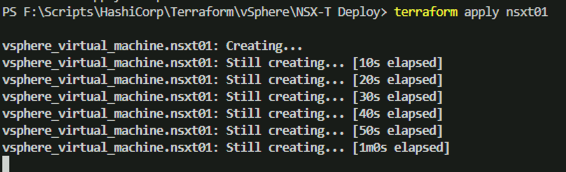
terraform apply nsxt01

If the stars align your NSX-T Manager appliance should deploy successfully. Once its deployed, if you were to re-run the plan you should see a message similar to below

One of the key pieces to this is the lifecycle block in the plan. The lifecycle block enables you to callout things that Terraform should ignore when it is re-applying a plan. Things like tags or other items that may get updated by other systems etc. In our case we want Terraform to ignore the vApp properties as it will try to apply password properties every time, which would entail powering down the VM, making the change, and powering the VM back on.

Terraform Learnings: Getting Started

Playing with Terraform has been on my To-Do list for a while now (it’s a long list 🙂 ). Over the past couple of weeks i’ve been spending time in my homelab getting familiar with it and figured i’d create a blog series that may help others.

So where do you start? There are lots of resources on the web to get started. From blogs to Pluralsight courses. The Terraform documentation & provider documentation in the Terraform Registry is also very good and usually has what you need.

For my setup i use Visual Studio Code. I flip between my mac & a windows jump vm in my homelab, and VSC works seamlessly on both. I’ve installed the following VSC extension:

Installing Terraform is straightforward. Follow the steps for your OS to download and then install Terraform.

Terraform Basic Constructs

Terraform uses the following basic constructs (there are plenty more advanced constructs but baby steps!)

  • Providers
    • Plugins to interact with target endpoints
  • Variables
    • User input to create objects
    • There are multiple (6 i believe) ways to provide variables to Terraform
  • Data Sources
    • Sources of information outside of Terraform that provide infrastructure details to interact with resources
  • Resources
    • Infrastructure objects you interact with
  • Configuration files
    • .tf file extension
    • Read alphabetically and actioned when you plan/apply/destroy your config (more on that later)
    • A single main.tf file can contain everything your infrastructure plan requires:
      • Provider
      • Variables
      • Data Sources
      • Resources
    • Recommended to split these out for larger environments
      • providers.tf
        • You must declare required_providers and then a provider block for each provider.
        • You can use alias = “alias_name” if you want to have multiple instances of a provider.
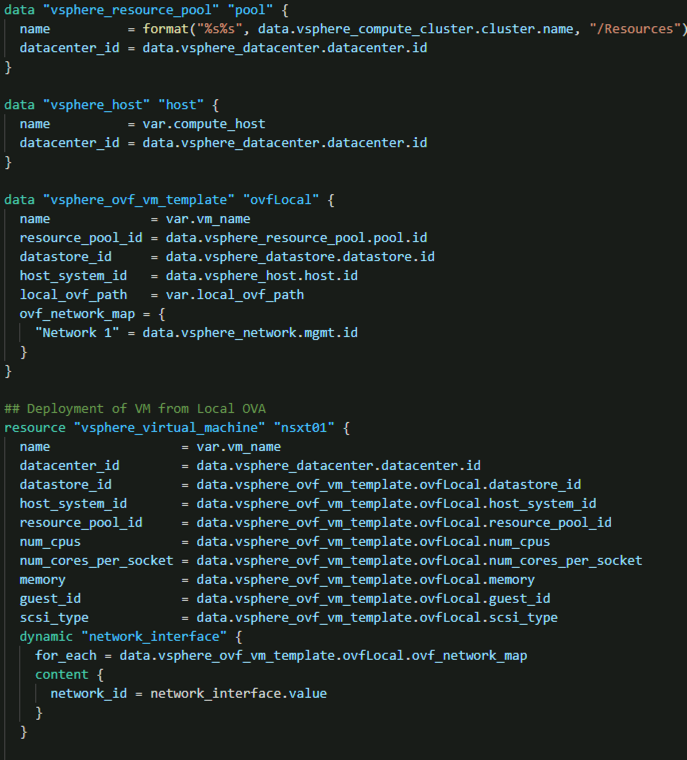
        • In the screenshot below the credentials are coming from variables defined in my terraform.tfvars file
  • variables.tf
    • List of variables to be used in the configuration
    • Written in Hashicorp Configuration Language (HCL) (or JSON)
  • Sensitive variables such as credentials or access keys should be stored in Terraform variable definition files .tfvars or stored as environment variables.
    • Use a Terraform.gitignore file to ensure your .tfvars with sensitive information are not committed to your git repo.
  • Data Sources & Resources can be in a single file or split out into logical infrastructure files
    • network.tf
    • deploy_vm.tf
    • etc

Terraform Commands

Once you have your configuration defined you first want to validate that it will run

terraform plan -out=plan-name
# This will evaluate your configuration to ensure it is valid and store the result in a file called "plan-name"
terraform apply plan-name
# This will apply your configuration based on the output of the above plan. You will be asked to confirm this action. you can add -auto-approve to skip the confirmation (use with caution)
terraform destroy
# This will destroy the configuration. You will be asked to confirm this action. you can add -auto-approve to skip the confirmation (use with caution)

Hopefully this was helpful. This is just scratching the surface to get started with Terraform. I recommend getting hands on and reading the documentation as you go. I will continue this with a post on using the vSphere provider to deploy an OVA. Stay tuned!

Cleanup Failed Tasks in SDDC Manager

I was chatting with my colleague Paudie O’Riordan yesterday about PowerVCF as he was doing some testing internally and he mentioned that a great addition would be to have the ability to find, and cleanup failed tasks in SDDC Manager. Some use cases for this would be, cleaning up an environment before handing it off to a customer, or before recording a demo etc.

Currently there isnt a supported public API to delete a failed task so you have to run a curl command on SDDC Manager with the task ID. So getting a list of failed tasks and then running a command to delete each one can take time. See Martin Gustafson’s post on how to do it manually here.

I took a look at our existing code for retrieving tasks (and discovered a bug in the logic that is now fixed in PowerVCF 2.1.5!) and we have the ability to specify -status. So requesting a list of tasks with -status “failed” returns a list. So i put the script below together to retrieve a list of failed tasks, loop through them and delete them. The script requires the following inputs

  • SDDC Manager FQDN. This is the target that is queried for failed tasks
  • SDDC Manager API User. This is the user that is used to query for failed tasks. Must have the SDDC Manager ADMIN role
  • Password for the above user
  • Password for the SDDC Manager appliance vcf user. This is used to run the task deletion. This is not tracked in the credentials DB so we need to pass it.

Once the above variables are populated the script does the following:

  • Checks for PowerVCF (minimum version 2.1.5) and installs if not present
  • Requests an API token from SDDC Manager
  • Queries SDDC Manager for the management domain vCenter Server details
  • Uses the management domain vCenter Server details to retrieve the SDDC Manager VM name
  • Queries SDDC Manager for a list of tasks in a failed state
  • Loops through the list of failed tasks and deletes them from SDDC Manager
  • Verifies the task is no longer present

Here is the script. It is also published here if you would like to enhance it

# Script to cleanup failed tasks in SDDC Manager
# Written by Brian O'Connell - Staff Solutions Architect @ VMware

#User Variables
# SDDC Manager FQDN. This is the target that is queried for failed tasks
$sddcManagerFQDN = "lax-vcf01.lax.rainpole.io"
# SDDC Manager API User. This is the user that is used to query for failed tasks. Must have the SDDC Manager ADMIN role
$sddcManagerAPIUser = "administrator@vsphere.local"
$sddcManagerAPIPassword = "VMw@re1!"
# Password for the SDDC Manager appliance vcf user. This is used to run the task deletion
$sddcManagerVCFPassword = "VMw@re1!"


# DO NOT CHANGE ANYTHING BELOW THIS LINE
#########################################

# Set TLS to 1.2 to avoid certificate mismatch errors
[Net.ServicePointManager]::SecurityProtocol = [Net.SecurityProtocolType]::Tls12

# Install PowerVCF if not already installed
if (!(Get-InstalledModule -name PowerVCF -MinimumVersion 2.1.5 -ErrorAction SilentlyContinue)) {
    Install-Module -Name PowerVCF -MinimumVersion 2.1.5 -Force
}

# Request a VCF Token using PowerVCF
Request-VCFToken -fqdn $sddcManagerFQDN -username $sddcManagerAPIUser -password $sddcManagerAPIPassword

# Disconnect all connected vCenters to ensure only the desired vCenter is available
if ($defaultviservers) {
    $server = $defaultviservers.Name
    foreach ($server in $defaultviservers) {            
        Disconnect-VIServer -Server $server -Confirm:$False
    }
}

# Retrieve the Management Domain vCenter Server FQDN
$vcenterFQDN = ((Get-VCFWorkloadDomain | where-object {$_.type -eq "MANAGEMENT"}).vcenters.fqdn)
$vcenterUser = (Get-VCFCredential -resourceType "PSC").username
$vcenterPassword = (Get-VCFCredential -resourceType "PSC").password

# Retrieve SDDC Manager VM Name
if ($vcenterFQDN) {
    Write-Output "Getting SDDC Manager Manager VM Name"
    Connect-VIServer -server $vcenterFQDN -user $vcenterUser -password $vcenterPassword | Out-Null
    $sddcmVMName = ((Get-VM * | Where-Object {$_.Guest.Hostname -eq $sddcManagerFQDN}).Name)              
}

# Retrieve a list of failed tasks
$failedTaskIDs = @()
$ids = (Get-VCFTask -status "Failed").id
Foreach ($id in $ids) {
    $failedTaskIDs += ,$id
}
# Cleanup the failed tasks
Foreach ($taskID in $failedTaskIDs) {
    $scriptCommand = "curl -X DELETE 127.0.0.1/tasks/registrations/$taskID"
    Write-Output "Deleting Failed Task ID $taskID"
    $output = Invoke-VMScript -ScriptText $scriptCommand -vm $sddcmVMName -GuestUser "vcf" -GuestPassword $sddcManagerVCFPassword

# Verify the task was deleted    
    Try {
    $verifyTaskDeleted = (Get-VCFTask -id $taskID)
    if ($verifyTaskDeleted -eq "Task ID Not Found") {
        Write-Output "Task ID $taskID Deleted Successfully"
    }
}
    catch {
        Write-Error "Something went wrong. Please check your SDDC Manager state"
    }
}
Disconnect-VIServer -server $vcenterFQDN -Confirm:$False

As always, comments/feedback welcome!

Site Protection & Disaster Recovery for VMware Cloud Foundation Validated Solution

Along with the release of VMware Cloud Foundation 4.3.1, we are excited to announce the general availability of the Site Protection & Disaster Recovery for VMware Cloud Foundation Validated Solution. The solution documentation, intro and other associated collateral can be found on the Cloud Platform Tech Zone here.

The move from VMware Validated Designs to VMware Validated Solutions has been covered by my team mate Gary Blake in detail here so I wont go into that detail here. Instead I will concentrate on the work Ken Gould and I (along with a supporting team) have been working to deliver for the past few months.

The Site Protection & Disaster Recovery for VMware Cloud Foundation Validated Solution includes the following to deliver an end-to-end validated way to protect your mission critical applications. You get a set of documentation that is tailored to the solution that includes: design objectives, a detailed design including not just design decisions, but the justifications & implications of those decisions, detailed implementation steps with PowerShell alternatives for some steps to speed up time to deploy, operational guidance on how to use the solution once its deployed, solution interoperability between it and other Validated Solutions, an appendix containing all the solution design decisions in one easy place for review, and finally, a set of frequently asked questions that will be updated for each release.

Disaster recovery is a huge topic for everyone lately. Everything from power outages to natural disasters to ransomware and beyond can be classed as a disaster, and regardless of the type of disaster you must be prepared. To adequately plan for business continuity in the event of a disaster you must protect your mission critical applications so that they may be recovered. In a VMware Cloud Foundation environment, cloud operations and automation services are delivered by vRealize Lifecycle Manager, vRealize Operations Manager & vRealize Automation, with authentication services delivered by Workspace ONE Access.

To provide DR for our mission critical apps we leverage 2 VCF instances with NSX-T federation between them. The primary VCF instance runs the active NSX-T global manager and the recovery VCF instance runs the standby NSX-T global manager. All load balancing services are served from the protected instance, with a standby load balancer (disconnected from the recovery site NSX Tier-1 until required, to avoid IP conflicts) in the recovery instance. Using our included PowerShell cmdlets you can quickly create and configure the standby load balancer to mimic your active load balancer, saving you a ton of manual UI clicks.

In the (hopefully never) event of the need to failover the cloud management applications, you can easily bring the standby load balancer online to enable networking services for the failed over applications.

Using Site recovery Manager (SRM) you can run planned migrations or disaster recovery migrations. With a single set of SRM recovery plans, regardless of the scenario, you will be guided through the recovery process. In this post I will cover what happens in the event of a disaster.

When a disaster occurs on the protected site (once the panic subsides) there are a series of tasks you need to perform to bring those mission critical apps back online.

First? Fix the network! Log into the passive NSX Global Manager (GM) on the recovery site and promote the GM to Active. (Note: This can take about 10-15 mins)

To cover the case of an accidental “Force Active” click..we’ve built in the “Are you absolutely sure this is what you want to do?” prompt!

Once the promotion operation completes our standby NSX GM is now active, and can be used to manage the surviving site NSX Local Manager (LM)

Once the recovery site GM is active we need to ensure that the cross-instance NSX Tier-1 is now directing the egress traffic via the recovery site. To do this we must update the locations on the Tier-1. Navigate to GM> Tier-1 gateways > Cross Instance Tier-1. Under Locations, make the recovery location Primary.

The next step is to ensure we have an active load balancer running in the recovery site to ensure our protected applications come up correctly. To do this log into what is now our active GM, select the recovery site NSX Local Manager (LM), and navigate to Networking > Load Balancing. Edit the load balancer and attach it to the recovery site standalone Tier-1.

At this point we are ready to run our SRM recovery plans. The recommended order for running the recovery plans (assuming you have all of the protected components listed below) is as follows. This ensures lifecycle & authentication services (vRSLCM & WSA) are up before the applications that depend on them (vROPS & vRA)

  • vRSLCM – WSA – RP
  • Intelligent Operations Management RP
  • Private Cloud Automation RP

I’m not going to go through each recovery plan in detail here. They are documented in the Site Protection and Disaster Recovery Validated Solution. In some you will be prompted to verify this or that along the way to ensure successful failover.

The main thing in a DR situation is, DO NOT PANIC. And what is the best way to getting to a place where you DO NOT PANIC? Test your DR plans…so when you see this…

Your reaction is this…

Trust the plan…test the plan…relax…you have a plan!

Hopefully this post was useful..if you want to learn more please reach out in the comments…if you’re attending VMworld and would like to learn more or ask some questions, please drop into our Meet The Experts session on Thursday.

Take a look at Ken’s post on the Planning & Preparation Workbook for this validated solution for more details.