Upgrading VCF 5.2 to 9.0 – Part 6 – Transition a vSphere Cluster from vSphere Lifecycle Manager Baselines to Images

The next step of the upgrade is to upgrade the vSphere clusters in the workload domain. VCF 9.0 no longer supports vSphere Lifecycle Manager Baselines (aka VUM) as a method of lifecycle managing your clusters. So if you have clusters that are managed using vSphere Lifecycle Manager Baselines, you must transition them to vSphere Lifecycle Manager Images. This can be done using the SDDC Manager API, following the documentation or (more suitable for larger scale) using the PowerShell script on this KB https://knowledge.broadcom.com/external/article?articleNumber=385617. I only have a single cluster, so I will use a mixture of manual and scripted steps.

The first step is to create a vLCM image that corresponds to the currently installed ESX version. In my case, I am running VCF 5.2.1 so the installed ESX version is ESXi 8.0 U3b – 24280767.

  • Log into the vSphere client and navigate to Home > Lifecycle Manager > Image Library.
  • Enter a name and under ESX Versions, select the version corresponding to your running ESX version.
  • If you require vendor add-ons, add them here.
  • Click Validate, and click Save.
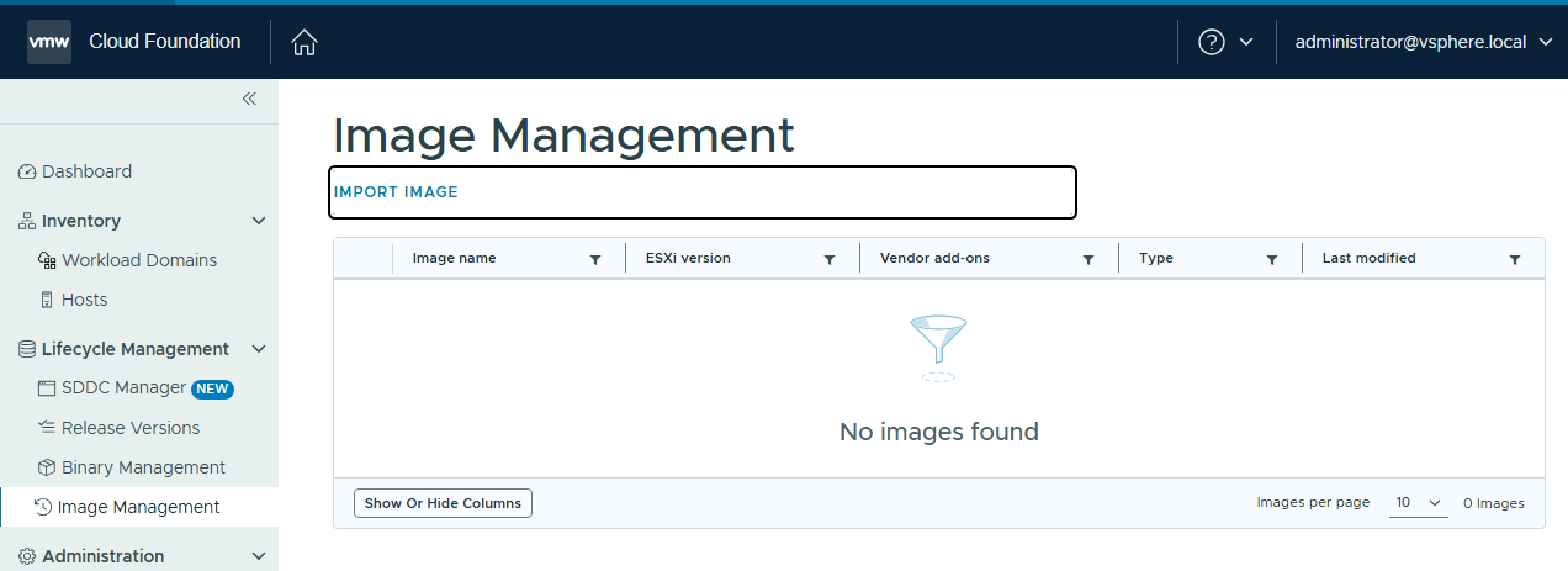
  • Next, log in to SDDC Manager and navigate to Lifecycle Management > Image Management and click Import Image. Select the vCenter where you created the image, select the image from the list and click Import.
  • Select the source vCenter and image and click Import.

The image imports into the SDDC Manager inventory.

Now launch the PowerShell script from the KB

.\VcfBaselineClusterTransition.ps1

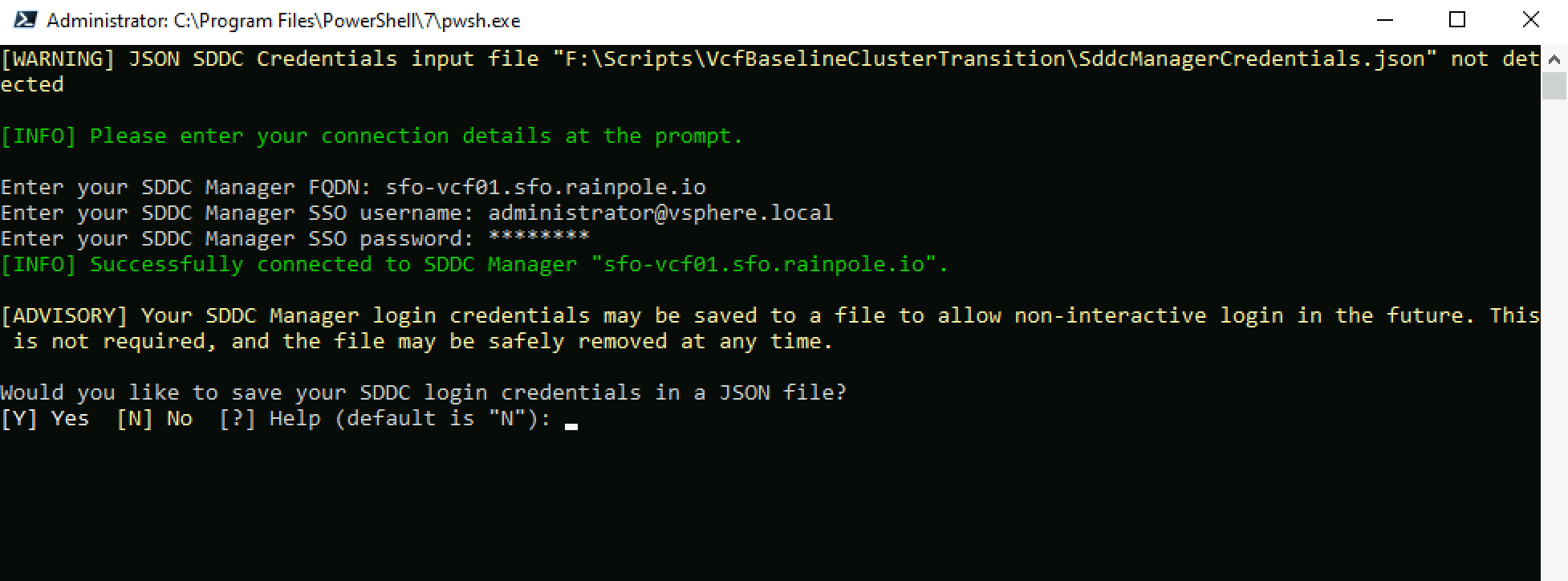
Choose option 1 to Connect to SDDC Manager and select vCenter. Enter the SDDC Manager FQDN and credentials and decide whether you want to save the credentials to a json file for future use.

Choose the vCenter you want to work against, or select all vCenter instances.

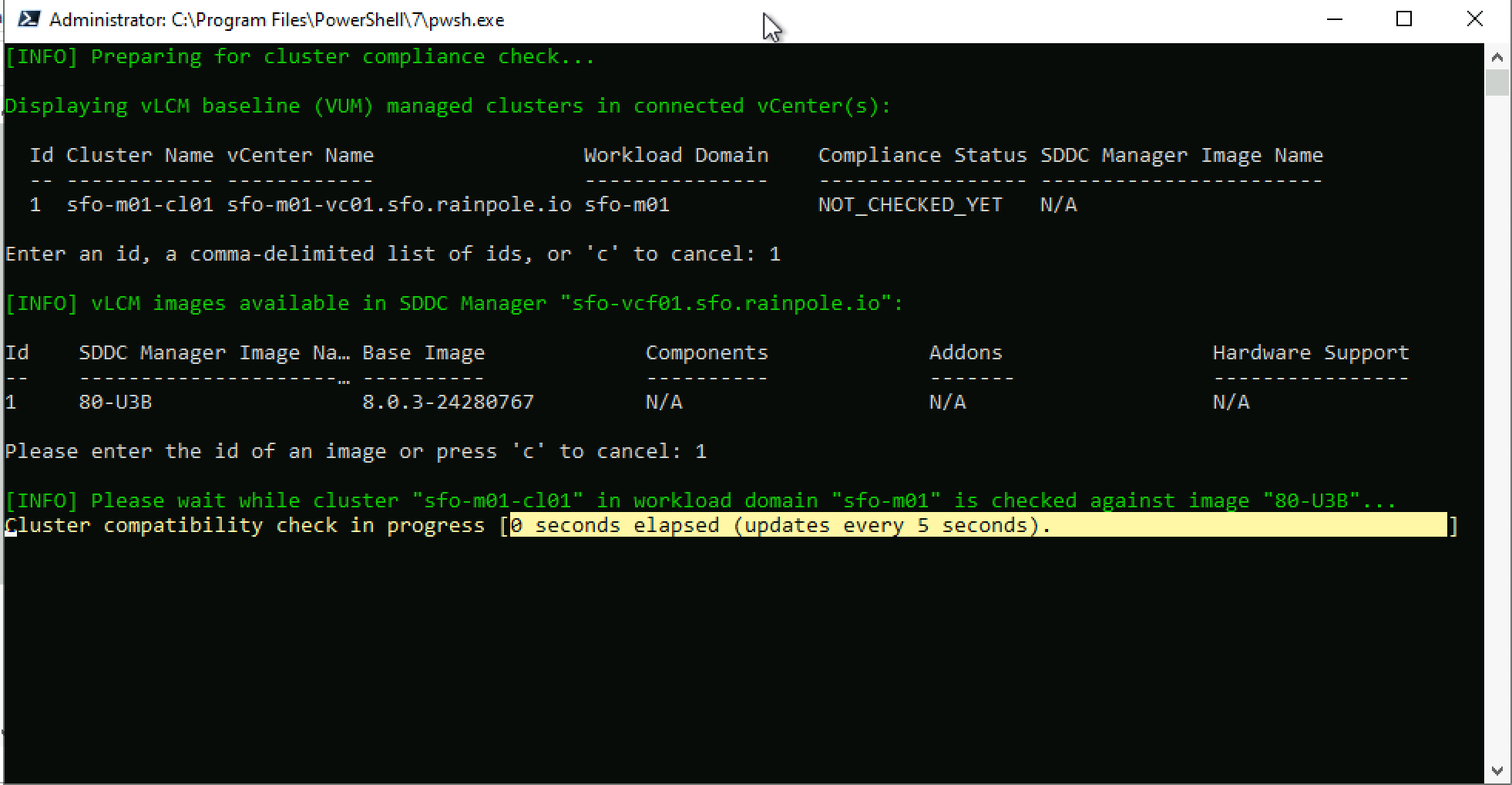
To Check existing cluster(s)’ vLCM image compliance, choose option 3. Enter a cluster id, and choose an image id to check against.

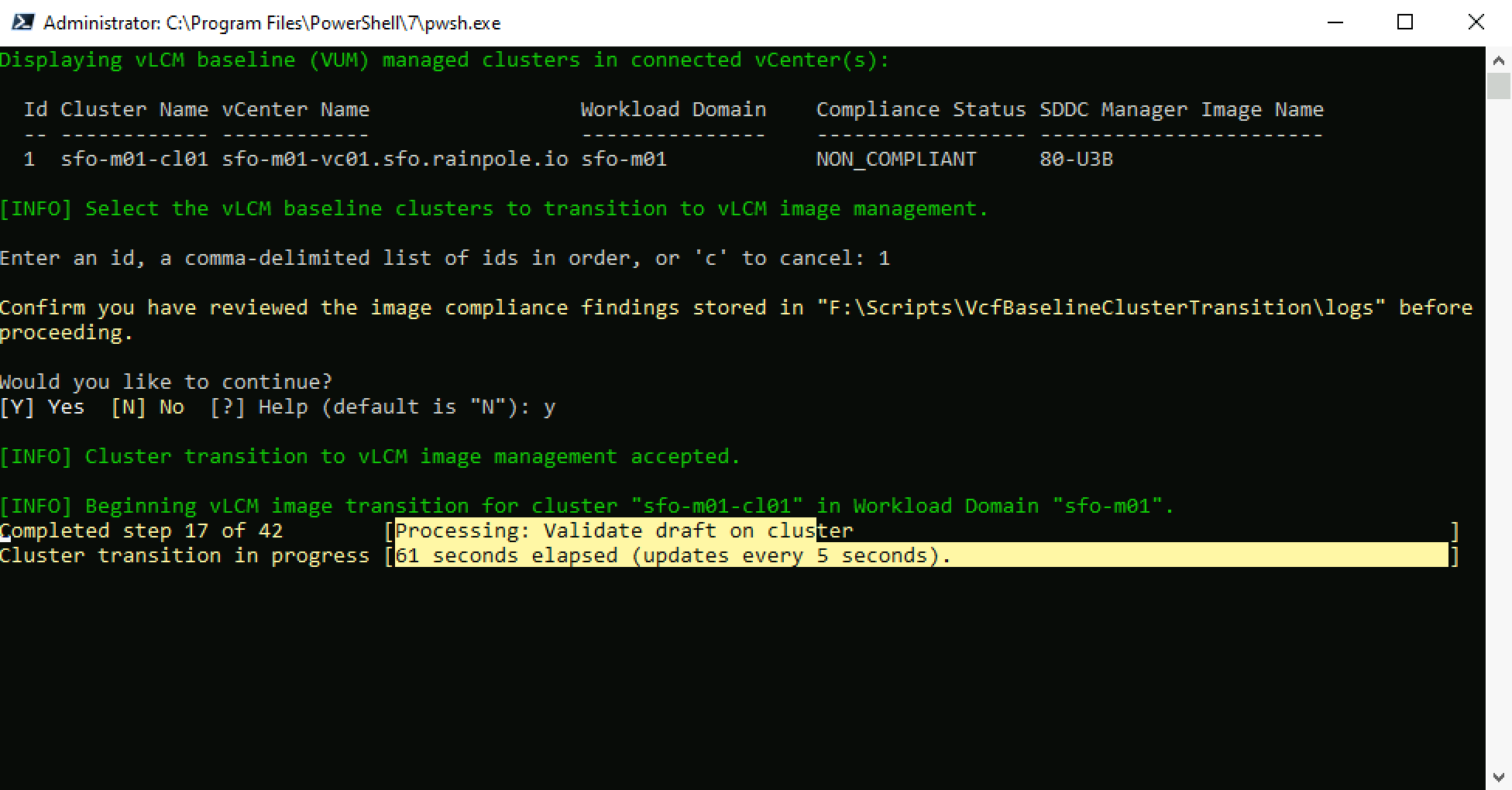
To Transition a vLCM baseline (VUM) cluster to vLCM image management, choose option 4. Enter a cluster id, and Confirm you have reviewed the image compliance findings. The transition process will begin.

The script will call the SDDC Manager APIs to transition the cluster from baselines to images.

Once the transition process completes, you can proceed with the next step of upgrading the vSphere cluster to vSphere 9.0.

Add VMKernels for vSphere Replication using PowerCLI

When configuring vSphere Replication between 2 vCenter Servers, you need to add a dedicated VMKernel to each host in the source & target vCEnter Server clusters. Depending on the number of hosts per cluster, this can be a time-consuming manual task. Here is a quick script leveraging PowerCLI to retrieve the hosst from a specified cluster and loop through them adding a dedicated vSphere Replication VMKernel.

#Source VC vmks
$vCenterServer = "sfo-m01-vc01.sfo.rainpole.io"
$vCenterServerUser = "administrator@vsphere.local"
$vCenterServerPassword = "VMw@re1!VMw@re1!"
$clusterName = "sfo-m01-cl01"
$PortGroupName = "sfo-m01-cl01-vds01-pg-vlr"
$VLANID = 1116
$VSwitch = "sfo-m01-cl01-vds01"
$VMKIP = "10.11.16."  # last octet will be incremented
$lastOctetStart = 101
$SubnetMask = "255.255.255.0"
$mtu = 9000

# Connect to vCenter
Connect-VIServer -Server $vCenterServer -user $vCenterServerUser -password $vCenterServerPassword

# Get Esxi hosts in cluster
$ESXiHosts = Get-cluster -name $clusterName | Get-VMHost

# Loop through each host and add an adapter with vSphere Replication Services enabled
$index = $lastOctetStart
foreach ($ESXi in $ESXiHosts) {
    Write-Host "Processing host: $ESXi"

# Define VMkernel IP for this host
    $VMKIPAddress = "$VMKIP$index"
    $index++

# Add VMkernel adapter
    Write-Host "Adding VMkernel adapter $VMKIPAddress to $ESXi"
    $vmk = New-VMHostNetworkAdapter -VMHost $ESXi -VirtualSwitch $VSwitch -PortGroup $PortGroupName -IP $VMKIPAddress -SubnetMask $SubnetMask -VMotionEnabled $false -mtu $mtu
    $vnicMgr = Get-View -Id $ESXi.ExtensionData.ConfigManager.VirtualNicManager
    $vnicMgr.SelectVnicForNicType('vSphereReplication',$vmk.Name)
$vnicMgr.SelectVnicForNicType('vSphereReplicationNFC',$vmk.Name)

    Write-Host "VMkernel adapter added successfully on $ESXi"
}

# Disconnect from vCenter
Disconnect-VIServer -Confirm:$false

Retrieve VCF Operations Appliance Root Password from the VMware Aria Suite Lifecycle Locker

When you deploy a component using VMware Aria Suite Lifecycle, it stores the credentials in it’s locker. If you need to SSH to a VCF Operations appliance and you dont know the root password, you need to retrieve the root password from the VMware Aria Suite Lifecycle locker. To do this you need to query the Aria Suite Lifecycle API for a list of locker entries using basic auth.

GET https://flt-fm01.rainpole.io/lcm/locker/api/v2/passwords?from=0&size=10

From the response, locate the corresponding vmid for the VCF OPs appliance

{            
"vmid": "a789765f-6cfc-497a-8273-9d8bff2684a5",            "tenant": "default",            
"alias": "VCF-flt-ops01a.rainpole.io-rootUserPassword",          "password": "PASSWORD****",            
"createdOn": 1737740091124,            
"lastUpdatedOn": 1737740091124,            
"referenced": true        
}

Query the Aria Suite Lifecycle locker for the decrypted password, again with basic auth, passing the Aria Suite Lifecycle root password in the payload body.

#BODY (Aria Suite Lifecycle root password)
{
  "rootPassword": "VMw@re1!VMw@re1!"
}

POST https://flt-fm01.rainpole.io/lcm/locker/api/v2/passwords/a789765f-6cfc-497a-8273-9d8bff2684a5/decrypted

If all goes well, it should return the password

{
    "passwordVmid": "a789765f-6cfc-497a-8273-9d8bff2684a5",
    "password": "u!B1U9#Q5L^o2Vqer@6f"
}

PowerCLI Module For VMware Cloud Foundation: Bringup Using an Existing JSON

This is the 2nd post in a series on the native PowerCLI Module For VMware Cloud Foundation (VCF). If you haven’t seen the previous post, it is available here:

  1. PowerCLI Module For VMware Cloud Foundation: Introduction

This post will focus on the Cloud Builder module to perform a bringup of a VCF instance. For this example, I am using a pre-populated JSON file. I will do a follow-up post on how to create the spec from scratch.

To get started we need a Cloud Builder connection.

Connect-VcfCloudBuilderServer -Server sfo-cb01.sfo.rainpole.io -User admin -Password VMw@re1!VMw@re1!

If you have a pre-populated json spec, you can simply do the following to perform a validation using the Cloud Builder API

$sddcSpec = (Get-Content -Raw .\sfo-m01-bringup-spec.json)
Invoke-VcfCbValidateBringupSpec -SddcSpec $sddcSpec

And once the validation passes, do the following to start the bringup:

Invoke-VcfCbStartBringup -sddcSpec $sddcSpec

Bringup is a long-running task but you can monitor the status using something like this

# Retrieve the bringup task id
$bringupTaskId = (Invoke-VcfCbGetBringupTasks).elements.Id

#Poll the status of the task until it is no longer in progress
Do {
$bringupTask = Invoke-VcfCbGetBringupTaskByID -id $bringupTaskId
}
Until ($bringupTask.Status -ne 'IN_PROGRESS')

PowerCLI Module For VMware Cloud Foundation: Introduction

As you are no doubt aware I am a fan of PowerShell and PowerCLI. Since my early days working with VMware products, whether it was vCenter, vCloud Director or VMware Cloud Foundation (VCF), I have always leveraged PowerCLI to get the job done. Up until recently, there was no native PowerCLI support for the VMware Cloud Foundation API. Hence why I started the open-source PowerVCF project almost 5 years ago! PowerVCF has grown and matured as new maintainers came onboard. Open-source projects are a great way to deliver functionality to our customers that is not yet available in officially supported channels. Since the release of PowerCLI 13.1 I am delighted to say that we now have officially supported, native PowerCLI modules for VMware Cloud Foundation.

2 distinct modules are now part of PowerCLI. One for the Cloud Builder API and one for the SDDC Manager API.

Install-Module -Name VMware.Sdk.Vcf.CloudBuilder
Install-Module -Name VMware.Sdk.Vcf.SddcManager

The cmdlets for each module are too many to list here but to see what’s available once you have them installed do the following

get-command -module VMware.Sdk.Vcf.CloudBuilder
get-command -module VMware.Sdk.Vcf.SDDCManager

You will see from the output that the cmdlets are broken into primarily 2 types:

  • Initialize-Vcf<xyz>
    • Used to gather information and generate input specs
  • Invoke-Vcf<xyz>
    • Used to execute the API request with an input spec

Each module also has a connect/disconnect cmdlet which can be used in the following way

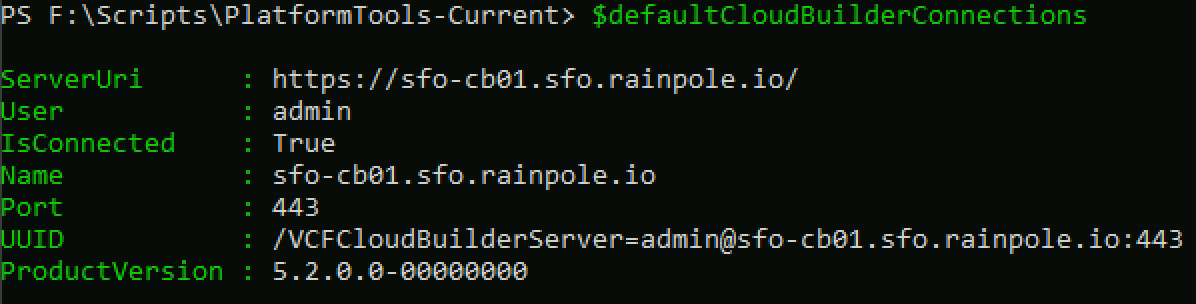
Connect-VcfCloudBuilderServer -Server sfo-cb01.sfo.rainpole.io -User admin -Password VMw@re1!VMw@re1!

This connection object is then stored in $defaultCloudBuilderConnections

Connect-VcfSddcManagerServer -Server sfo-vcf01.sfo.rainpole.io -User administrator@vsphere.local -Password VMw@re1!VMw@re1!

This connection object is then stored in $defaultsddcManagerConnections

Note: If you are working in a lab environment with untrusted certs you can pass -IgnoreInvalidCertificate to each of the above commands.

Once you have an active connection, you can begin to query the API. The example below returns a list of all hosts from SDDC Manager. One thing you will notice, if you are a PowerVCF user, is that you will need to parse the response a little more than you needed to with the PowerVCF cmdlet Get-VCFHost.

Running Invoke-VcfGetHosts will return a list of host elements

So to parse the response, you can do something like this, which will return the details of all hosts

But lets say you would like to filter the response to just the hosts from a specific workload domain. You first need the Id of the workload domain, in this case sfo-m01.

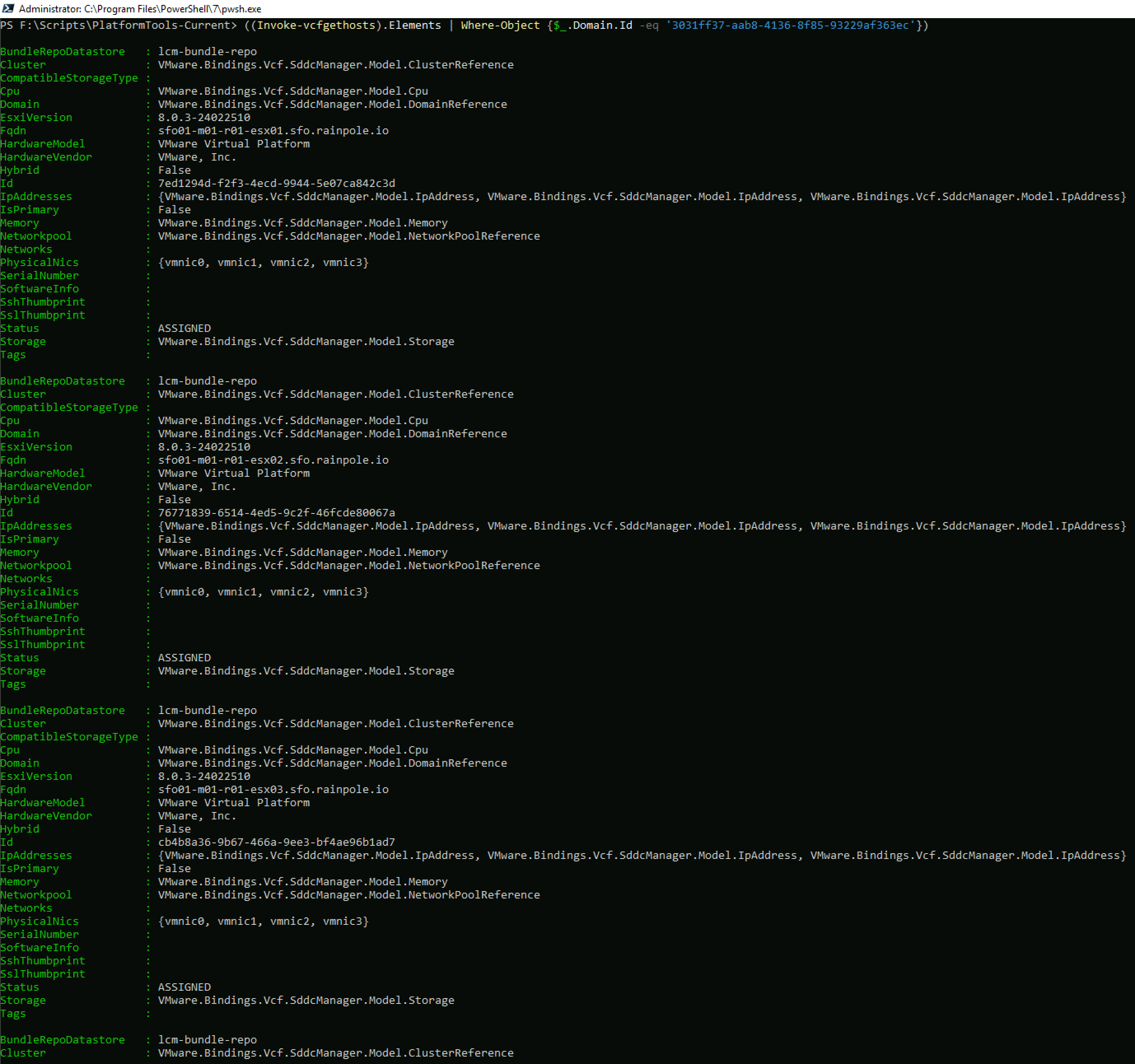
And you can then get a filtered list of hosts for that domain

Hopefully, this introduction was helpful, I will put together a series of blogs over the next few weeks covering some of the main VCF operations, such as bringup, commissioning hosts, deploying workload domains etc. As always, comments & feedback are welcome. Please let me know what your experience is with the new modules and I can feed it back to the engineering team.

Adding LDAP Users to vSphere SSO Groups Using PowerShell

I got a query from a customer how to add a user from an LDAP directory to an SSO group programmatically. There is no support in native PowerCLI for this that I am aware of but there is an open source module called VMware.vSphere.SsoAdmin which can be used to achieve the goal. I checked with my colleague Gary Blake and he had an example in the Power Validated Solutions Module that I was able to reference.

First off you need to install the VMware.vSphere.SsoAdmin module. This can be done from the PowerShell Gallery.

Install-Module VMware.vSphere.SsoAdmin

Once it is installed you can run the following to add an LDAP user to an SSO group

$vcFqdn = 'sfo-m01-vc01.sfo.rainpole.io'
$vcUser = 'administrator@vsphere.local'
$vcPassword = 'VMw@re1!'
$ldapDomain = 'sfo.rainpole.io'
$ldapUser = 'ldap_user'
$ssoDomain = 'vsphere.local'
$ssoGroup = 'administrators'

$ssoConnection = Connect-SsoAdminServer -Server $vcFqdn -User $vcUser -Password $vcPassword -SkipCertificateCheck
$targetGroup = Get-SsoGroup -Domain $ssoDomain -Name $ssoGroup -Server $ssoConnection
$ldapUserToAdd = Get-SsoPersonUser -Domain $ldapDomain -Name $ldapUser -Server $ssoConnection
$ldapUserToAdd | Add-UserToSsoGroup -TargetGroup $targetGroup

Running the code above results in the LDAP user being added to the SSO administrators group

Cleanup Failed Credential Tasks in VMware Cloud Foundation

I have covered how to clean up general failed tasks in Cleanup Failed Credentials Tasks in VMware Cloud Foundation in a previous post. Another type of task that can be in a failed state is a credentials rotation operation. Credential operations can fail for a number of reasons (the underlying component is unreachable at the time of the operation etc), and this type of failed task is a blocking task – i.e. you cannot perform another credential task until you clean up or cancel the failed task. The script below leverages the PowerVCF cmdlet Get-VCFCredentialTask to discover failed credential tasks and Stop-VCFCredentialTask to clean them up. As with all scripts, please test thoroughly in a lab before using it in production.

# Script to cleanup failed credential tasks in SDDC Manager
# Written by Brian O'Connell - Staff II Solutions Architect @ VMware
#User Variables
# SDDC Manager FQDN. This is the target that is queried for failed tasks
$sddcManagerFQDN = "sfo-vcf01.sfo.rainpole.io"
# SDDC Manager API User. This is the user that is used to query for failed tasks. Must have the SDDC Manager ADMIN role
$sddcManagerAPIUser = "administrator@vsphere.local"
$sddcManagerAPIPassword = "VMw@re1!"
# DO NOT CHANGE ANYTHING BELOW THIS LINE
#########################################
# Set TLS to 1.2 to avoid certificate mismatch errors
[Net.ServicePointManager]::SecurityProtocol = [Net.SecurityProtocolType]::Tls12
# Install PowerVCF if not already installed
if (!(Get-InstalledModule -name PowerVCF -MinimumVersion 2.4.0 -ErrorAction SilentlyContinue)) {
Install-Module -Name PowerVCF -MinimumVersion 2.4.0 -Force
}
# Request a VCF Token using PowerVCF
Request-VCFToken -fqdn $sddcManagerFQDN -username $sddcManagerAPIUser -password $sddcManagerAPIPassword
# Retrieve a list of failed tasks
$failedTaskIDs = @()
$ids = (Get-VCFCredentialTask -status "Failed").id
Foreach ($id in $ids) {
$failedTaskIDs += ,$id
}
# Cleanup the failed tasks
Foreach ($taskID in $failedTaskIDs) {
Stop-VCFCredentialTask -id $taskID
# Verify the task was deleted
Try {
$verifyTaskDeleted = (Get-VCFCredentialTask -id $taskID)
if (!$verifyTaskDeleted) {
Write-Output "Task ID $taskID Deleted Successfully"
}
}
catch {
Write-Error "Something went wrong. Please check your SDDC Manager state"
}
}

PowerVCF 2.4.0 Released

PowerVCF 2.4.0 was released today. Below are the highlights of this release

To install the latest release simply run Install-Module -Name PowerVCF -MinimumVersion 2.4.0

To update your current version run Update-module -Name PowerVCF

  • Updated Request-VCFToken cmdlet for better error handling.
  • Enhanced Get-VCFCluster cmdlet to return associated vSphere Distributed Switches.
  • Enhanced Get-VCFManager cmdlet to return the SDDC Manager version in x.y.z format.
  • Enhanced Get-VCFManager cmdlet to return the SDDC Manager build in xxxxxxx format.
  • Added Set-VCFCredentialAutoRotate cmdlet to configure or disable credential auto-rotation for a credential managed by SDDC Manager.
  • Added Get-VCFProxy cmdlet to retrieve the proxy configuration for the SDDC Manager.
  • Added Set-VCFProxy cmdlet to configure the proxy configuration for the SDDC Manager.
  • Added Get-VCFIdentityProvider cmdlet to retrieve the identity provider configuration.
  • Added Remove-VCFIdentityProvider cmdlet to delete an identity provider.
  • Added New-VCFIdentityProvider cmdlet to configure an embedded or external identity provider.
  • Added Update-VCFIdentityProvider cmdlet to update the configuration of an embedded or external identity provider.
  • Added cmdlet aliases:
    • Added Get-VCFNsxManagerCluster for Get-VCFNsxtCluster.
    • Added Get-VCFNsxEdgeCluster for Get-VCFEdgeCluster.
    • Added Get-VCFAriaLifecycle for Get-VCFVrslcm.
    • Added New-VCFAriaLifecycle for New-VCFVrslcm.
    • Added Remove-VCFAriaLifecycle for Remove-VCFVrslcm.
    • Added Reset-VCFAriaLifecycle for Reset-VCFVrslcm.
    • Added Get-VCFAriaOperations for Get-VCFVrops.
    • Added Get-VCFAriaOperationsConnection for Get-VCFVropsConnection.
    • Added Set-VCFAriaOperationsConnection for Set-VCFVropsConnection.
    • Added Get-VCFAriaOperationsLogs for Get-VCFVrli.
    • Added Get-VCFAriaOperationsLogsConnection for Get-VCFVrliConnection.
    • Added Set-VCFAriaOperationsLogsConnection for Set-VCFVrliConnection.
    • Added Get-VCFAriaAutomation for Get-VCFVra.
  • Fixed validateJsonInput function to prevent it from truncating directly passed JSON content.

Import a vLCM Cluster image to SDDC Manager using PowerVCF

Before you can deploy a vSphere Lifecycle Manager (vLCM) image based cluster in VMware Cloud Foundation, you must first import an image into the Image Management Inventory in SDDC Manager. You can do this via the SDDC Manager UI for a pre existing cluster.

Or you can now use PowerVCF to import the image thanks to the addition of New-VCFPersonality (vLCM images are known as personalities in VCF hence the name of the cmdlet).

The sequence of events to be able to import an image is as follows:

  1. Extract a vLCM image from a host that you wish to use in the workload domain. The host doesn’t need to be in the vCenter or SDDC Manager inventory
  2. Create a temporary cluster in vCenter (must be created in a VCF workload domain) and assign the image from the previous step.
  3. Import the image from the source cluster into SDDC Manager

To achieve step 1 we can use PowerCLI

# Variables

$sourceHostUrl = "https://sfo01-w01-esx01.sfo.rainpole.io"
$sourceHostBuild = "21495797"
$sourceHostRootPassword = "VMw@re1!"
$vcenterFQDN = "sfo-m01-vc01.sfo.rainpole.io"
$ssoUsername = "administrator@vsphere.local"
$ssoPassword = "VMw@re1!"
$vcenterDC = "sfo-m01-dc01"
$sddcManagerFQDN = "sfo-vcf01.sfo.rainpole.io"
 
# Retrieve the source host thumbprint

$response = [System.Net.WebRequest]::Create($sourceHostUrl)
$response.GetResponse()
$cert = $response.ServicePoint.Certificate
$sourceHostThumbprint = $cert.GetCertHashString() -replace '(..(?!$))','$1:'

# Connect to vCenter and import the image from the source host to the depot

connect-viserver -server $vcenterFQDN -user $vcenterUsername -password $vcenterPassword

$OfflineHostCredentials = Initialize-SettingsDepotsOfflineHostCredentials -HostName $sourceHostUrl -UserName "root" -Password $sourceHostRootPassword -Port 443 -SslThumbPrint $sourceHostThumbprint

$OfflineConnectionSpec = Initialize-SettingsDepotsOfflineConnectionSpec -AuthType "USERNAME_PASSWORD" -HostCredential $OfflineHostCredentials

Invoke-CreateFromHostDepotsOfflineAsync -SettingsDepotsOfflineConnectionSpec $SettingsDepotsOfflineConnectionSpec

# Create a temporary cluster and assign the image

$LcmImage = Get-LcmImage -Type BaseImage | where {$_.Version -match $sourceHostBuild}
$clusterID = (New-Cluster -Location $vcenterDC -Name 'vLCM-Cluster' -HAEnabled -DrsEnabled -BaseImage $LcmImage).ExtensionData.MoRef.Value

# Import the image to SDDDC Manager

Request-VCFToken -fqdn $sddcManagerFQDN -username $ssoUsername -password $ssoPassword

$vCenterID = (Get-VCFvCEnter | where {$_.fqdn -match $vcenterFQDN}).id

New-VCFPesonality -name "21495797" -vCenterId $vCenterID -clusterId $clusterID


That should import the new image into the SDDC Manager image repo for use creating a vLCM image based workload domain.

Check VCF License Mode with PowerVCF

Since the introduction of subscription based licensing for VMware Cloud Foundation (VCF+) there are now 2 licensing modes in VCF (Perpetual or Subscription). To make it easier to identify the subscription status of the system and each workload domain we have added support for Get-VCFLicenseMode into the latest release of PowerVCF 2.3.0.1004.

First you need to request an API token using

Request-VCFToken -fqdn sfo-vcf01.sfo.rainpole.io -username administrator@vsphere.local -password VMw@re1!

Then run the new cmdlet to retrieve the license mode Get-VCFLicenseMode