SSH access to the Supervisor Control Plane VMs uses an auto-generated password. The password for the system user on these VMs needs to be retrieved from associated vCenter.
IMPORTANT: Direct access to the vSphere Supervisor Control Plane VMs should be used with caution and for troubleshooting purposes only.
SSH to the vCenter as the root user, and enter the bash shell by typing shell
You should now be able to SSH to the IP of the vSphere Supervisor Control Plane VM (The IP returned will be the floating IP or FIP) with username root.
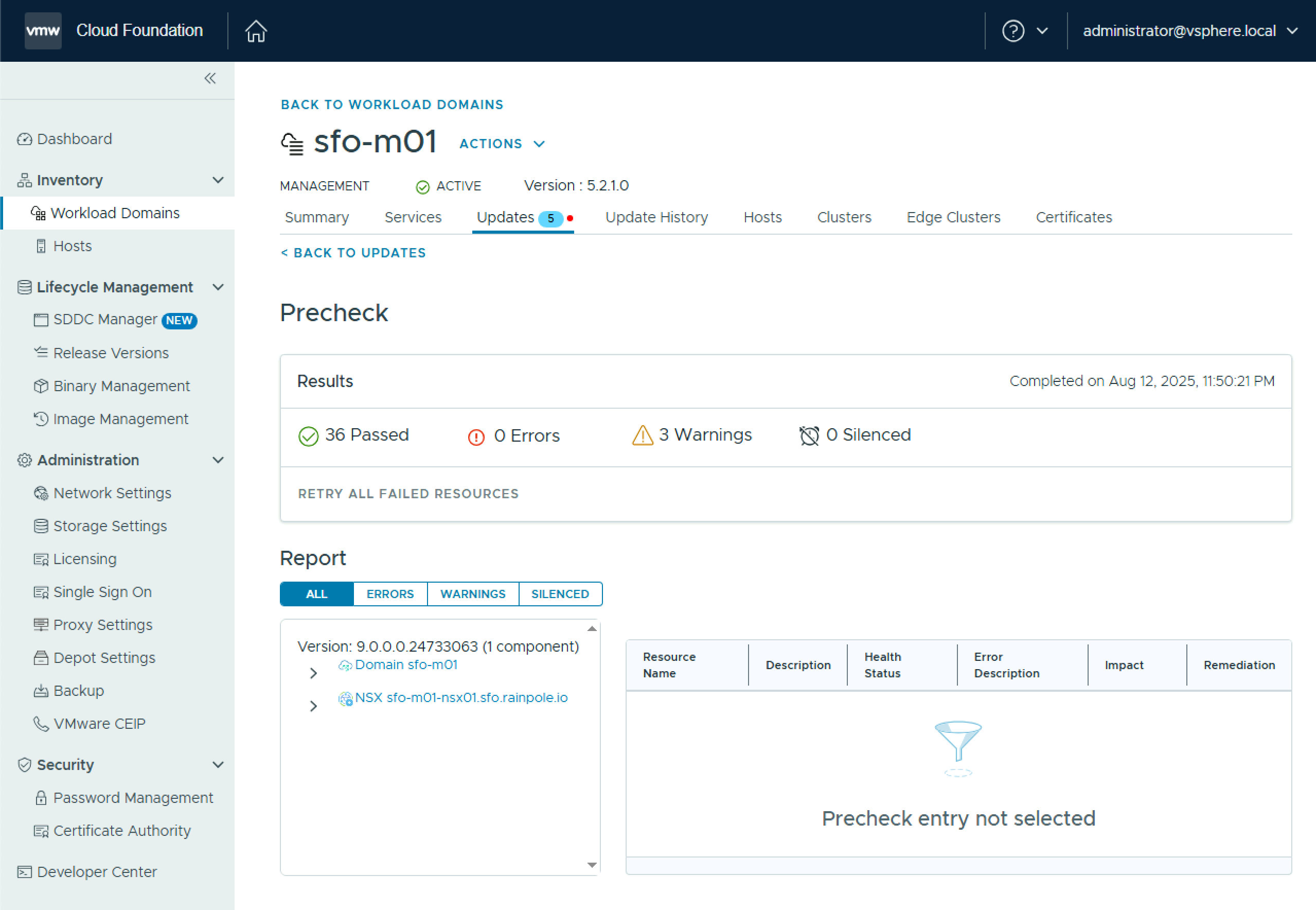
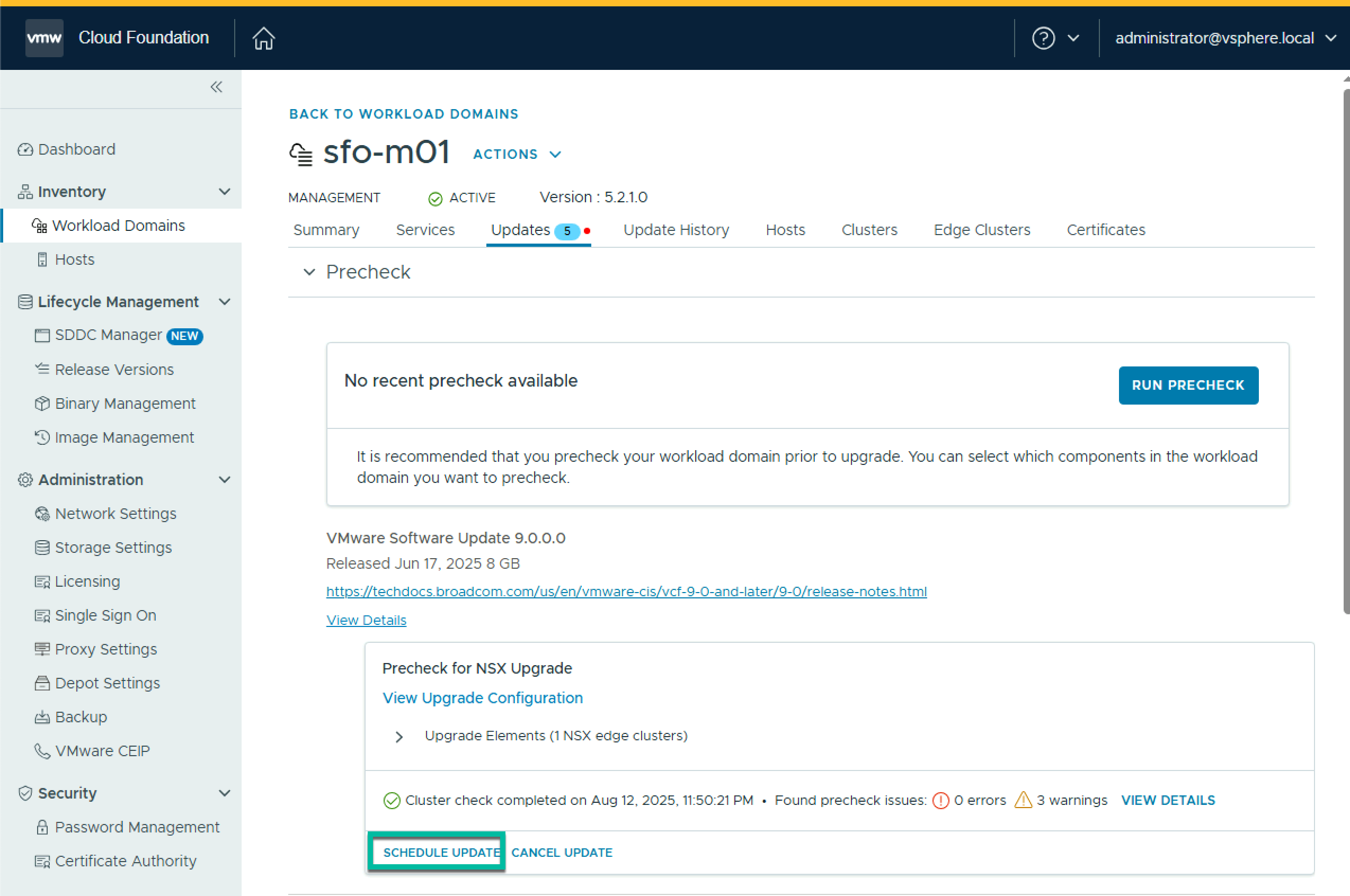
Once your upgrade binaries are downloaded, the next step is to upgrade NSX. Once again, navigate to Workload Domains > Management Workload Domain > Updates, and click Run Precheck and ensure all prechecks pass.
Once the pre-check passes, click Configure Update.
On the Introduction page, click Next.
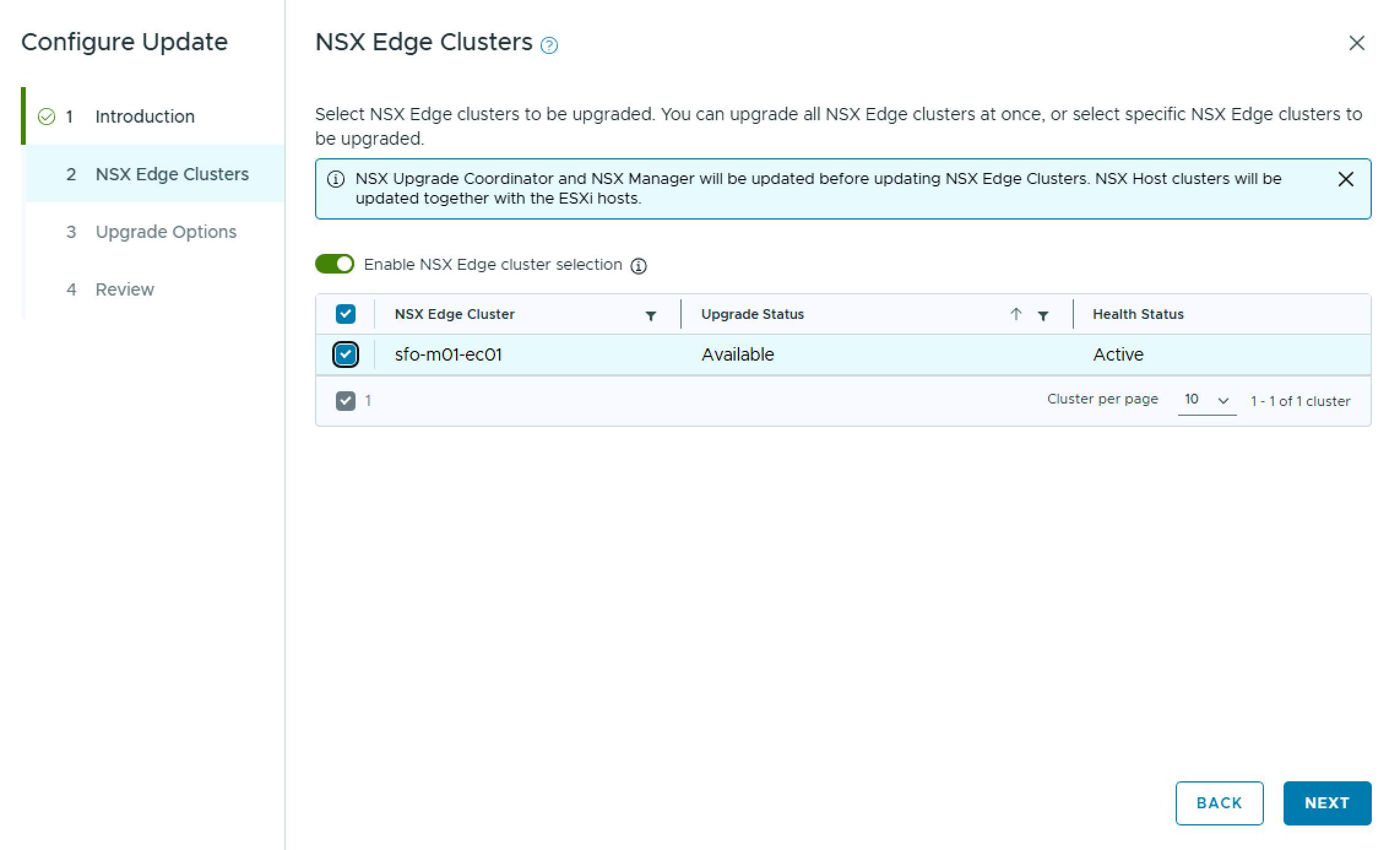
On the NSX Edge Clusters pane, you can choose to upgrade all NSX Edge Clusters, or select specific NSX Edge Clusters to upgrade. In my case, I only have one NSX Edge Cluster. Click Next.
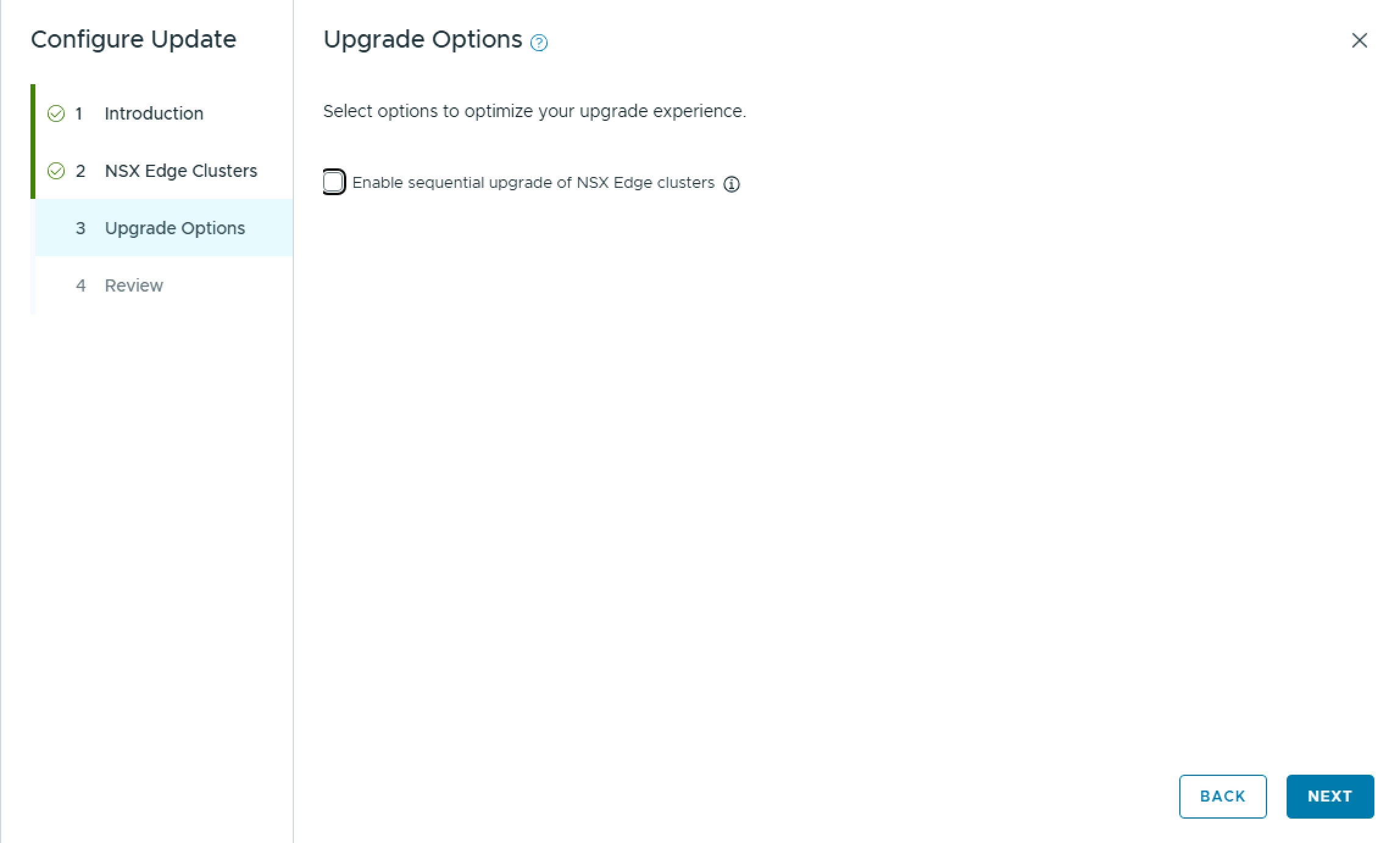
On the Upgrade Options pane, you have the option to Enable sequential upgrade of NSX Edge clusters. Click Next.
On the Review pane, review the choices made and click Run Precheck.
While it is called a Precheck, it will copy the upgrade bundle over to NSX Manager. During this copy, the progress will sit at 66% completed for a while, so dont panic.
Once it completes, review any errors & warnings before proceeding, and click Back to Updates.
Click Schedule Update
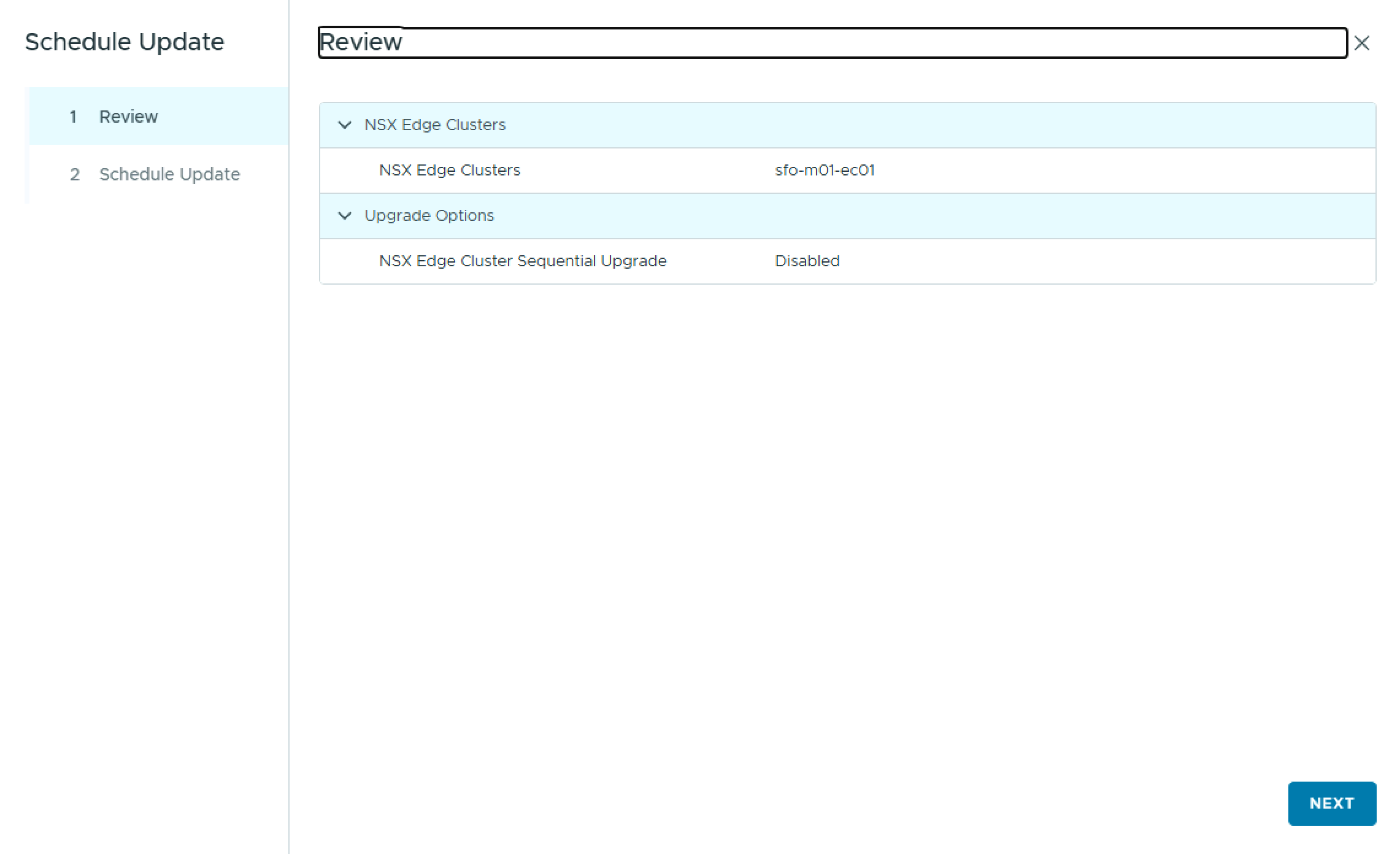
On the Review pane, click Next.
On the Schedule Update pane, select either Upgrade Now, or Schedule Update to choose a future start date & time, and check the box “I have reviewed the precheck report and have verified that the update is safe to apply“, and click Finish.
To monitor the status, click View Status.
Once the NSX upgrade completes, you can move on with the next step of upgrading vCenter.
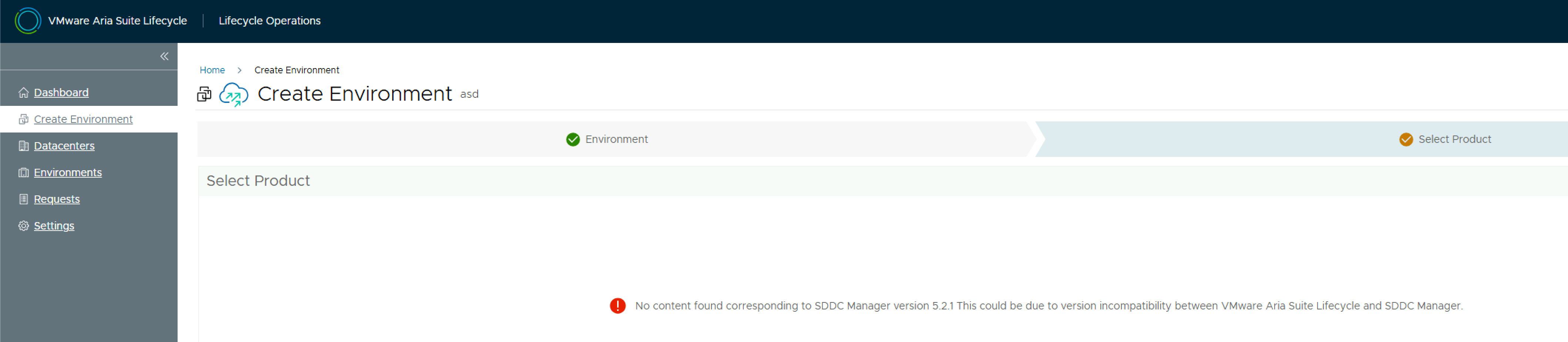
VCF 5.2.1 ships with Aria Lifecycle Manager 8.18. When you attempt to deploy an environment you will be met with the following error:
No content found corresponding to SDDC Manager version 5.2.1 This could be due to version incompatibility between VMware Aria Suite Lifecycle and SDDC Manager.
The reason for this is you need a product support pack (pspak) for Aria LCM 8.18 – specifically VMware Aria Suite Lifecycle 8.18.0 Product Support Pack 3. See this KB for more details on which product support pack maps to which release.
Download the pack from the Broadcom support site and log into Aria LCM. Navigate to Lifecycle Operations > Settings > Product Support Pack and click Upload.
Take a snapshot of Aria LCM and then click Select file and select the product support pack, and click Import.
Monitor the upload process in the Requests pane. Once the upload completes, navigate back to the Product Support Pack screen. The support pack will be shown. Click Apply Version & Submit. Aria LCM will restart services during the install.
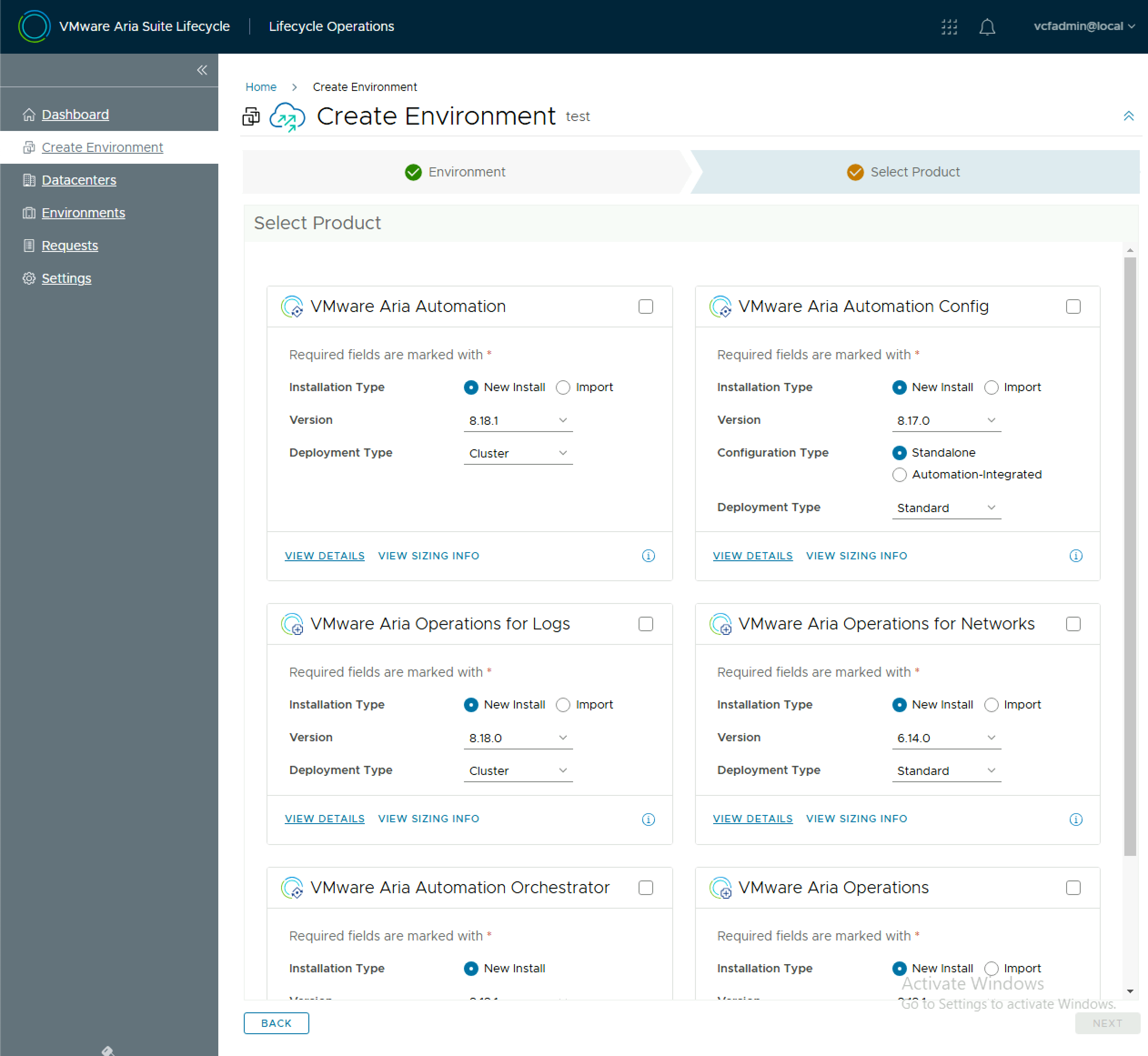
Once the install completes, you should not have a list of available products when creating an environment.
When you deploy a component using VMware Aria Suite Lifecycle, it stores the credentials in it’s locker. If you need to SSH to a VCF Operations appliance and you dont know the root password, you need to retrieve the root password from the VMware Aria Suite Lifecycle locker. To do this you need to query the Aria Suite Lifecycle API for a list of locker entries using basic auth.
GET https://flt-fm01.rainpole.io/lcm/locker/api/v2/passwords?from=0&size=10
From the response, locate the corresponding vmid for the VCF OPs appliance
Query the Aria Suite Lifecycle locker for the decrypted password, again with basic auth, passing the Aria Suite Lifecycle root password in the payload body.
#BODY (Aria Suite Lifecycle root password)
{
"rootPassword": "VMw@re1!VMw@re1!"
}
POST https://flt-fm01.rainpole.io/lcm/locker/api/v2/passwords/a789765f-6cfc-497a-8273-9d8bff2684a5/decrypted
One of my most visited posts in the past was this however the process for Photon OS 4 has changed slightly. pam_tally2 is no longer available. Now you need to use “failback”. The command to use now is as follows
I got a question from someone internally if renewing the VMCA signed certificate on SDDC Manager in a VCF instance is possible. For context, out-of-the-box SDDC Manager is signed by the VMCA on the management domain vCenter Server, but there is no supported way to renew that certificate. So before the VMCA certificate expires, you must replace it with a signed CA cert from your internal CA, or from an external 3rd party CA.
That said, it is possible to leverage VMCA to renew the cert on SDDC Manager. Here are some notes I had from doing this previously in the lab.
Disclaimer: This is not officially supported by VMware/Broadcom, use at your own risk.
First generate a CSR for SDDC Manager in the normal way using the SDDC Manager UI
Download the CSR as sfo-vcf01.sfo.rainpole.io.csr
SSH to the Management vCenter Server and do the following
mkdir /tmp/certs
upload CSR to /tmp/certs
cd /tmp/certs
vi /tmp/certs/cert.cfg
# cert.cfg contents replacing FQDN appropriately
[ req ]
req_extensions = v3_req
[ v3_req ]
extendedKeyUsage = serverAuth, clientAuth
authorityKeyIdentifier=keyid,issuer
authorityInfoAccess = caIssuers;URI:https://sfo-m01-vc01.sfo.rainpole.io/afd/vecs/ca
Save /tmp/certs/cert.cfg
On the management vCenter Server, generate the cert
I got a query from a customer how to add a user from an LDAP directory to an SSO group programmatically. There is no support in native PowerCLI for this that I am aware of but there is an open source module called VMware.vSphere.SsoAdmin which can be used to achieve the goal. I checked with my colleague Gary Blake and he had an example in the Power Validated Solutions Module that I was able to reference.
First off you need to install the VMware.vSphere.SsoAdmin module. This can be done from the PowerShell Gallery.
Install-Module VMware.vSphere.SsoAdmin
Once it is installed you can run the following to add an LDAP user to an SSO group
As part of my series on deploying and managing VMware Cloud Foundation using Terraform, this post will focus on deploying the VMware Cloud Foundation Cloud Builder appliance using the vSphere Terraform provider. I’ve used this provider in the past to deploy the NSX Manager appliance.
Check out the other posts on Terraform with VMware Cloud Foundation here:
Note the vCenter Server credentials in the above variables.tf do not have default values. We will declare these sensitive values in a terraform.tfvars file and add *.tfvars to our .GitIgnore file so they are not synced to our Git repo.
Now that we have all of our variables defined we can define our main.tf to perform the deployment. As part of this, we first need to gather some data from the target vCenter Server, so we know where to deploy the appliance.
# main.tf
# Data source for vCenter Datacenter
data "vsphere_datacenter" "datacenter" {
name = var.data_center
}
# Data source for vCenter Cluster
data "vsphere_compute_cluster" "cluster" {
name = var.cluster
datacenter_id = data.vsphere_datacenter.datacenter.id
}
# Data source for vCenter Datastore
data "vsphere_datastore" "datastore" {
name = var.datastore
datacenter_id = data.vsphere_datacenter.datacenter.id
}
# Data source for vCenter Portgroup
data "vsphere_network" "mgmt" {
name = var.mgmt_pg
datacenter_id = data.vsphere_datacenter.datacenter.id
}
# Data source for vCenter Resource Pool. In our case we will use the root resource pool
data "vsphere_resource_pool" "pool" {
name = format("%s%s", data.vsphere_compute_cluster.cluster.name, "/Resources")
datacenter_id = data.vsphere_datacenter.datacenter.id
}
# Data source for ESXi host to deploy to
data "vsphere_host" "host" {
name = var.compute_host
datacenter_id = data.vsphere_datacenter.datacenter.id
}
# Data source for the OVF to read the required OVF Properties
data "vsphere_ovf_vm_template" "ovfLocal" {
name = var.vm_name
resource_pool_id = data.vsphere_resource_pool.pool.id
datastore_id = data.vsphere_datastore.datastore.id
host_system_id = data.vsphere_host.host.id
local_ovf_path = var.local_ovf_path
ovf_network_map = {
"Network 1" = data.vsphere_network.mgmt.id
}
}
# Deployment of VM from Local OVA
resource "vsphere_virtual_machine" "cb01" {
name = var.vm_name
datacenter_id = data.vsphere_datacenter.datacenter.id
datastore_id = data.vsphere_ovf_vm_template.ovfLocal.datastore_id
host_system_id = data.vsphere_ovf_vm_template.ovfLocal.host_system_id
resource_pool_id = data.vsphere_ovf_vm_template.ovfLocal.resource_pool_id
num_cpus = data.vsphere_ovf_vm_template.ovfLocal.num_cpus
num_cores_per_socket = data.vsphere_ovf_vm_template.ovfLocal.num_cores_per_socket
memory = data.vsphere_ovf_vm_template.ovfLocal.memory
guest_id = data.vsphere_ovf_vm_template.ovfLocal.guest_id
scsi_type = data.vsphere_ovf_vm_template.ovfLocal.scsi_type
wait_for_guest_net_timeout = 5
ovf_deploy {
allow_unverified_ssl_cert = true
local_ovf_path = var.local_ovf_path
disk_provisioning = "thin"
ovf_network_map = data.vsphere_ovf_vm_template.ovfLocal.ovf_network_map
}
vapp {
properties = {
"ip0" = var.ip0,
"netmask0" = var.netmask0,
"gateway" = var.gateway,
"dns" = var.dns,
"domain" = var.domain,
"ntp" = var.ntp,
"searchpath" = var.searchpath,
"ADMIN_USERNAME" = "admin",
"ADMIN_PASSWORD" = var.ADMIN_PASSWORD,
"ROOT_PASSWORD" = var.ROOT_PASSWORD,
"hostname" = var.hostname
}
}
lifecycle {
ignore_changes = [
#vapp # Enable this to ignore all vapp properties if the plan is re-run
vapp[0].properties["ADMIN_PASSWORD"],
vapp[0].properties["ROOT_PASSWORD"],
host_system_id # Avoids moving the VM back to the host it was deployed to if DRS has relocated it
]
}
}
Now we can run the following to initialise Terraform and the required vSphere provider
terraform init
One the provider is initialised, we can then create a terraform plan to ensure our configuration is valid.
terraform plan -out=DeployCB
Now that we have a valid configuration we can apply our plan to deploy the Cloud Builder appliance.
Following on from my VMware Cloud Foundation Terraform Provider introduction post here I wanted to start by using it to create a new VCF instance (or perform a VCF bring-up).
As of writing this post I am using version 0.5.0 of the provider.
First off we need to define some variables to be used in our plan. Here is a copy of the variables.tf I am using. For reference, I am using the default values in the VCF Planning & Preparation Workbook for my configuration. Note “sensitive = true” on password and licence key variable to stop them from showing up on the console and in logs.
variable "cloud_builder_username" {
description = "Username to authenticate to CloudBuilder"
default = "admin"
}
variable "cloud_builder_password" {
description = "Password to authenticate to CloudBuilder"
default = "VMw@re1!"
sensitive = true
}
variable "cloud_builder_host" {
description = "Fully qualified domain name or IP address of the CloudBuilder"
default = "sfo-cb01.sfo.rainpole.io"
}
variable "sddc_manager_root_user_password" {
description = "Root user password for the SDDC Manager VM. Password needs to be a strong password with at least one alphabet and one special character and at least 8 characters in length"
default = "VMw@re1!"
sensitive = true
}
variable "sddc_manager_secondary_user_password" {
description = "Second user (vcf) password for the SDDC Manager VM. Password needs to be a strong password with at least one alphabet and one special character and at least 8 characters in length."
default = "VMw@re1!"
sensitive = true
}
variable "vcenter_root_password" {
description = "root password for the vCenter Server Appliance (8-20 characters)"
default = "VMw@re1!"
sensitive = true
}
variable "nsx_manager_admin_password" {
description = "NSX admin password. The password must be at least 12 characters long. Must contain at-least 1 uppercase, 1 lowercase, 1 special character and 1 digit. In addition, a character cannot be repeated 3 or more times consecutively."
default = "VMw@re1!VMw@re1!"
sensitive = true
}
variable "nsx_manager_audit_password" {
description = "NSX audit password. The password must be at least 12 characters long. Must contain at-least 1 uppercase, 1 lowercase, 1 special character and 1 digit. In addition, a character cannot be repeated 3 or more times consecutively."
default = "VMw@re1!VMw@re1!"
sensitive = true
}
variable "nsx_manager_root_password" {
description = " NSX Manager root password. Password should have 1) At least eight characters, 2) At least one lower-case letter, 3) At least one upper-case letter 4) At least one digit 5) At least one special character, 6) At least five different characters , 7) No dictionary words, 6) No palindromes"
default = "VMw@re1!VMw@re1!"
sensitive = true
}
variable "esx_host1_pass" {
description = "Password to authenticate to the ESXi host 1"
default = "VMw@re1!"
sensitive = true
}
variable "esx_host2_pass" {
description = "Password to authenticate to the ESXi host 2"
default = "VMw@re1!"
sensitive = true
}
variable "esx_host3_pass" {
description = "Password to authenticate to the ESXi host 3"
default = "VMw@re1!"
sensitive = true
}
variable "esx_host4_pass" {
description = "Password to authenticate to the ESXi host 4"
default = "VMw@re1!"
sensitive = true
}
variable "nsx_license_key" {
description = "NSX license to be used"
default = "AAAAA-BBBBB-CCCCC-DDDDD-EEEE"
sensitive = true
}
variable "vcenter_license_key" {
description = "vCenter license to be used"
default = "AAAAA-BBBBB-CCCCC-DDDDD-EEEE"
sensitive = true
}
variable "vsan_license_key" {
description = "vSAN license key to be used"
default = "AAAAA-BBBBB-CCCCC-DDDDD-EEEE"
sensitive = true
}
variable "esx_license_key" {
description = "ESXi license key to be used"
default = "AAAAA-BBBBB-CCCCC-DDDDD-EEEE"
sensitive = true
}
Next, we need our main.tf file that contains what we want to do – in this case – perform a VCF bring-up. For now, I’m using a mix of variables from the above variables.tf file and hard-coded values in my main.tf to achieve my goal. I will follow up with some better practices in a later post.
HashiCorp Terraform has become an industry standard, infrastructure-as-code & desired-state configuration tool for managing on-premises and cloud-based entities. If you are not familiar with Terraform, I’ve covered some early general learnings on Terraform in some posts here & here. The internal engineering team are working on a Terraform provider for VCF, so I decided to give it a spin to review its capabilities & test drive it in the lab.
First off what VCF operations is the Provider capable of supporting today:
Deploying a new VCF instance (bring-up)
Commissioning hosts
Creating network pools
Deploying a new VI Workload domain
Creating clusters
Expanding clusters
Adding users
New functionality is being added every week, and as with all new initiatives like this, customer consumption and adoption will drive innovation and progress.
The GitHub repo contains some great example files to get you started. I am going to do a few blog posts on what I’ve learned so far but for now, here are the important links you need if you would like to take a look at the provider